How to Use MAXIFS and MINIFS in Excel: Find the Highest and Lowest with Conditions
You have already met the conditional workhorses: SUMIFS totals the rows that match your conditions, COUNTIFS counts them, AVERAGEIFS averages them. MAXIFS and MINIFS are the last two members of the family, and they answer the natural remaining question, not "how many" or "how much on average", but "what is the biggest and smallest among the matching rows?".
Because they share the exact same criteria language as the rest of the family, you already know most of how they work. This guide fills in the two things that are genuinely new: their argument order (which trips people up), and a quiet little trap they spring when nothing matches. We will use the same race dataset for this guide as in the COUNTIFS and AVERAGEIFS guides. This means that the two articles can be read together as one short course. With finish times, "smallest" means fastest and "largest" means slowest, which makes every example instantly readable.
FAQ — What does this article answer?
Q: What do MAXIFS and MINIFS do?
A: MAXIFS returns the largest number in a range, looking only at the rows that meet one or more conditions. MINIFS returns the smallest. For example, =MINIFS(Minutes, City, "Berlin") gives the fastest finish time among Berlin runners.
Q: How are they different from MAX and MIN?
A: Plain MAX and MIN look at every value you give them. MAXIFS and MINIFS first filter by your criteria, then take the max or min of only the matching rows, the conditional version.
Q: What order do the arguments go in?
A: The value range comes first, then the criteria pairs: =MAXIFS(max_range, criteria_range1, criteria1, ...). This matches SUMIFS and AVERAGEIFS. There is no singular "MAXIF" or "MINIF", the plural form is the only one.
Q: Why do MAXIFS and MINIFS return 0?
A: Because no rows matched your criteria. Unlike AVERAGEIFS (which shows #DIV/0!), MAXIFS and MINIFS return a silent 0 when there is nothing to look at, which can masquerade as a real value. Guard against it by checking the count first.
Q: My Excel doesn't have MAXIFS. Why?
A: MAXIFS and MINIFS arrived in Excel 2019 and Microsoft 365. In Excel 2016 and earlier they don't exist; you use an array formula with MAX(IF(...)) instead (shown near the end).
The family, now complete
Feed all five conditional functions the same criteria and they select the same rows — they simply report a different fact about them.
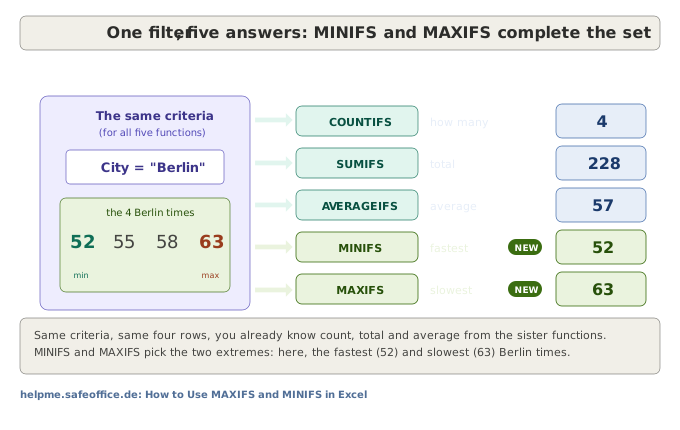
Count, total, average and now the two extremes. MINIFS and MAXIFS are the bookends of the group.
The dataset: the same weekend 10K
Columns A to D, data in rows 2 to 8, identical to the COUNTIFS/AVERAGEIFS guide:
| Cell | Runner (A) | City (B) | Category (C) | Minutes (D) |
|---|---|---|---|---|
| Row 2 | Anna | Berlin | Open | 52 |
| Row 3 | Ben | München | Senior | 61 |
| Row 4 | Cara | Berlin | Senior | 58 |
| Row 5 | Dan | Hamburg | Open | 49 |
| Row 6 | Eva | Berlin | Open | 55 |
| Row 7 | Finn | München | Open | 47 |
| Row 8 | Gwen | Berlin | Senior | 63 |
The syntax — value range first, and no singular
=MAXIFS(max_range, criteria_range1, criteria1, [criteria_range2, criteria2], ...)
=MINIFS(min_range, criteria_range1, criteria1, [criteria_range2, criteria2], ...)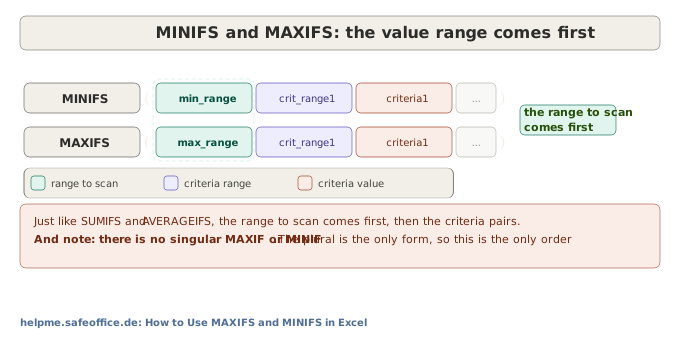
The range to scan, the numbers you want the max or min of, comes first, exactly like SUMIFS and AVERAGEIFS. Then come the criteria pairs, each a range and the condition it must meet, joined with a built-in AND. One small mercy compared with the other functions: there is no singular MAXIF or MINIF, so there is no last-versus-first argument confusion to worry about. The plural is the only form, and the value range is always first.
How they scan the matching rows
Both functions ignore every row that fails the filter, then take the extreme of what's left.
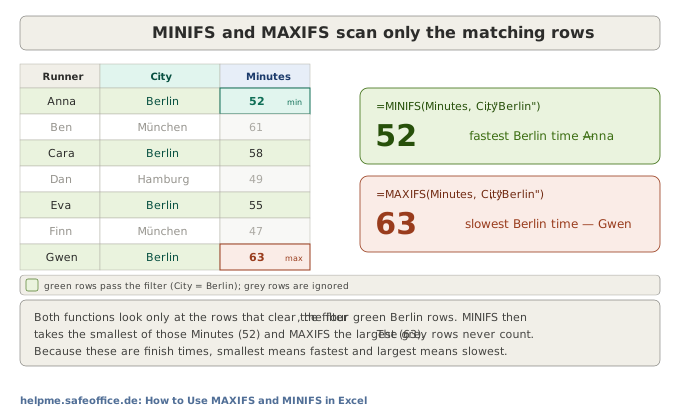
Fastest in a group: MINIFS, one condition
The fastest Berlin finish time:
=MINIFS(D2:D8, B2:B8, "Berlin")The Berlin times are 52, 58, 55 and 63; the smallest is 52, Anna. Because these are minutes, the smallest number is the fastest runner.
Slowest in a group: MAXIFS
The slowest Berlin finish time:
=MAXIFS(D2:D8, B2:B8, "Berlin")The largest of those four is 63, Gwen.
Two conditions
Every extra criteria pair narrows the field further. The fastest Berlin Senior:
=MINIFS(D2:D8, B2:B8, "Berlin", C2:C8, "Senior")Only Cara (58) and Gwen (63) are Berlin Seniors, so the fastest is 58. As always, a row must clear every condition to be considered.
A numeric condition
Criteria can compare numbers, too. The slowest time among sub-60-minute finishers:
=MAXIFS(D2:D8, D2:D8, "<60")The times under 60 are 52, 58, 49, 55 and 47; the largest is 58. Notice the value range and the criteria range are the same column here, that is perfectly allowed.
The trap: an empty match returns 0
This is the one behaviour that catches everyone, so it deserves a picture.
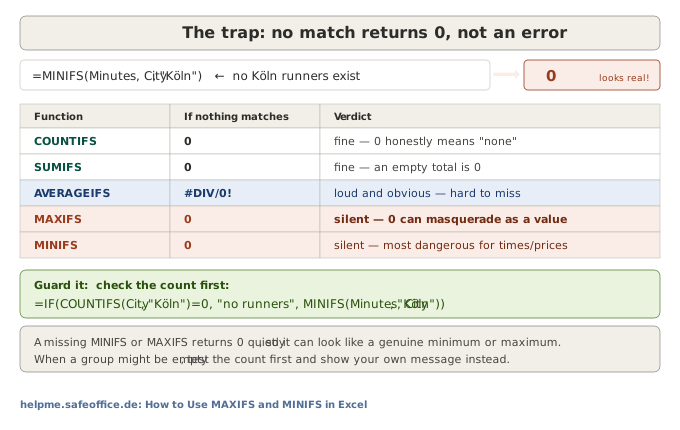
Ask for the fastest time in a city with no runners:
=MINIFS(D2:D8, B2:B8, "Köln")There are no Köln runners, so there is nothing to take the minimum of and MINIFS quietly returns 0. That 0 is dangerous precisely because it looks plausible: a 0-minute finish, a €0 price, a stock level of 0. AVERAGEIFS at least shouts #DIV/0! in the same situation; MAXIFS and MINIFS say nothing.
Guarding the 0
When a group might legitimately be empty, check the count first and supply your own message:
=IF(COUNTIFS(B2:B8, "Köln")=0, "no runners", MINIFS(D2:D8, B2:B8, "Köln"))Now an empty group reads "no runners" instead of a misleading 0. This pairs nicely with COUNTIFS, which you already know.
Older Excel: the array-formula way
If you are on Excel 2016 or earlier, MAXIFS and MINIFS simply aren't there. The classic replacement wraps MIN or MAX around an IF that builds a 1/0-style mask, entered as an array formula:
{=MIN(IF(B2:B8="Berlin", D2:D8))}You type it without the braces and press Ctrl+Shift+Enter; Excel adds the braces to show it is an array formula. It leans on the same TRUE/FALSE-becomes-a-mask idea covered in the Boolean logic guide. If you have a modern Excel, ignore all this and use MINIFS, it is far clearer.
Your family cheat-sheet
The whole conditional family on one card, what each returns, and what happens when nothing matches.

Common mistakes and how to fix them
Assuming a 0 is real. The biggest one: a MINIFS or MAXIFS of 0 may just mean "no matching rows". Guard it with the IF/COUNTIFS pattern above whenever a group might be empty.
Wrong argument order. The value range comes first. If a result looks wrong, check you didn't start with a criteria range.
Ranges of different heights. The value range and every criteria range must span exactly the same rows, or you get a #VALUE! error. A Table (below) prevents it.
Text in the value range. MAXIFS and MINIFS work on numbers. If the column holds text that looks like numbers (from an export), clean it first, or the extreme will be wrong.
Expecting OR. Criteria pairs are always AND. For "fastest in Berlin or München", take the MIN of two MINIFS: =MIN(MINIFS(D2:D8,B2:B8,"Berlin"), MINIFS(D2:D8,B2:B8,"München")).
Make it robust with Excel Tables
Fixed ranges like D2:D8 go stale as soon as a runner is added. Put the data in a Table (Ctrl+T) and use its column names:
=MINIFS(Race[Minutes], Race[City], "Berlin")
=MAXIFS(Race[Minutes], Race[City], "Berlin")
Now the ranges grow with the data automatically and can never fall out of step.
When to use which
Use MINIFS / MAXIFS for the smallest or largest value in a filtered group, fastest time, cheapest order, highest score in a region. Use COUNTIFS / SUMIFS / AVERAGEIFS for how many, the total, or the average of the same group. They all speak one criteria language, so once you can write one, you can write them all.
For anything MAXIFS can't express in a single cell, OR logic, or a condition based on a calculation, reach for SUMPRODUCT or a small helper column. And for exploring many groupings interactively, a PivotTable (with its Max and Min value settings) is the faster tool.
Summary
| Concept | What to remember |
|---|---|
| MAXIFS | =MAXIFS(max_range, range1, crit1, ...) — largest of the matching rows |
| MINIFS | =MINIFS(min_range, range1, crit1, ...) — smallest of the matching rows |
| Value range first | just like SUMIFS and AVERAGEIFS |
| No singular | there is no MAXIF or MINIF, only the plural |
| AND is built in | every criteria pair must be satisfied |
| Empty match → 0 | a silent 0, not an error guard with IF + COUNTIFS |
| Criteria style | operator in quotes: ">50", "<>x", "M*", ">="&C1 |
| Version | Excel 2019 / Microsoft 365; older Excel uses {=MIN(IF(...))} |
| Same-size rule | every range must have the same rows |
| Keep it robust | use an Excel Table with structured references |
MAXIFS and MINIFS round out the conditional family. Count, total, average, largest, smallest, five questions, one criteria language. The only genuinely new things to remember are that the value range goes first, and that an empty match hands you a quiet 0 rather than an error.
What to read next
These pair most naturally with their sibling functions and with the error-handling ideas behind the 0 guard. Start with the COUNTIFS/AVERAGEIFS guide if you haven't, since it shares this exact dataset. The SUMIFS guide is the workhorse of the family, the Boolean logic guide explains the array-formula fallback for older Excel, and the Tables guide keeps your ranges from going stale.
See: How to Use COUNTIFS and AVERAGEIFS in Excel
See: How to Use SUMIFS to Sum with Multiple Criteria in Excel