FAQ — What Does This Article Answer?
What is the easiest way to combine data from multiple sheets in Excel 365?
A: VSTACK. It takes ranges from different sheets and stacks them into one block. A formula like =VSTACK(Jan!A2:D50, Feb!A2:D50, Mar!A2:D50) turns three monthly sheets into one table. Change any source sheet and the result updates on its own.
What did people use before VSTACK? And why was it a pain?
A: Mostly copy-paste, Power Query, VBA macros, or INDIRECT. Copy-paste breaks fast. You have to redo it every time the data changes. INDIRECT works, but it is volatile. It recalculates on every single change in the file, which slows big workbooks down. Power Query is strong, but it needs a refresh step and a bit of learning. VSTACK skips all of that. One formula and you are done. We do not recommend volatile functions like INDIRECT.
Can I filter or sort the combined result?
A: Yes. VSTACK gives you a spill range, so you can wrap it in SORT or FILTER. For example, =SORT(VSTACK(Jan!A2:D50, Feb!A2:D50), 1) sorts all rows from both sheets by column 1. Combine, filter, sort, all in one formula.
Does the result update when I add rows to a source sheet?
A: It does, if your source ranges are Excel Tables. A Table reference like Jan_Data[#Data] grows on its own when you add rows. If you use a fixed range like A2:D50, you have to extend it yourself, or use a big range and filter out the blanks.
What is the difference between VSTACK and HSTACK?
A: VSTACK stacks ranges on top of each other. It adds rows. HSTACK puts ranges side by side. It adds columns. Use VSTACK to combine rows from many sheets. Use HSTACK to join columns that belong together.
Combining data from many sheets used to be a real chore. Dynamic arrays fix that for good.
Every team hits the same wall. January data sits on one sheet. February on another. March on a third. And the summary sheet needs all of it in one place. For years the only answers were copy-paste, a macro, or a messy INDIRECT formula. None of them updated on their own. Someone had to step in every time new data showed up.
VSTACK and HSTACK changed that. They were added in Excel 365. Pair them with the spill behaviour of dynamic arrays and you can pull data from any number of sheets into one live table. One cell. One formula. Always up to date.
This article walks through the whole thing. The old methods and why they fall short. How VSTACK and HSTACK work. How to mix them with FILTER and SORT. And why Excel Tables are the trick that makes it all run by itself.
Why the old methods fall short
Before VSTACK, people leaned on three tricks.
Manual copy-paste gives you a snapshot, and that is the problem. The moment the source data changes or a new row shows up, your summary is out of date. Someone has to remember to do it all again.
3D references like =SUM(Jan:Mar!B2) can add up values across sheets. But they cannot build a combined table row by row. They are fine for cross-sheet math. They are not for pulling raw data together.
INDIRECT with sheet names can point at different sheets using text. But INDIRECT is volatile. It recalculates every time any cell in the workbook changes. In a big file you really feel that. It also returns single values or fixed ranges, not a clean spill. Skip it.
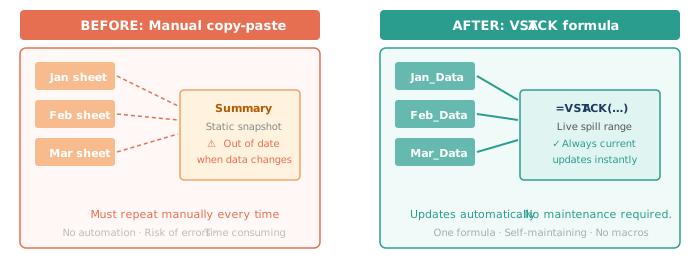
Dynamic arrays drop the refresh problem completely. The formula recalculates only when the data that matters actually changes. The output is always current.
VSTACK — stacking sheets vertically
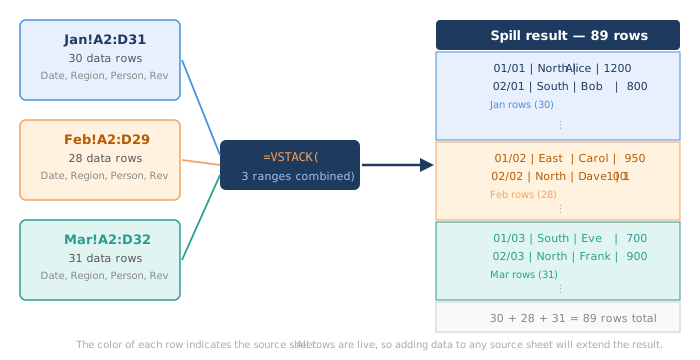
=VSTACK(array1, [array2], …)VSTACK takes two or more ranges and stacks them top to bottom. You get one spill range. It has all the rows from every source range added together. And it is as wide as the widest source range.
Basic example: combine three monthly sales tables.
=VSTACK(Jan!A2:D50, Feb!A2:D50, Mar!A2:D50)This gives you a table. First all the January rows. Then February. Then March. If January has 30 rows, February has 28, and March has 31, you get 89 rows.
Handling different row counts
A fixed range like A2:D50 grabs empty rows when you have fewer than 49 rows of real data. Two easy fixes.
Option 1 — Use Excel Tables. Turn each month's data into a Table with Ctrl+T. Give it a name like Jan_Data. The reference Jan_Data[#Data] always points at exactly the rows with data. It grows and shrinks on its own.
=VSTACK(Jan_Data[#Data], Feb_Data[#Data], Mar_Data[#Data])Option 2 — Filter out the empty rows. Wrap the result in FILTER and drop any row where the key column is blank.
=FILTER(
    VSTACK(Jan!A2:D200, Feb!A2:D200, Mar!A2:D200),
    VSTACK(Jan!A2:A200, Feb!A2:A200, Mar!A2:A200) <> ""
)
The FILTER condition is just a VSTACK of the key column from all three sheets. Any row where that column is empty gets left out.
HSTACK — joining columns side by side
=HSTACK(array1, [array2], …)HSTACK puts ranges next to each other, left to right. You use it when data about the same rows is split across columns that need to sit together.
Example: names and job titles live in columns A and B on one sheet. Email addresses live in column C on another sheet. Both lists cover the same 40 people in the same order.
=HSTACK(People!A2:B41, Contacts!C2:C41)You get a 40-row table with three columns. Name, title, and email. Joined from two sheets with zero copy-paste.
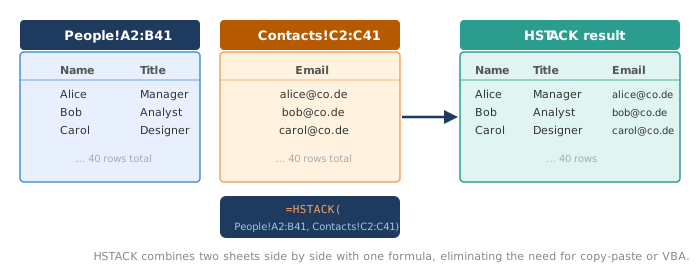
You will reach for HSTACK less often than VSTACK. But it solves a real problem when columns are kept apart for access or organisation reasons.
Adding a "which sheet did this come from" column
When you stack rows from many sheets, you often want to know where each row came from. The clean way is to build a label column with HSTACK at the same time.
=VSTACK(
    HSTACK(IF(Jan_Data[#Data]<>"", "January", ""), Jan_Data[#Data]),
    HSTACK(IF(Feb_Data[#Data]<>"", "February", ""), Feb_Data[#Data]),
    HSTACK(IF(Mar_Data[#Data]<>"", "March",    ""), Mar_Data[#Data])
)
For each month, HSTACK adds a column with the sheet name in front. Then VSTACK stacks the three labelled blocks. Now the first column tells you the source month for every row.
If your blocks are always full, here is a simpler version.
=VSTACK(
    HSTACK(MAKEARRAY(ROWS(Jan_Data[#Data]),1,LAMBDA(r,c,"January")), Jan_Data[#Data]),
    HSTACK(MAKEARRAY(ROWS(Feb_Data[#Data]),1,LAMBDA(r,c,"February")), Feb_Data[#Data]),
    HSTACK(MAKEARRAY(ROWS(Mar_Data[#Data]),1,LAMBDA(r,c,"March")),    Mar_Data[#Data])
)
MAKEARRAY builds a column of the same text, one row per source row. It matches the height of each table exactly.
Mixing in SORT and FILTER
VSTACK returns a normal spill range. So every other dynamic array function works on it directly.
Sort the combined result
=SORT(
    VSTACK(Jan_Data[#Data], Feb_Data[#Data], Mar_Data[#Data]),
    3, 1
)
The 3 sorts by column 3, say a date column. The 1 sorts ascending. You get one combined table from all three sheets, in date order.
Filter the combined result
=FILTER(
    VSTACK(Jan_Data[#Data], Feb_Data[#Data], Mar_Data[#Data]),
    VSTACK(Jan_Data[Region], Feb_Data[Region], Mar_Data[Region]) = "North"
)
The FILTER condition is a VSTACK of just the Region column. It lines up row for row with the main VSTACK. Only the "North" rows show up.
Chain SORT and FILTER together
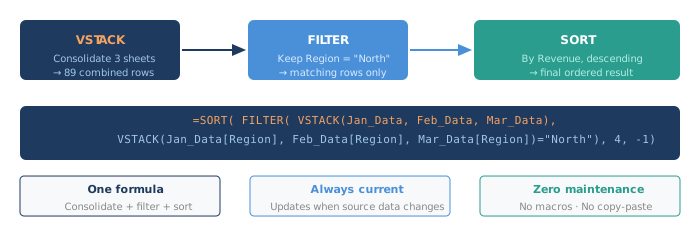
=SORT(
    FILTER(
        VSTACK(Jan_Data[#Data], Feb_Data[#Data], Mar_Data[#Data]),
        VSTACK(Jan_Data[Region], Feb_Data[Region], Mar_Data[Region]) = "North"
    ),
    4, -1
)
This is a full pipeline. Combine three sheets. Keep only "North". Sort by column 4 (Revenue) from high to low. All in one formula.
Why Excel Tables make it run by itself
The one choice that decides whether your setup needs zero upkeep is how you define the source ranges.
| Source definition | What happens when you add rows |
|---|---|
Fixed range A2:D50 |
New rows past D50 are quietly left out |
Big range A2:D9999 |
Picked up, but you get blank rows, so you need FILTER |
Excel Table TableName[#Data] |
Grows on its own, VSTACK always sees every data row |
Excel Tables are the right answer. Turn every source range into a Table. Give each one a clear name. Reference it with TableName[#Data]. From then on, adding a row to any source sheet grows the Table reference, and your VSTACK formula updates on the next calculation. No babysitting.
What about a lot of sheets?
Say you have 12 monthly sheets, or one sheet per region. Writing VSTACK with 12 ranges is long, but it is honest and it just works.
You might be tempted to pull the sheet names from a list with INDIRECT. Please don't. INDIRECT is volatile, so it slows your file down, and it does not hand VSTACK a clean spill range anyway. It looks clever and then it bites you later.
Here is the simple rule.
If the sheets are known and the list does not really change, list them out in VSTACK. It is the most reliable option, and anyone can read it.
=VSTACK(
    Jan_Data[#Data], Feb_Data[#Data], Mar_Data[#Data],
    Apr_Data[#Data], May_Data[#Data], Jun_Data[#Data],
    Jul_Data[#Data], Aug_Data[#Data], Sep_Data[#Data],
    Oct_Data[#Data], Nov_Data[#Data], Dec_Data[#Data]
)
If the number of sheets really changes a lot, and you do not want to touch the formula every time, use Power Query instead. It can read every sheet in the file at once. You hit refresh when you want fresh data. It is not a dynamic array, but it is not volatile either, so your file stays fast.
So: known sheets, use VSTACK. A growing, unknown pile of sheets, use Power Query. Either way, you never need INDIRECT.
Quick tips and common mistakes
| Situation | What to do |
|---|---|
| Source data keeps growing | Use Excel Tables, not fixed ranges |
| Blank rows show up in the result | Add FILTER to drop rows where the key column is empty |
| You need to know which sheet a row came from | Add a label column with HSTACK and MAKEARRAY |
| You are joining columns, not rows | Use HSTACK instead of VSTACK |
| Too many sheets to list by hand | Use Power Query for a dynamic sheet list |
| You want the result sorted | Wrap it in SORT after VSTACK |
| You want the result filtered | Wrap it in FILTER, with a matching VSTACK of the filter column as the condition |
| The file feels slow | Avoid volatile functions like INDIRECT, use Table references instead |
Why this matters
The biggest win from VSTACK is not really technical. It is about how your team works.
Once the formula is in place and your source data lives in Excel Tables, the combined view updates by itself. Nobody has to remember to run it. The summary is never two weeks out of date because someone was on leave. There is no macro to fix when a sheet gets renamed.
The formula is the process. And when the process is a formula, it runs every time the file opens and every time a source Table changes. It cannot be forgotten, delayed, or broken by a slip of the hand the way a manual job can.
That is the real promise of dynamic arrays. Not just shorter formulas. Processes that live inside the spreadsheet and keep themselves consistent.
This article is part of the helpme.safeoffice.de series, with practical guides on Excel functions, workbook modeling, and data solutions. The series is for businesses that want simple, reliable tools everyone can understand.