How to work with dates and times in Excel
FAQ — What Does This Article Answer?
Q: Why does Excel display an unusual number instead of a date?
A: Excel stores every date as a number. If the cell is formatted as "General" or "Number", you will see this number instead of the date. This article explains how to fix it.
Q: How do I calculate how many days are left until a deadline?
A: Subtract today's date from the deadline using the formula =B2 - TODAY(). This article demonstrates this and several other common date calculations.
Q: What is the difference between TODAY() and NOW()?
A: TODAY() returns today's date without time component. NOW() returns the current date and time and updates every time Excel is recalculated. Both are covered in this article.
Q: How do I count only working days between two dates?
A: Use the formula =NETWORKDAYS(start, end). This automatically skips Saturdays and Sundays, and you can also provide a list of public holidays. This article explains the full syntax.
Q: My imported dates are not working in formulas. Why?
A: They are probably stored as text rather than as real dates. This article shows how to identify and resolve this issue.
The secret to working with dates in Excel
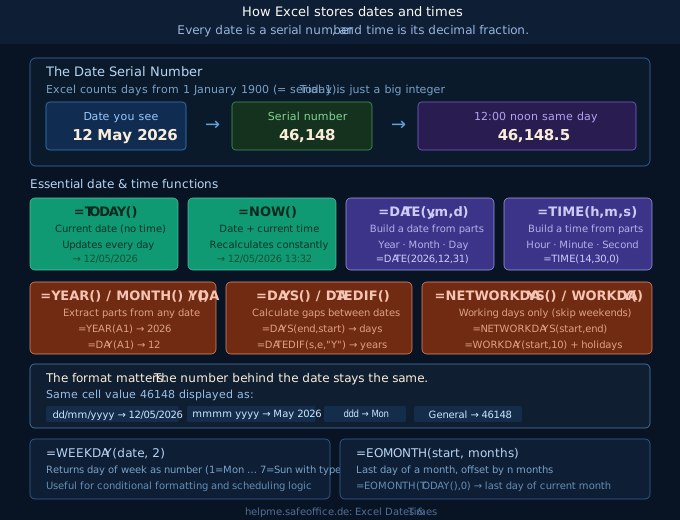
Before you can work with dates in Excel with confidence, there is one thing you need to understand: A date is just a number.
Excel starts counting days from 1 January 1900, calling this day number 1. Every subsequent day is given the next number. 12 May 2026 is day number 46,148. That's all it is — a large integer stored in a cell.
Time works in the same way, but as a decimal fraction of a day. Noon (12:00) is 0.5. 6 a.m. is 0.25. The number 46148.5 means 12 May 2026 at noon.
Why does this matter? Because it means you can perform arithmetic operations on dates and times just as you would with ordinary numbers. Subtract two dates to find the number of days between them. Add 30 to a date to move forward 30 days. This is an extremely powerful concept once you understand it.
Entering and formatting dates
Enter a date in a cell in the format expected by your system, for example, 12/05/2026or 2026-05-12. Excel will recognise it and automatically convert it to a serial number. The cell will then display the date in a readable format.
If you ever want to see the underlying number, select the cell and set the format to General or Number. The number you see is exactly what Excel uses for all calculations.
To change how the date appears, right-click the cell, select Format Cells, and choose a date format or enter a custom code such as dd/mm/yyyy, mmmm yyyy (which displays "May 2026"), or ddd (which displays the short weekday name). The number inside the cell does not change; only the display.
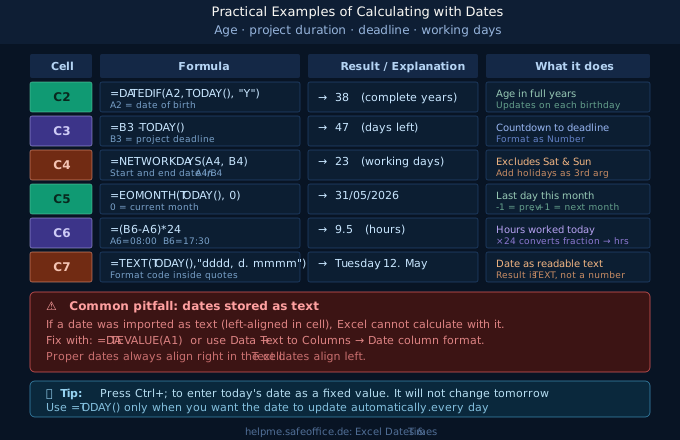
💡 Tip: Press Ctrl+; (semicolon) to insert today's date as a fixed value. It will not change tomorrow. Use =TODAY() only when you want it to update automatically.
The most important date functions
TODAY() and NOW()
=TODAY() returns the date without the time. This updates every time Excel recalculates the workbook. This typically happens when you open the file or enter data.
=NOW() returns the current date and time. Use this function when you need a timestamp.
Neither function takes any arguments; simply leave the parentheses empty.
=TODAY()
=NOW()
Building a date with DATE()
Sometimes you have the year, month, and day are stored in separate cells. The DATE() function combines them into a proper date:
=DATE(2026, 12, 31)This is especially useful when calculating a date dynamically. For example, the first day of the current month:
=DATE(YEAR(TODAY()), MONTH(TODAY()), 1)Extracting parts of a date
If you have a date in cell A1 and want to know just the year, month or day, use the following formulas:
=YEAR(A1)    → 2026
=MONTH(A1)   → 5
=DAY(A1)     → 12
These functions are useful for grouping data in reports — for example, to filter all rows from a given year.
Calculating with dates
This is where the real power lies!
Days between two dates
The simplest calculation is to subtract the earlier date from the later one.
=B2 - A2Make sure to format the result cell as a Number (not a date), otherwise Excel will also show the result as a date.
Days until the deadline
=B2 - TODAY()If the value in cell B2 is a future deadline, this formula will give you the number of days remaining. Format the result cell as a number.
Age in full years — DATEDIF()
DATEDIF is a hidden Excel function (not listed in autocomplete, but it works). It calculates the difference between two dates in complete years, months, or days.
=DATEDIF(A2, TODAY(), "Y")A2— the starting date (e.g. date of birth)TODAY()— the end date"Y"— returns complete years. Use"M"for months and"D"for days.
Working days — NETWORKDAYS()
NETWORKDAYS counts only working days (Monday to Friday) between two dates. Weekends are excluded automatically.
=NETWORKDAYS(A2, B2)You can also pass a list of public holidays as a third argument:
=NETWORKDAYS(A2, B2, Holidays)Where Holidays is a named range or a cell range containing dates to exclude.
To find a delivery date that is exactly 10 working days from today, use the companion function WORKDAY:
=WORKDAY(TODAY(), 10)Working with time
Time values work in exactly the same way as date values — they are simply decimal fractions. You can add to them, subtract from them, and format them.
Calculating hours worked
If the start time is in cell A1 (e.g. 08:00) and the end time is in cell B1 (e.g. 17:30), the number of hours worked is:
=(B1 - A1) * 24The subtraction gives you the decimal fraction of a day. Multiplying by 24 converts it to hours. Format the result cell as Number.
Combining DATE and TIME
You can add a date and a time together to get a full date and time value:
=DATE(2026,5,12) + TIME(14,30,0)This gives you 12 May 2026 at 14:30. Format the cell as dd/mm/yyyy hh:mm to display it correctly.
Common beginner mistakes
Dates stored as text
This is the most common problem. When you import data from another system, such as a CSV file, a database export or a copied web table, the dates will often arrive as text strings. Excel cannot perform calculations on text.
How to spot it: real dates are right-aligned in the cell. Text is left-aligned. Also, if a formula such as =YEAR(A1) returns an error, the date is probably a text string.
How to fix it: use =DATEVALUE(A1) to convert a text date to a real date serial number. Then format the result as a date.
Alternatively, select the column, go to Data → Text to Columns, click through to step 3 and select the Date column format that matches the order of the dates in your data (DMY, MDY, or YMD).
Incorrect result when subtracting times
If the result of subtracting two times looks like a date (e.g. "00 January 1900"), the result cell is formatted as a date. Change the format to Number or a time format such as [h]:mm.
Adding months incorrectly
Never add 30 days to move one month forward — months have different lengths. Use EDATE instead:
=EDATE(A1, 1)This adds exactly one calendar month. EDATE(A1, -1) subtracts one month. To find the last day of a month, use:
=EOMONTH(A1, 0)A practical tip for reports
When building monthly reports, it is useful to automatically calculate the first and last days of each month. For example, if you have the month number in cell A1 and the year in cell B1, you can use the following formula:
=DATE(B1, A1, 1)              → first day of the month
=EOMONTH(DATE(B1, A1, 1), 0)  → last day of the month
These two formulas form the basis of any dynamic report structure.
Summary
Excel dates are numbers. Once you accept that, everything else follows logically: you can subtract them to find durations, add to them to project into the future and format them to display them as you wish. The core functions to remember are:
| Goal | Function |
|---|---|
| Today's date | =TODAY() |
| Build a date | =DATE(year, month, day) |
| Extract year/month/day | =YEAR(), =MONTH(), =DAY() |
| Days between two dates | =DAYS(end, start) or subtraction |
| Complete years (age) | =DATEDIF(start, end, "Y") |
| Working days | =NETWORKDAYS(start, end) |
| Last day of a month | =EOMONTH(date, 0) |
| Convert text to date | =DATEVALUE(text) |
Start with TODAY() and simple subtraction. Once you are comfortable with that, you will find that the other functions all follow the same logic: plug in a date and get a date or a number back.