Learn how to handle errors in Excel formulas using IFERROR, IFNA, ISERROR, ISERR, ISNA, and discover when it is best to leave errors visible.
FAQ — What does this article answer?
Q: What is the difference between the IFERROR and IFNA? functions
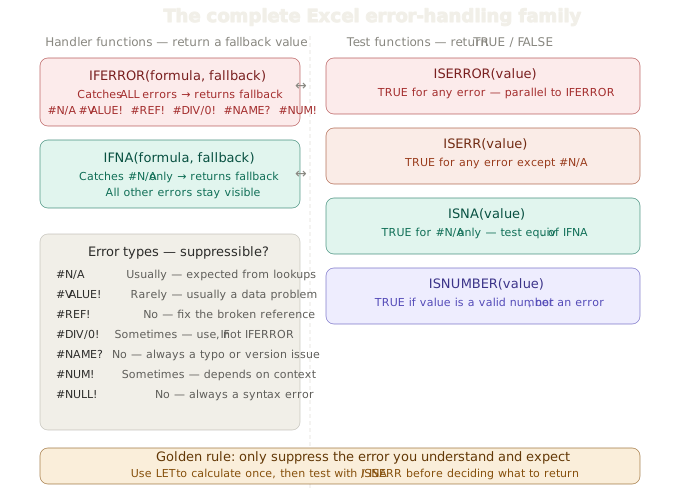
A: IFERROR catches all the errors that Excel can produce, including #N/A, #VALUE!, #REF!, #DIV/0!, #NAME?, #NUM!, and #NULL!. IFNA only catches the #N/A error. The difference between the two functions is the entire point: IFNA handles the one expected error and leaves all other errors visible so you can find and fix real formula problems.
Q: Why is the IFERROR function dangerous, and when should it be avoided?
A: It hides all errors, including those that indicate genuine formula bugs. A #VALUE! error usually means that you are performing mathematical operations on a text cell, which is a real data problem. Wrapping it in IFERROR(..., 0) makes the result appear correct when it is not. The incorrect figure then silently flows into your reports, pivot tables, and totals, with no indication that anything is wrong.
Q: When is it actually the right choice to use the IFERROR function?**
A: It is the right choice when you want to handle every possible error in the same way and are confident that your formula logic is correct. One legitimate use is to display a blank cell instead of an error in a finished dashboard, where all data quality issues have already been addressed. It is also appropriate when used carefully with LET function to check intermediate results.
Q: Which function should I use instead of IFERROR for VLOOKUP and XLOOKUP?
A: IFNA. If you search for something that isn't in the lookup range, you'll get back a #N/A. This is to be expected and it's easy enough to deal with. If the data types are wrong, it returns #VALUE! — that's a data problem you need to know about. IFNA can tell the difference between the two, but IFERROR can't.
Q: I was wondering if there are any other error-handling functions besides IFERROR and IFNA?
A: Yeah, you can use the full IS family to test for errors without suppressing them. ISERROR() returns TRUE for any error, while ISERR() returns TRUE for any error except #N/A. Finally, ISNA() returns TRUE only for #N/A. ISNUMBER is used to check if a value is a valid number. Put together with LET, these functions let you build error handling that's precise and easy to read. They work by distinguishing between different failure modes, rather than just converting all of them to zero.
When it comes to dealing with errors in Excel, it's all pretty straightforward until one of them creates a problem you can't find. It's annoying when you see a #N/A in a lookup column, but it's just telling you that a value is missing. If you wrap that lookup in IFERROR, it'll make the column look clean and complete. What it doesn't tell you is whether the missing value was expected, or whether your formula is broken. They both end up with the same blank cell.
This article explains what each error type means, why choosing between IFERROR and IFNA is more important than most users realise, and how to build error handling that improves your formulas rather than just making them quieter.
The Excel error types and what they mean
It's always a good idea to know what each error is telling you before choosing an error handler.
| Error | What it means | Suppressible? |
|---|---|---|
#N/A |
Lookup value not found in the range | Usually yes — expected when data is incomplete |
#VALUE! |
Wrong data type — maths on text, for example | Rarely — usually signals a data problem |
#REF! |
A referenced cell was deleted | No — always fix the formula |
#DIV/0! |
Division by zero | Sometimes — depends on whether zero is a valid input |
#NAME? |
Excel does not recognise the function name | No — always a typo or version issue |
#NUM! |
Invalid numeric operation, e.g. SQRT of a negative | Sometimes — depends on context |
#NULL! |
Incorrect range operator | No — always a formula syntax error |
The column on the right is the key. Before adding any error handlers, just check whether the error is something you'd expect or if it's a sign of a problem. If it's a signal, suppressing it doesn't work — it's a cover-up.
IFERROR — syntax and the correct use case
IFERROR is handy because it can handle any formula and give you a fallback value if there's an error.
=IFERROR(formula, value_if_error)A simple example:
=IFERROR(XLOOKUP(A2, Rates[ID], Rates[Rate]), 0)If the lookup returns any error, for whatever reason, this returns 0. That looks good. Whether it's right or not depends on why the error happened.
The only real uses of IFERROR are limited:
- Finally, we need a layer on the dashboard where all the data issues have been sorted out upstream and any remaining errors are displayed as a blank or zero.
- So, we've got this calculation that's supposed to fail in certain situations, but we need to make sure that all of those situations produce the same result.
- Just so you know, there's legacy compatibility when
IFNAis unavailable (it came along with Excel 2013).
In most other situations, IFERROR isn't the right choice. It's not because it produces the wrong formula syntax, but because it produces the wrong behaviour.
IFNA is the safer choice for lookups.
IFNA has identical syntax to IFERROR but catches only #N/A:
=IFNA(formula, value_if_na)Applied to the same lookup:
=IFNA(XLOOKUP(A2, Rates[ID], Rates[Rate]), "not found")If the employee ID isn't in the Rates table, it'll return "not found" — simple, clear, and straightforward. If the lookup fails for any other reason – like a data type mismatch, a deleted column or a typo in the function name – the real error still appears. You see it. You fix it.
This is the right default setting for all lookup formulas. Use IFNA unless you have a particular reason to catch other error types too.
So, let's talk about why IFERROR can be dangerous. It's all about those silent wrong results!
This bit is the most important in the article. The risk is not that IFERROR will crash or break your workbook. The problem is that it might give you a wrong answer that looks real, but actually isn't, and you won't know that anything's gone wrong.
Think about a payroll table. Just to let you know, column D has the hourly rates in it, but some of them were pasted from a PDF and are stored as text. Your formula:
=IFERROR(XLOOKUP(A2, Rates[ID], Rates[Rate]), 0)Most employees should find the lookup works fine. Lena Vogel says the rate column has a text string that looks like a number. The lookup finds her record, but the rate is the wrong type, producing #VALUE!. Just so you know, 'IFERROR' catches it and returns 0. Lena's pay for the month is calculated as zero. The payroll total is wrong. The error message that would have told you something was broken has been quietly changed into a zero that looks like a valid result.
This isn't just some theoretical situation. It's one of the most common reasons for incorrect reporting in Excel-based finance and HR systems.
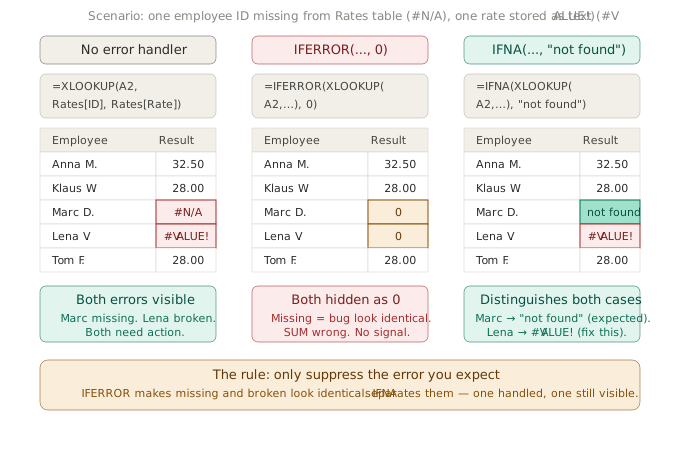
The diagram above shows the same formula three ways. If there's no handler, you'll see #VALUE! and you'll know to take a look. With IFERROR, it becomes 0 and you can't see the problem. With IFNA, the #N/A case is handled nicely, but #VALUE! still appears because IFNA doesn't catch it.
The IS-family — test without suppressing
Excel has a full set of IS-functions for testing for errors without hiding them. Each one returns TRUE or FALSE, which you can use inside IF to branch your formula logic without a fallback that swallows the error.
When you want read more about TRUEand FALSE, here is my article TRUE AND FASLE: The Hidden Numbers Inside Every Excel Formula
ISERROR: Checks for any error
If a value is any error type, ISERROR returns TRUE, but if it's not, it returns FALSE. It's basically like using IFERROR in a test.
=IF(ISERROR(XLOOKUP(A2, Rates[ID], Rates[Rate])), "check data", XLOOKUP(A2, Rates[ID], Rates[Rate]))The problem is that the lookup runs twice. This is a performance issue for big datasets. The answer is LET, which we'll cover in the next section.
ISERR: a test for any error except #N/A
ISERR is pretty much the same as ISERROR, except it doesn't include #N/A. It returns TRUE for every error type except for #N/A. This makes it the same as 'ISNA' – handy when you want to spot problems with the formula while keeping missing-value signals visible and separate.
=IF(ISERR(rate), "formula error — check data", rate)Use ISERR to flag broken formulas without treating a missing lookup value as a problem.
ISNA: the test for #N/A only
Just so you know, ISNA will return TRUE if the value is #N/A, but FALSE for anything else. It's basically the test equivalent of IFNA and it came before it. You'll still find the older pattern in the old workbooks.:
=IF(ISNA(VLOOKUP(A2, Rates, 2, 0)), "not found", VLOOKUP(A2, Rates, 2, 0))In the latest versions of Excel (2013 and later), IFNA is a neater option, and the lookup only needs to be done once. You can still use ISNA in a LET to test the result of one calculation.
ISNUMBER: a test for a valid number
Just to let you know, ISNUMBER isn't technically an error function, but it belongs in the same toolkit. It'll return TRUE if the value is a number, FALSE if it's text, an error, or blank. This is the best way to check if a lookup or conversion produced a usable result before using it in a calculation:
=IF(ISNUMBER(XLOOKUP(A2, Rates[ID], Rates[Rate])), XLOOKUP(A2, Rates[ID], Rates[Rate]) * C2, "check rate")Once more, the lookup is done twice here. Use the LET function to fix that.
The complete IS-family at a glance
| Function | Returns TRUE when | Excludes |
|---|---|---|
ISERROR |
Any error | — |
ISERR |
Any error | #N/A |
ISNA |
#N/A only |
All other errors |
ISNUMBER |
Value is a valid number | — |
IFERROR |
Any error → returns fallback | — |
IFNA |
#N/A only → returns fallback |
All other errors |
The pattern is that ISERROR and IFERROR are like each other, they go together. Just so you know, ISERR and ISERROR are different in exactly the same way: by exactly #N/A. Just so you know, ISNA and IFNA are the test/handler pair for the same case. Once you see the symmetry, it's pretty clear what the right function is for each situation.
LET: the clean way to handle errors without repetition
So, let's say you want to calculate a value, name it, and then be able to reference that name multiple times. Well, that's exactly what LET does - it calculates a value, names it, and then you can reference that name as many times as you like. Combined with error checking, it produces error handling that is both readable and efficient:
=LET(
    rate, XLOOKUP(A2, Rates[ID], Rates[Rate]),
    IF(ISNA(rate), "not found",
    IF(ISERROR(rate), "data error",
    rate))
)
This formula:
- Calculates the lookup once and names the result
rate - If
ratesays#N/A, it means the employee isn't in the table and so returns 'not found'. - If
rateis any other error, it'll come up with 'data error'. This means something's gone wrong, so you need to investigate. - Otherwise returns the actual rate
This is the most honest and most maintainable way of dealing with error handling in complex formulas. The lookup only runs once. Each error type produces a different result, and each one is easy to understand. Nothing is converted to zero without being mentioned. The formula is easy to read, so it's simple for anyone new to the workbook to follow the logic without having to trace cell references.
DIV/0!: the special case
I'd say that #DIV/0! is worthy of a mention in its own right because it's actually pretty ambiguous. If you're working out an average and the denominator can legitimately be zero — for example, no sales in a particular period — then #DIV/0! is the expected behaviour and handling it is correct:
=IFERROR(SUM(B2:B12)/C2, 0)Or more precisely, only catch the divide-by-zero case:
=IF(C2=0, 0, SUM(B2:B12)/C2)The 'IF' version is better because it clearly documents the condition being handled, rather than catching any errors in the formula that might not be there.
The practical decision guide
Ask these questions before adding any error handler:
Q: Just to check, is this error expected?
A: If so, you might need to handle it explicitly with IFNA or an IF check. This is because sometimes a lookup finds nothing and a division where zero is a valid input.
Q: I'm wondering if this error means there's something wrong with my data.
A: If so, it could be things like wrong data types, deleted references or text that's been pasted into number columns. Please don't hide these things. Just fix the data instead.
Q: I'm wondering if this error means my formula is wrong?
A: If you see #NAME?, it's probably a typo or a missing function. If you see a #REF! error, that's a sign that something's gone wrong with the reference. You shouldn't ever suppress either of these. Just fix the formula.
Q: Am I unsure? A: Keep the error visible until you get to grips with it. It's better to see an error than to get a wrong result and not even know it.
Just a heads-up about IFERROR in finished reports.
There's one scenario where IFERROR is really appropriate, and that's a polished, read-only dashboard or report where the underlying data pipeline has already validated all the inputs. When you're dealing with end users who can't fix it, showing them #N/A isn't helpful. A blank cell or a dash is more professional.
Even here, the best approach is to use IFERROR only at the final display layer — the cell the reader sees — and to keep the underlying calculation cells error-visible so that anyone maintaining the workbook can still spot any problems.
Here's a quick summary:
Just remember that IFERROR catches every error. Just so you know, IFNA catches only #N/A. ISERR catches everything except for #N/A. Just so you know, ISNA only tests for #N/A. ISERROR is used to test for any errors. Just so you know, ISNUMBER will confirm a valid result. Each function has a specific role, and choosing between them determines whether your error handling is honest or dangerous.
When it comes to lookup formulas, the best option is usually to use IFNA. If you're dealing with complex formulas that have a bunch of steps, try using LET along with ISNA and ISERR. That'll help you tell the difference between a missing value and a broken formula. Keep IFERROR for the last display layer of your reports – and even there, think about whether you want to hide a blank cell that's been produced by a data problem.
The point of error handling is not to make your spreadsheet look neat and tidy. It's all about making sure your data is communicated accurately and your formulas can be relied on. It's better to have a visible error that you can fix than a silent zero that messes up all the calculations that use it.
See also: How to clean messy data in Excel — remove duplicates, trim spaces, fix formats — because most #VALUE! errors that IFERROR is wrongly used to suppress are caused by dirty source data that can be fixed at the root.