Volatile Functions in Excel — What They Are and When to Avoid Them
FAQ — What Does This Article Answer?
Q: What is a volatile function in Excel?
A: A volatile function recalculates every time Excel performs any recalculation in the workbook — even if its own inputs have not changed. This is different from regular functions, which only recalculate when one of the cells they depend on actually changes. NOW(), TODAY(), RAND(), RANDBETWEEN(), INDIRECT(), OFFSET(), and conditionally CELL() are the most common examples.
Q: Why does it matter that a function is volatile?
A: Because volatile functions trigger a recalculation every time you type anything, apply a filter, open the file, or change any value anywhere in the workbook. In a small file with one or two volatile calls this is imperceptible. In a large workbook with thousands of rows and dozens of volatile formulas, the cumulative effect is a noticeably slow, unresponsive spreadsheet.
Q: Can I tell how many volatile formulas a workbook contains?
A: Yes. Go to Formulas → Show Formulas (Ctrl+~) and use Ctrl+F to search for NOW, TODAY, RAND, INDIRECT, and OFFSET. The Workbook Statistics pane (Review tab in Excel 365) also shows total formula count, which helps assess overall complexity.
Q: Are volatile functions always bad?
A: No. A clock widget that shows the current time must use NOW(). A one-off random sample list requires RAND(). Volatile functions are the right tool in a specific set of use cases — the problem arises when they are used out of habit or by accident where a non-volatile alternative would be more appropriate.
Q: What is the non-volatile alternative to INDIRECT and OFFSET?
A: For most dynamic lookup scenarios INDIRECT() can be replaced with INDEX() or XLOOKUP(). OFFSET() is almost always replaceable with INDEX(), or — even better — with a structured Excel Table that expands automatically without any dynamic reference formula.
What "volatile" actually means
Every time you make a change in Excel — editing a cell, applying a filter, inserting a row — Excel runs its dependency tree to figure out which formulas need to be recalculated. This is called smart recalculation: Excel checks which cells have changed and only recalculates the formulas that depend on those cells.
Volatile functions are excluded from this optimization. Excel marks them as "always dirty," meaning they are placed on the recalculation queue regardless of whether their inputs changed. The moment any recalculation is triggered anywhere in the workbook, every volatile formula is recalculated as well.
Think of it like a smoke alarm that goes off whenever anyone in the building makes a coffee — not just when there is actual smoke in the room.
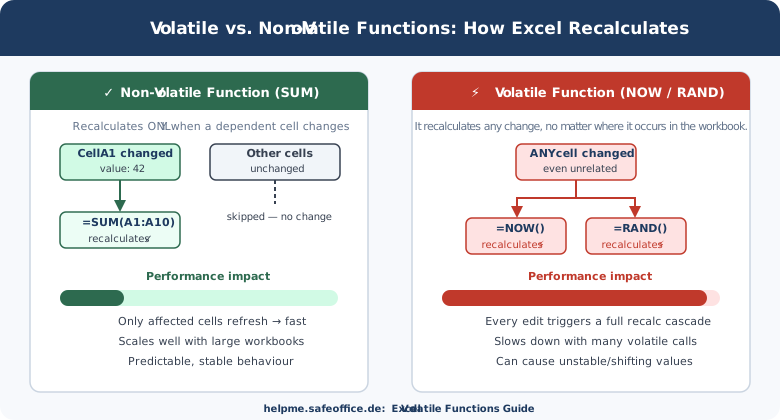
The diagram above illustrates the difference: SUM() recalculates only when a cell in its range changes. NOW() recalculates on every single edit, anywhere.
The volatile functions you meet most often
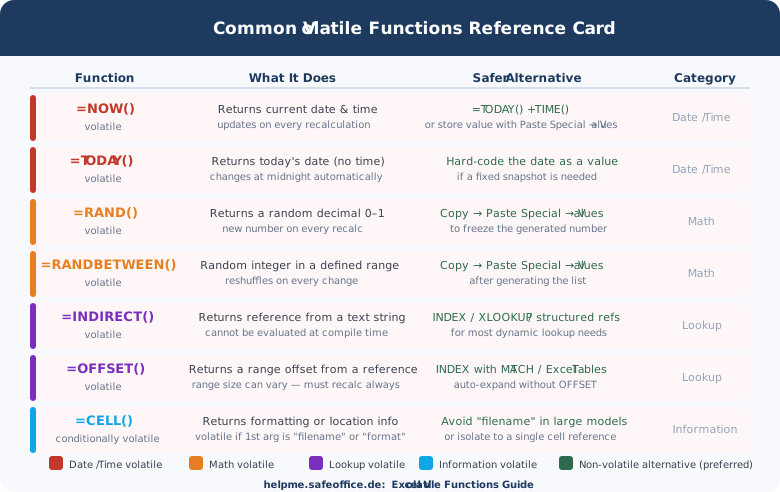
Excel's official volatile function list is longer than most users expect. These are the ones you encounter in everyday work:
| Function | Returns | Recalculates when |
|---|---|---|
NOW() |
Current date and time | Every recalculation event |
TODAY() |
Current date (no time) | Every recalculation event |
RAND() |
Random decimal 0–1 | Every recalculation event |
RANDBETWEEN(a,b) |
Random integer in range | Every recalculation event |
INDIRECT(ref) |
Value at a text-based reference | Every recalculation event |
OFFSET(ref,r,c,h,w) |
A shifted range | Every recalculation event |
CELL(info_type) |
Info about formatting/location | Conditionally volatile |
When is CELL() volatile?
The CELL() function is unique because it is conditionally volatile. It only behaves as a volatile function if the first argument (info_type) is set to "filename" or "format". For example, =CELL("filename", A1) is often used to extract the current sheet name. Because the sheet name or file path could theoretically change, Excel treats this specific usage as volatile. If you use other arguments like "width" or "type", it remains non-volatile.
INDIRECT and OFFSET are volatile for a specific reason: they return a range that Excel cannot determine until runtime. Because the destination cannot be known in advance, Excel has no choice but to mark them as always requiring recalculation.
NOW, TODAY, RAND, and RANDBETWEEN are volatile by design — their entire purpose is to return a value that changes over time or on each recalculation.
Why performance degrades — and when it becomes a problem
A single NOW() in a small file is essentially free. The issue is compounding: when volatile functions are embedded inside large array formulas, copied across thousands of rows, or nested inside other volatile functions, the recalculation workload grows rapidly.
Consider a workbook with:
- 80,000 rows of sales data
- 12 summary sheets, each containing several
INDIRECT()references to dynamic named ranges - A dashboard with
NOW()showing the last-refresh time
Every time you type a single character in any cell, Excel must recalculate all INDIRECT() references across all 12 sheets, plus NOW(), before it can even show you the result of the cell you edited. On older hardware or with particularly large datasets this can produce a lag of several seconds per keystroke — making the file genuinely unusable.
The cascade effect (Pseudo-Volatility)
Volatile functions also trigger the recalculation of every formula that depends on them. If you feed a volatile range into a non-volatile function, the non-volatile function becomes effectively volatile.
This is a common trap with highly efficient functions like IFS or SUMIFS. They are strictly non-volatile by design, but if they reference a volatile function, they lose that efficiency.
For example, look at these two SUMIFS formulas:
=SUMIFS(B:B, A:A, "Apple")→ Fast, Non-Volatile. It behaves normally and only recalculates if you change data in column A or B.=SUMIFS(INDIRECT("B:B"), A:A, "Apple")→ Slow, Volatile. BecauseINDIRECTis volatile, it triggers on every keystroke. BecauseSUMIFSrelies on theINDIRECToutput, theSUMIFSis forced to calculate on every single keystroke, too.
This dependency cascade is the reason why even a single volatile function, placed at the top of a dependency chain, can slow down a large portion of the workbook's total formula graph.
When volatile functions are the right choice
Before looking at alternatives, it is important to recognize the cases where volatile behavior is exactly what you want.
Live clocks and timestamps on dashboards. If you are building a status board that shows "Last updated: 14:32" and you want that clock to tick in real time, NOW() is the correct tool. The volatility is the feature.
Generating a one-time random sample. Using RAND() or RANDBETWEEN() to shuffle a list, assign random IDs, or generate test data is a completely valid use case — provided you freeze the results immediately afterward with Paste Special → Values so the numbers stop changing.
Simple, low-traffic files. If you are building a personal budget tracker with 200 rows and TODAY() in a formula that calculates days overdue, the performance cost is zero in practice. Apply the principle of proportionality: optimize where it actually hurts.
When to avoid them — and what to use instead
The following situations call for replacing volatile functions with non-volatile equivalents.
Replace INDIRECT with INDEX or XLOOKUP
INDIRECT is used most often to build a reference from a text string — for example, to pull data from a sheet whose name is stored in a cell:
=INDIRECT(A1 & "!B2")      ← volatile — rebuilds reference on every recalc
=XLOOKUP(A1, Sheets, Data) ← non-volatile — evaluates once per actual change
In most cases where INDIRECT is used to look up data from another table, XLOOKUP, INDEX/MATCH, or a structured Excel Table reference achieves the same result without the volatility cost.
Replace OFFSET with INDEX or Excel Tables
OFFSET is often used to define a dynamic named range that grows when new rows are added:
=OFFSET(Sheet1!$A$1, 0, 0, COUNTA(Sheet1!$A:$A), 1) ← volatileThe non-volatile alternative: convert your data to an Excel Table (press Ctrl+T). Tables expand automatically when new rows are added, and their structured references (Table1[Column]) are fully non-volatile. There is almost no scenario where OFFSET is the best tool for expanding ranges in a modern Excel workbook.
Freeze RAND and RANDBETWEEN after generation
If you need a random number but not a constantly-changing one, generate it with RAND() and then immediately lock it in:
- Select the cells containing
RAND()orRANDBETWEEN() - Press
Ctrl+Cto copy - Press
Ctrl+Alt+V→ select Values → click OK
The formula is replaced by its static numeric result. The randomness is preserved; the volatility is gone.
Freeze NOW and TODAY when you need a fixed timestamp
When recording a date-stamp for an audit log, a completion date, or a contract date, TODAY() is the wrong function because it will change tomorrow. Hard-code the date (Ctrl+; inserts today's date as a static value) or use a macro triggered on a specific event to write the timestamp once and never change it again.
Practical techniques for auditing an existing workbook
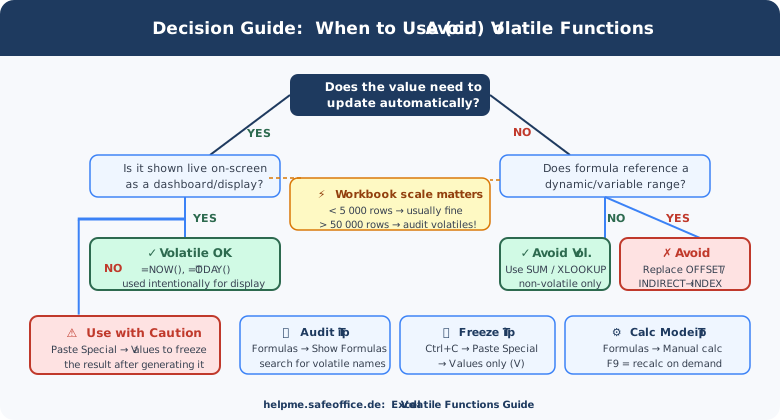
If you inherit a slow workbook and suspect volatile functions are the cause, here is a fast audit workflow:
Step 1 — Enable manual calculation. Go to Formulas → Calculation Options → Manual. This stops all automatic recalculation. The workbook becomes instantly responsive and you can explore it without lag. Press F9 whenever you want to force a recalculation.
Step 2 — Find volatile functions. Press Ctrl+~ to show all formulas. Then use Ctrl+F to search for INDIRECT, OFFSET, NOW, TODAY, RAND, and RANDBETWEEN. Note how many instances you find and where they are concentrated.
Step 3 — Assess the blast radius. Check whether the volatile functions are feeding into other calculations. A single OFFSET that defines a named range used by 40 SUMIF formulas will trigger all 40 SUMIF recalculations on every keystroke.
Step 4 — Replace and re-test. Substitute volatile formulas with non-volatile equivalents one section at a time. After each replacement, switch back to automatic calculation and test whether the responsiveness has improved.
Step 5 — Document the remaining volatiles. Some volatile functions will stay — the NOW() on the dashboard, the TODAY() in the overdue calculation. Leave a comment in the Name Manager or in a documentation sheet explaining why each remaining volatile is intentional.
Summary
| Concept | Key point |
|---|---|
| Volatile function | Recalculates on every workbook recalculation, regardless of whether its inputs changed |
| Smart recalculation | Excel's default behavior — only recalculates cells whose inputs have actually changed |
| Performance risk | Compounds when volatile functions are copied across many rows or feed other complex formulas |
NOW() / TODAY() |
Intentionally volatile — use them for live displays; freeze with Paste Special for fixed timestamps |
RAND() / RANDBETWEEN() |
Useful for one-time generation — always freeze the result immediately with Paste Special → Values |
INDIRECT() |
Replace with XLOOKUP() or INDEX/MATCH for non-volatile dynamic lookups |
OFFSET() |
Replace with Excel Tables or INDEX() for expanding ranges |
CELL() |
Volatile only when using "filename" or "format" arguments |
| Manual calculation | Formulas → Manual + F9 — the best tool for auditing and working inside slow workbooks |
Volatile functions are neither broken nor inherently bad — they are specialized tools with a specific cost. Understanding that cost, knowing which alternatives exist, and building the habit of freezing values when randomness or timestamps are only needed once will keep your workbooks fast, stable, and easy for colleagues to maintain.