Dynamic arrays — how FILTER, SORT, UNIQUE and SEQUENCE work together
FAQ — What Does This Article Answer?
Q: What is a dynamic array and how is it different from a normal formula?
A: A dynamic array formula returns multiple results that automatically spill across neighbouring cells. This article explains what that means and why it changes the way you build spreadsheets.
Q: How does FILTER work and when should I use it instead of a pivot table?
A: FILTER extracts rows that match one or more conditions and updates live as your data changes. This article shows the syntax, multiple-condition filtering, and common use cases.
Q: What do SORT and SORTBY do, and how are they different from each other?
A: SORT orders a range by one of its own columns; SORTBY orders it by a completely separate range. Both are covered with practical examples.
Q: What is UNIQUE and how do I use it to get a distinct list?
A: UNIQUE removes duplicates from a column or row in a single formula — no pivot table, no manual work. This article covers the full syntax including "appear exactly once" mode.
Q: What does SEQUENCE do and how do I generate number or date series automatically?
A: SEQUENCE generates arrays of numbers in rows, columns, or grids. This article shows how to use it for automatic numbering, date ranges, and as input to other dynamic array functions.
Q: Which Excel version do I need?
A: Dynamic arrays require Excel 365 or Excel 2021. They are not available in Excel 2016 or 2019.
What Are Dynamic Arrays?
Before dynamic arrays (introduced in Excel 365 in 2019), a formula could only ever return a single value. If you wanted 10 results, you needed 10 formulas. Dynamic array formulas break that constraint: one formula can return an entire range of results, and Excel automatically places them into the surrounding cells — a behaviour called spilling.
You write the formula in one cell. The results expand downward, rightward, or both, into as many cells as needed. If the source data changes, the spill range updates automatically.
The Spill Reference Operator:
You can reference an entire spill range using # after the top-left cell address. If your FILTER formula lives in A2, then A2# refers to all the cells it spills into. This lets you chain dynamic array formulas together cleanly.
Spill Errors
If cells in the intended spill range are not empty, the formula returns a #SPILL! error. Clear the blocking cells and the formula resolves immediately.
Real World Example
Your boss asks for a list of all sales from the North region, sorted by amount, with no duplicates in the salesperson column. In older Excel this takes 20 minutes — filters, copy-paste, sort, remove duplicates, repeat next month. In Excel 365 it takes one formula and updates itself automatically every time the data changes.
That formula combines four dynamic array functions: FILTER, SORT, UNIQUE, and SEQUENCE. This article shows you how each one works, then how to combine them — using the same sales table throughout so you always know exactly what the formula is doing.
The data we are working with
All examples in this article use this sales table. It is defined as an Excel table named Sales.
| Date | Salesperson | Region | Amount |
|---|---|---|---|
| 2026-01-03 | Anna Müller | North | 1.250 |
| 2026-01-05 | Peter Bauer | South | 890 |
| 2026-01-07 | Anna Müller | East | 2.100 |
| 2026-01-09 | Klaus Weber | North | 3.400 |
| 2026-01-12 | Sara Klein | South | 1.750 |
| 2026-01-14 | Anna Müller | North | 980 |
| 2026-01-18 | Peter Bauer | North | 2.650 |
💡 Tip: Always convert your data to an Excel table before using dynamic array functions. Select your data and press Ctrl+T. This way your formulas automatically include new rows when you add data.
What each function does — in plain language
Before writing a single formula, here is a simple mental map:
| Function | What it does |
|---|---|
FILTER |
Shows only the rows you want |
SORT |
Puts the results in order |
UNIQUE |
Removes duplicates |
SEQUENCE |
Generates a list of numbers or dates automatically |
One sentence each. That is really all they are. Now let us see them in action.
FILTER — show only the rows you want
FILTER takes your table and returns only the rows that match a condition. The result spills automatically into as many cells as needed — you never drag a formula down.
Syntax:
=FILTER(array, include, [if_empty])Example — show only North region sales:
=FILTER(Sales, Sales[Region]="North")Result: only the four North rows appear, automatically. When you add a new North sale to the table, it appears in the result immediately.
What the arguments mean:
Sales— the full table to search throughSales[Region]="North"— the condition: only rows where Region equals North[if_empty]— optional: what to show if no rows match (more on this below)
What happens when no rows match?
If your condition matches nothing, FILTER returns an error by default. Always use the third argument to handle this cleanly:
=FILTER(Sales, Sales[Region]="North", "No results found")Now instead of an ugly error, the cell shows "No results found".
SORT — put results in order
SORT takes any range or array and returns it sorted. It works perfectly on its own or wrapped around FILTER.
Syntax:
=SORT(array, [sort_index], [sort_order])Example — sort the full sales table by Amount, largest first:
=SORT(Sales, 4, -1)What the arguments mean:
Sales— the table to sort4— sort by column 4 (Amount)-1— descending order (largest first). Use1for ascending (smallest first).
💡 Tip: Count the column number from the left of your array, not from column A of the sheet. In our Sales table, Date=1, Salesperson=2, Region=3, Amount=4.
UNIQUE — remove duplicates
UNIQUE returns a list with each value appearing only once. It is perfect for building dropdown lists, summary reports, and anywhere you need to know what distinct values exist in a column.
Syntax:
=UNIQUE(array, [by_col], [exactly_once])Example — list each salesperson once:
=UNIQUE(Sales[Salesperson])Result: Anna Müller, Peter Bauer, Klaus Weber, Sara Klein — each name appears exactly once, in the order they first appear in the table.
Example — list each unique combination of Salesperson and Region:
=UNIQUE(Sales[[Salesperson]:[Region]])When you pass multiple columns, UNIQUE treats each row as a combination and removes duplicate rows.
SEQUENCE — generate lists automatically
SEQUENCE generates a series of numbers automatically. It sounds simple but becomes very powerful when combined with dates or other functions.
Syntax:
=SEQUENCE(rows, [columns], [start], [step])Example — generate the numbers 1 to 10:
=SEQUENCE(10)More useful example — generate all first days of each month in 2026:
=SEQUENCE(12, 1, DATE(2026,1,1), 30)This generates 12 dates starting January 1, 2026, stepping 30 days each time. Format the result cells as dates and you have a dynamic monthly calendar header.
💡 Tip: SEQUENCE is the function you reach for when you need to build something that counts, repeats, or steps — without typing values manually.
Combining two functions
Now the real power begins. Dynamic array functions are designed to be nested inside each other. The inner function runs first and passes its result to the outer function.
FILTER + SORT — filtered results in order
Show only North region sales, sorted by Amount largest first:
=SORT(FILTER(Sales, Sales[Region]="North"), 4, -1)How to read this inside-out:
FILTER(Sales, Sales[Region]="North")— keeps only North rowsSORT(..., 4, -1)— sorts those rows by Amount descending
FILTER + UNIQUE — unique values from filtered data
Show each salesperson who made at least one sale in the North region — no duplicates:
=UNIQUE(FILTER(Sales[Salesperson], Sales[Region]="North"))How to read this inside-out:
FILTER(Sales[Salesperson], Sales[Region]="North")— returns the Salesperson column for North rows onlyUNIQUE(...)— removes duplicate names from that result
SORT + UNIQUE — sorted unique list
List every salesperson alphabetically, each name once:
=SORT(UNIQUE(Sales[Salesperson]))Simple and clean. UNIQUE removes duplicates first, then SORT orders the result A to Z.
Combining all four — the full solution
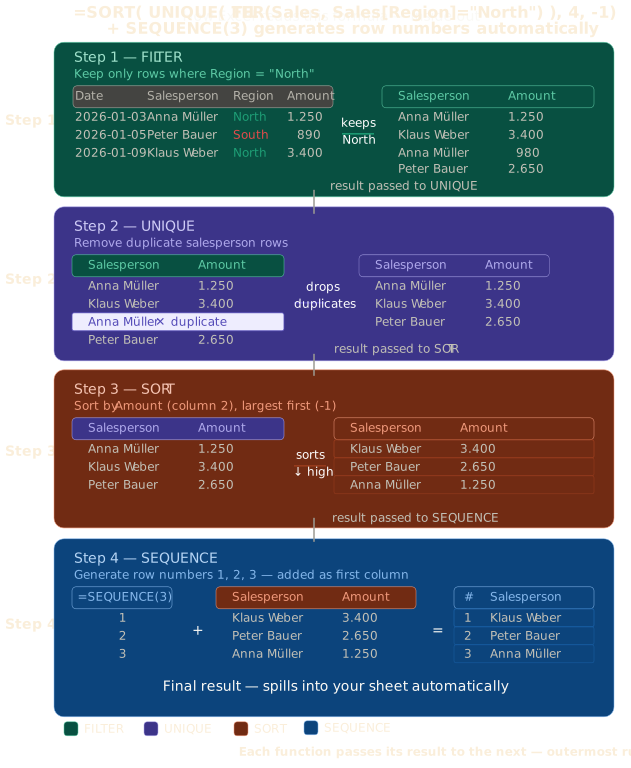
The diagram at the top of this article shows exactly how Excel reads this formula — step by step, inside out. Each function receives the result of the inner function and passes its own result to the next one. The outermost function always runs last.
Now back to the question from the introduction: a list of all North region sales, sorted by amount, with no duplicate salespeople.
=SORT(FILTER(Sales, Sales[Region]="North"), 4, -1)This already gives you North sales sorted by amount. If you also want unique salespeople with their highest sale only, you combine all steps:
=SORT(UNIQUE(FILTER(Sales[[Salesperson]:[Amount]], Sales[Region]="North")), 2, -1)How to read this inside-out:
FILTER(Sales[[Salesperson]:[Amount]], Sales[Region]="North")— keeps only the Salesperson and Amount columns for North rowsUNIQUE(...)— removes duplicate salesperson rowsSORT(..., 2, -1)— sorts by column 2 (Amount) descending
The formula looks long but it is just three simple ideas stacked together. Once you can read it inside-out, it stops being intimidating.
One practical tip per function
FILTER — multiple conditions
Use * for AND conditions, + for OR conditions:
=FILTER(Sales, (Sales[Region]="North") * (Sales[Amount]>1000))This returns North sales where the amount is also greater than 1.000.
=FILTER(Sales, (Sales[Region]="North") + (Sales[Region]="East"))This returns sales from either North or East.
SORT — sort by multiple columns
Sort by Region A to Z, then by Amount largest first within each region:
=SORT(Sales, {3,4}, {1,-1})The curly braces {} let you pass multiple sort columns and orders at once.
UNIQUE — compare entire rows
By default UNIQUE compares the full row. If you pass a single column it compares only that column. Pass multiple columns to find unique combinations:
=UNIQUE(Sales[[Region]:[Salesperson]])This shows each unique Region + Salesperson combination — useful for seeing which salespeople are active in which regions.
SEQUENCE — combine with TODAY() for dynamic date ranges
Generate the last 7 days automatically:
=SEQUENCE(7, 1, TODAY()-6, 1)Every time the file opens, this updates to show the current 7-day window. Format the cells as dates.
Note: The "TODAY" function is volatile. This means that it is recalculated every time you perform an action in the worksheet, such as entering data. Using a large number of volatile functions can put a strain on the worksheet because many calculations are carried out simultaneously.