FAQ — What Does This Article Answer?
What is a recursive LAMBDA and what makes it different from a normal LAMBDA?
A: A normal LAMBDA takes inputs and returns a result. A recursive LAMBDA does the same, but it is allowed to call itself as part of its own calculation. Each time it calls itself it works on a smaller or simpler version of the problem, until it reaches a condition where it can return a direct answer without calling itself again. That stopping point is called the base case.
Do I need to be a programmer to use recursive LAMBDA?
A: No. The concept of recursion can feel unfamiliar at first, but the mechanics in Excel are straightforward once you understand the pattern. This article builds the explanation from everyday analogies before moving to formulas. If you understand IF, you can understand the base case. If you understand LAMBDA, you can write recursion.
What is the most common mistake when writing a recursive LAMBDA?
A: Forgetting the base case, or writing a base case that is never reached. Without a correct stopping condition, the function calls itself forever. Excel has a built-in limit and will return a #NUM! or #VALUE! error when that limit is exceeded, which is how you know the recursion is not terminating.
Can I give a recursive LAMBDA a name so I can reuse it across the workbook?
A: Yes, and this is the recommended approach. Define the recursive LAMBDA in the Name Manager (Formulas → Name Manager → New). Give it a short, descriptive name. Once saved, you can call it like a built-in function from any cell in the workbook.
When is recursion actually useful in Excel?
A: Recursion is useful when a problem is naturally self-similar — where the solution to a large problem is defined in terms of the solution to a smaller version of the same problem. Calculating cumulative sums, processing nested structures, computing number sequences, and cleaning text with an unknown number of repetitions are all cases where recursion provides a clean answer that a loop or helper columns cannot.
Recursive LAMBDA — a function that solves problems by talking to itself.
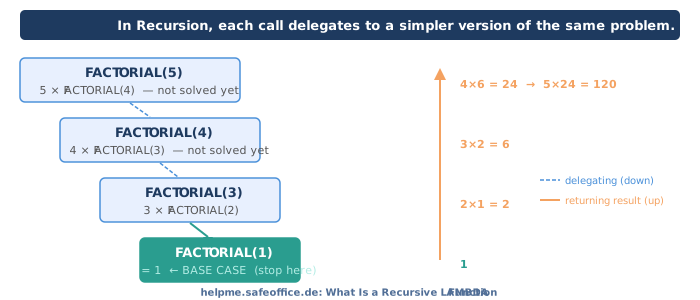
Most formulas in Excel follow a straight path: receive inputs, perform a calculation, return a result. A recursive function follows a different path. It receives its inputs, checks whether the problem is small enough to solve directly, and if not, it calls itself with a slightly smaller version of the problem. It keeps doing this until the problem becomes simple enough to answer immediately.
This might sound abstract. A concrete everyday analogy makes it clear immediately.
Recursion explained without a single formula
Imagine you are at the back of a queue and you want to know how many people are in front of you. You cannot see to the front. You can only ask the person directly in front of you.
That person faces exactly the same situation. They cannot see to the front either. So they ask the person in front of them. And so on, down the queue, until the question reaches the person at the very front — who is standing directly in front of nobody. That person answers: "There is nobody in front of me. The count is zero."
The answer then travels back through the queue. The second person adds one and passes the answer back. The third person adds one and passes it back. Eventually, the answer reaches you: the total number of people in front of you.
This is exactly how recursion works:
- Each step asks a slightly simpler version of the same question.
- The simplest version — the front of the queue — has a direct answer.
- The result is built back up from that direct answer.
The direct answer at the front of the queue is the base case. The act of passing the question forward is the recursive call.
What LAMBDA is — a quick recap
LAMBDA lets you define your own function directly inside a formula, without VBA. You specify the parameter names and the formula to apply.
=LAMBDA(n, n * 2)This defines a function that takes one input (n) and returns double its value. By itself, this defines the function but does not call it. To call it immediately, you add the argument in parentheses:
=LAMBDA(n, n * 2)(5) → 10When you save a LAMBDA in the Name Manager with a name — for example DOUBLE — you can then write =DOUBLE(5) in any cell.
The structure of a recursive LAMBDA
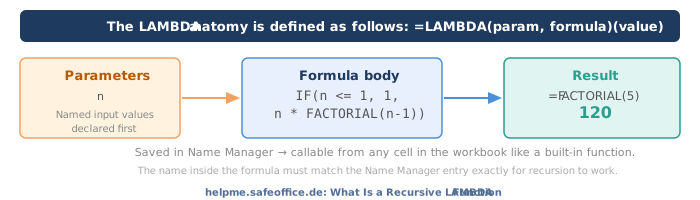
A recursive LAMBDA follows a fixed pattern:
- Check the base case using IF. If the input is simple enough to answer directly, return the direct answer.
- Otherwise, call the same function with a smaller input and combine the result.
In the Name Manager, define the function with its own name, say FACTORIAL. In the formula, you reference that name to call the function again:
FACTORIAL = LAMBDA(n,
    IF(n <= 1,
        1,
        n * FACTORIAL(n - 1)
    )
)- If
nis 1 or less, return 1 immediately. This is the base case. - Otherwise, return
nmultiplied byFACTORIAL(n - 1).
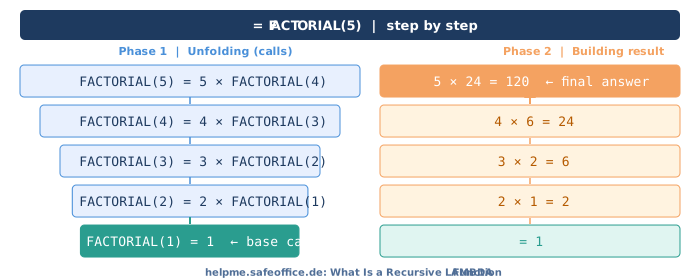
When you call =FACTORIAL(5) in a cell, here is what happens step by step:
FACTORIAL(5)  →  5 × FACTORIAL(4)
FACTORIAL(4)  →  4 × FACTORIAL(3)
FACTORIAL(3)  →  3 × FACTORIAL(2)
FACTORIAL(2)  →  2 × FACTORIAL(1)
FACTORIAL(1)  →  1  ← base case reached
Excel then works back:
FACTORIAL(2)  =  2 × 1  =  2
FACTORIAL(3)  =  3 × 2  =  6
FACTORIAL(4)  =  4 × 6  =  24
FACTORIAL(5)  =  5 × 24 =  120
The result is 120.
How to define a recursive LAMBDA in the Name Manager
- Go to Formulas → Name Manager → New.
- In the Name field, type the function name:
FACTORIAL. - In the Refers to field, type the full LAMBDA formula:
=LAMBDA(n, IF(n <= 1, 1, n * FACTORIAL(n - 1)))- Click OK and close the Name Manager.
From any cell, type =FACTORIAL(6) and press Enter. The result is 720.
The name you use inside the formula (
FACTORIAL) must match exactly the name you give in the Name field. This is how the function knows to call itself.
Writing recursive LAMBDA without the Name Manager
If you prefer to keep everything in a single cell formula — for portability or testing — you can use the self-referencing technique with LET. This technique passes the function itself as a parameter:
=LET(
    FACT, LAMBDA(self, n,
        IF(n <= 1,
            1,
            n * self(self, n - 1)
        )
    ),
    FACT(FACT, 5)
)
The LAMBDA takes two parameters: self (a copy of itself) and n (the input). When it calls itself, it passes self again as the first argument. This allows the function to call itself without needing a name defined externally.
This technique is slightly more complex to read. For production use, the Name Manager approach is cleaner and more maintainable.
Practical example 1 — Sum from 1 to N
A simple recursive sum: add all integers from 1 up to n.
SUMTON = LAMBDA(n,
    IF(n <= 0,
        0,
        n + SUMTON(n - 1)
    )
)
=SUMTON(10) returns 55.
This is the same as =n*(n+1)/2, and for this specific problem the formula is cleaner. But this example demonstrates the recursive pattern in the most readable form before moving to cases where recursion genuinely has no formula equivalent.
Practical example 2 — Count the depth of nested brackets
Suppose a cell contains a string like "(((value)))" and you need to count how many opening brackets appear before the first non-bracket character. There is no built-in function for this. Recursion provides a clean solution.
BRACKETDEPTH = LAMBDA(text,
    IF(LEFT(text, 1) <> "(",
        0,
        1 + BRACKETDEPTH(MID(text, 2, LEN(text)))
    )
)- Base case: if the first character is not
(, return 0. - Recursive call: count 1, then check the rest of the string with the first character removed.
=BRACKETDEPTH("(((value)))") returns 3.
This problem cannot be solved with a single non-recursive formula. It requires either recursion, a helper column chain, or a VBA loop. Recursion is by far the most concise.
Practical example 3 — Fibonacci sequence
The Fibonacci sequence is defined recursively by nature: each number is the sum of the two before it. 1, 1, 2, 3, 5, 8, 13, 21 …
FIB = LAMBDA(n,
    IF(n <= 1,
        n,
        FIB(n - 1) + FIB(n - 2)
    )
)
=FIB(8) returns 21.
Performance note: this version calls itself twice per step, which grows exponentially. For large
n, it becomes slow. This is a known property of naive recursive Fibonacci — not a problem with LAMBDA. For values ofnabove approximately 20, an iterative formula using SEQUENCE is faster.
When to use recursive LAMBDA — and when not to
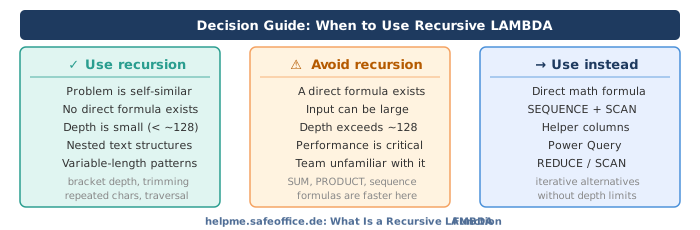
Recursion is the right tool when:
- The problem is naturally self-similar: solving it for
nrequires solving it forn-1. - There is no direct formula equivalent (such as counting nested structures or traversing variable-depth text patterns).
- The depth is small — Excel's recursion limit is typically around 128 levels. Problems requiring deeper recursion will hit this limit.
Recursion is not the right tool when:
- A direct mathematical formula exists (use it instead — it is faster).
- The input can be large. Deep recursion is slow in Excel.
- The team is not familiar with the pattern. A helper-column approach may be more maintainable in those cases.
The base case is everything
The single most important rule in recursive LAMBDA is: always define a base case that will definitely be reached.
The base case is the condition where the function stops calling itself and returns a direct answer. Without it, or with a base case that is never reached, the function loops forever. Excel will catch this and return an error, but it will not tell you which base case is wrong — that diagnosis is your responsibility.
A checklist for any recursive LAMBDA:
| Question | What to verify |
|---|---|
| Does the base case exist? | There must be at least one IF branch that returns without calling itself again |
| Is the base case reachable? | The recursive call must move the input toward the base case every time |
| Does the input decrease? | For number-based recursion, n must decrease by at least 1 each call |
| Does the string shrink? | For text-based recursion, the string must become shorter each call |
| Is the depth below ~128? | If the maximum input could produce more than 128 recursive calls, redesign the approach |
Practical tips and common mistakes
| Situation | Recommendation |
|---|---|
Function returns #VALUE! |
Check whether the base case is correctly written and reachable |
Function returns #NUM! |
Excel hit the recursion limit — input is too large or base case is wrong |
| Formula works in testing but not in production | Confirm the Name Manager name matches the name used inside the formula exactly |
| Need the function in multiple workbooks | Copy the Name Manager entry to each workbook, or store it in your Personal Macro Workbook |
| Recursion is slow for large inputs | Rewrite using SEQUENCE, SCAN or a direct formula where possible |
| Two recursive calls per step (like Fibonacci) | Performance degrades quickly — use a loop-based approach for large n |
Why recursive LAMBDA matters
Before LAMBDA, every problem that required a loop in Excel required either VBA or a chain of helper columns. Recursive LAMBDA closes this gap for problems with a self-similar structure. It allows a class of computation that previously required programming knowledge to be expressed as a formula — readable, auditable, and shareable without a macro-enabled workbook.
For most Excel users, factorial and Fibonacci are not the point. The point is that any time you find yourself building a chain of helper columns where each row references the row above in exactly the same way, you are looking at a recursive problem. Recursive LAMBDA can often collapse that entire chain into one formula.
This article is part of the helpme.safeoffice.de series, which provides practical guides on Excel functions, workbook modeling and data solutions. The series is aimed at businesses that want effective, maintainable tools that everyone can understand.