How to automate reports with dynamic arrays and tables
FAQ — What Does This Article Answer?
Q: What does "dynamic" mean in the context of an Excel report?
A: A dynamic report updates automatically when new data is added. For example, if you add a row to your data table, every filter result, total and chart in the report will reflect this change automatically. This article shows you how to build a dynamic report from scratch.
Q: Do I need VBA or macros to automate a report?
A: No, the techniques in this article use only standard Excel formulas, specifically Excel Tables combined with the dynamic array functions FILTER, SORT and UNIQUE. No macros, code or add-ins are required.
Q: What is a spill range and how do I reference it?
A: When a dynamic array formula returns multiple results, they 'spill' into the surrounding cells automatically. You can reference the entire spill range by adding a '#' after the top cell. For example, =SUM(C2#) will total everything produced by the formula in C2.
Q: How do I make the report filter results by a dropdown selection?
A: Use Data Validation to create a dropdown list in one cell, then point your FILTER formula at that cell. Selecting a different option in the dropdown instantly updates the entire report.
Q: Which Excel version do I need?
A: Dynamic array functions (FILTER, SORT, UNIQUE and SEQUENCE) require either Excel 365 or Excel 2021. These functions are not available in Excel 2019 or earlier versions.
The problem with manual reports
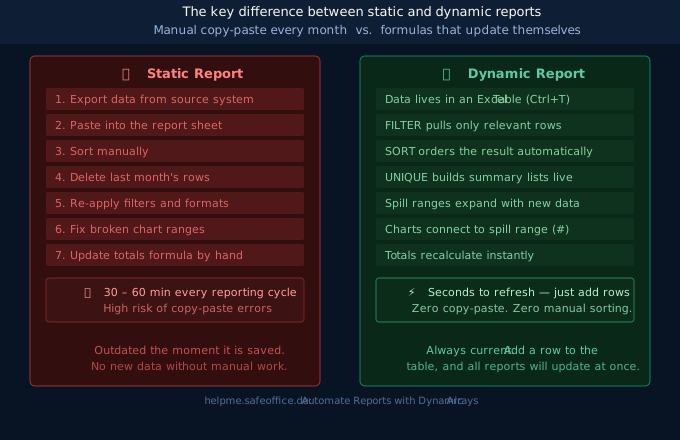
Most Excel reports follow a similar process: export data, paste it into Excel, sort it, delete last month's rows, reapply the formatting, adjust the chart range and update the totals. Then you have to do it all again the following month.
This takes time. It also introduces errors. The moment you save the file, it is already out of date.
There is a better way, though, which requires more thought initially but almost no work every month after that. The foundation is two Excel 365 technologies: Excel Tables and dynamic array formulas.
Step 1: Put your data into an Excel Table
Before writing a single formula, convert your data to an Excel table. Select any cell in your data and press Ctrl+T. Click OK. That's it!
A table performs three essential automation functions:
Auto-expansion: when you type a new row directly below the last row of the table, Excel stretches the table to include it. Every formula that references the table automatically sees the new row, so you do not need to change anything.
Structured references: instead of writing E2:E500 and hoping that there are enough rows, you write Sales[Amount], the column by its name. If the table grows, the reference grows with it.
A name you control: go to the Table Design tab and give the table a meaningful name, such as Sales. Your formulas will read =FILTER(Sales, ...) which is far clearer than =FILTER(A2:E500, ...).
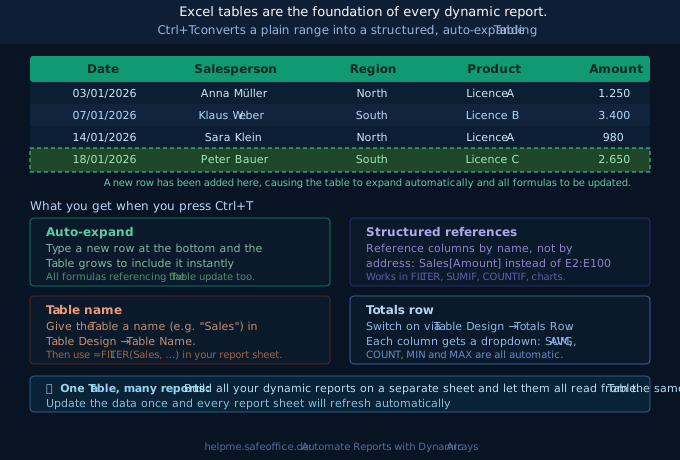
💡 Tip: Keep the Raw Data table on its own dedicated sheet. Call it DATA. Your report formulas live on separate sheets and read from this table. This separation makes everything easier to maintain.
Step 2: Understanding spilling
Before learning the report formulas, familiarise yourself with the concept of spilling.
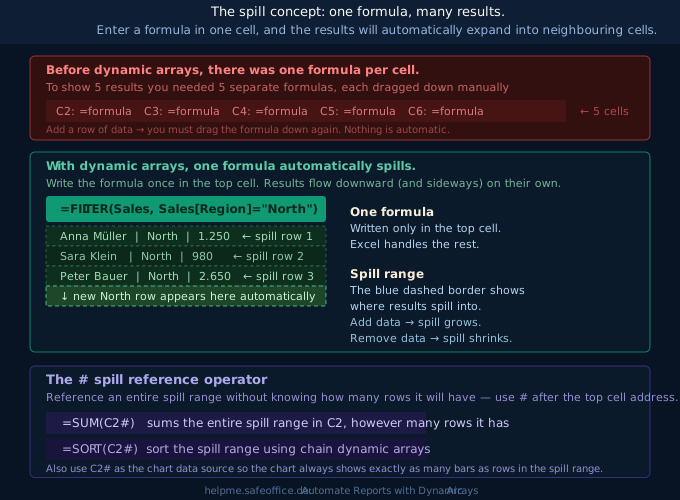
In traditional Excel, every formula returned one result only. However, dynamic array formulas break this rule, as they can return dozens or even hundreds of results. Excel then automatically places these results in the cells below (or to the right). This automatic overflow is called spilling.
You only need to write the formula once in a single cell. The results appear in as many cells as needed, and the spill range automatically grows or shrinks as the data changes. You never need to drag a formula down.
The # operator
To reference an entire spill range, add # after the address of the top cell. For example, if your FILTER formula is in cell C3, enter the formula =SUM(C3#) to total all the rows produced by the formula, even if you do not know how many rows that will be.
This allows you to connect totals, charts and other formulas to the spill range without locking yourself into a fixed row count.
Step 3: FILTER, SORT, and UNIQUE
These three functions are the engine of the automated report.
FILTER: Show only the rows you want
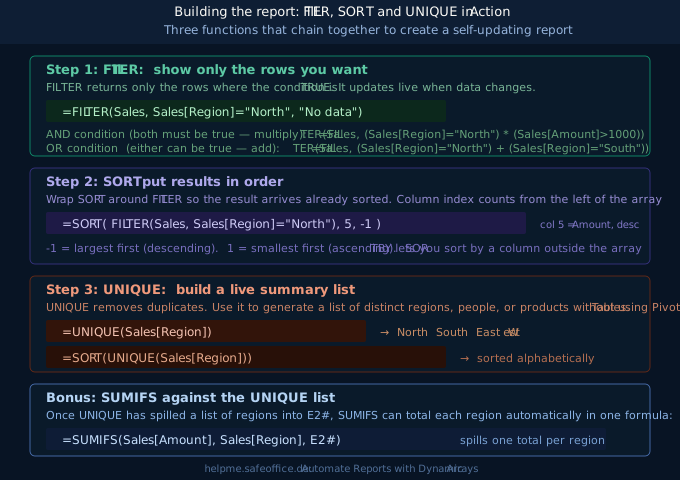
The FILTER function scans the table and returns only the rows where the condition is true. The filter result changes every time the table changes.
=FILTER(Sales, Sales[Region]="North", "No data found")Sales— the table to searchSales[Region]="North"— the condition that only rows where Region equals North are returned."No data found"— what to show if no rows match (always include this)
AND conditions — both must be true — multiply them together:
=FILTER(Sales, (Sales[Region]="North") * (Sales[Amount]>1000))OR conditions: either can be true, add them together:
=FILTER(Sales, (Sales[Region]="North") + (Sales[Region]="South"))SORT: delivers results in order
Wrapping SORT around FILTER produces a sorted result. The second argument specifies the column number to sort by (counting from the left of the array), and the third argument specifies whether to sort in ascending order 1 or descending order -1.
The following formula sorts the North region rows in descending order by the fifth column (Amount):
=SORT(FILTER(Sales, Sales[Region]="North"), 5, -1)This filters for North rows and sorts by column 5 (Amount), from largest to smallest.
UNIQUE: Build a self-updating list
UNIQUE removes duplicates and returns each value only once. This makes it perfect for generating a distinct list of regions, products or salespeople from live data, without the need for a pivot table.
=SORT(UNIQUE(Sales[Region]))This produces an alphabetical list of every region that appears in the table. Add a new region to the table and it will appear in the list automatically. Remove all rows for a region and it will disappear from the list.
SUMIFS against a spilled range
This is where it gets powerful. Suppose that the list of regions has been spilled from the UNIQUE function into A2 on your Summary sheet. If you want the total sales per region, one formula can be used for the whole column:
=SUMIFS(Sales[Amount], Sales[Region], A2#)The A2# at the end tells Excel to run a SUMIFS for every item in the spilled range. The results spill down as one number per region. If you add a new region to the data, the UNIQUE list and the SUMIFS totals will automatically gain a row.
Step 4: Add an interactive dropdown menu
This allows you to switch between different views of the report without editing any formulas.
- On your Summary sheet, ensure that the formula
=SORT(UNIQUE(Sales[Region]))is spilling a list of regions into cell A2. - On the Report sheet, select cell B1.
- Go to Data → Data Validation → Allow: List.
- In the Source box, type
=SUMMARY!A2#, this references the spill range of unique regions. - Click OK. Cell B1 now has a drop-down menu that lists every region.
Update your FILTER formula to reference B1 instead of a fixed text value:
=SORT(FILTER(Sales, Sales[Region]=B1, "No data found"), 5, -1)Choose "South" from the drop-down menu and the entire filtered table will switch to the South data. Choose "North" to switch back. The ROWS count, SUM total and any chart using C3# all update at the same time.
Step 5: Complete workbook layout
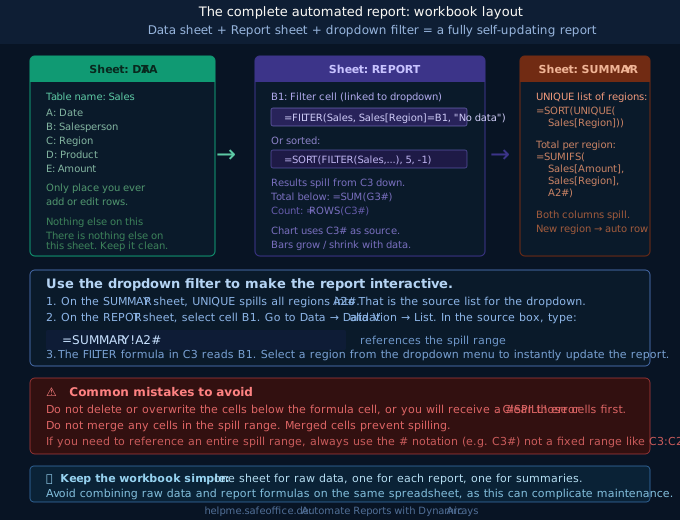
A clean automated report workbook has three sheets:
DATA: Contains only the Excel table. Nothing else. This is the single source of truth. You can paste new exports here or connect it to Power Query.
REPORT: This is the report that your colleagues actually read. B1 is the dropdown filter cell. C3 contains the FILTER + SORT formula. A total row below uses =SUM(G3#). A row count uses =ROWS(C3#). Charts use C3# as their data source.
SUMMARY: the overview. Column A uses the formula =SORT(UNIQUE(Sales[Region])). Column B has the per-region SUMIFS total. This sheet is also the source for the dropdown list.
What to avoid
Blocking the spill range
If any cell in the area where the formula needs to spill contains a value, formula or space, Excel displays a #SPILL! error. Select the formula cell to see exactly which cells are blocked, as indicated by a blue border. Clear them.
Merged cells in the spill area.
Merged cells in the spill area prevent spilling. Never merge cells in or near a spill range.
Hardcoded row ranges.
Writing C3:C50 instead of C3# breaks the automation the moment the spill grows beyond or shrinks below row 50.
Mixing data and formulas on the same sheet.
Keep the raw table on its own sheet. Mixing data and report formulas in the same area causes confusion. It also causes maintenance problems.
Summary
| Building block | What it does |
|---|---|
| Excel Table (Ctrl+T) | Expands with new data; structured references always cover all rows |
| FILTER | Returns only rows matching a condition; updates when data changes |
| SORT | Wraps around FILTER to deliver results pre-sorted |
| UNIQUE | Returns each distinct value once; grows and shrinks with the data |
| Spill (#) | Reference the entire dynamic result without knowing its size |
| SUMIFS + spill | One formula totals each category — no helper rows needed |
| Data Validation dropdown | Makes the report interactive without any macros |
Build this once. After that, maintaining the report only involves adding rows to the 'DATA' sheet. All filters, totals, summaries and charts update automatically.