FAQ — What Does This Article Answer?
What is the difference between TEXTBEFORE, TEXTAFTER and TEXTSPLIT?
A: TEXTBEFORE returns everything to the left of a delimiter. TEXTAFTER returns everything to the right. TEXTSPLIT splits the entire string into a range of parts — either a row, a column, or a two-dimensional array — using one or more delimiters. All three are Excel 365 functions that work directly on text without helper columns.
Can TEXTSPLIT split on more than one delimiter at the same time?
A: Yes. The col_delimiter and row_delimiter arguments both accept an array of delimiters. For example, TEXTSPLIT(A1, {","," "}) splits on both a comma and a space simultaneously, treating either character as a split point.
What happens when a delimiter appears multiple times and I only want the first or last occurrence?
A: TEXTBEFORE and TEXTAFTER both have an instance_num argument. A positive number counts from the left; a negative number counts from the right. TEXTBEFORE(A1,".",2) returns everything before the second dot. TEXTBEFORE(A1,".",-1) returns everything before the last dot.
How do I reassemble parts that TEXTSPLIT has separated?
A: Use TEXTJOIN to rejoin selected parts of the spill range. For example, after splitting a full address, you can join only the city and postcode columns back together with a comma separator.
Do these functions work with numbers and dates stored as text?
A: Yes. The functions treat all input as text. After extraction, wrap the result in VALUE() to convert a numeric string to a number, or in DATEVALUE() to parse a date string. IFERROR is recommended as a safety wrapper when the delimiter may be absent.
TEXTSPLIT, TEXTBEFORE and TEXTAFTER — three functions that finally make text splitting a formula task, not a wizard task.
Before Excel 365, splitting a text string into its component parts required either the Text to Columns wizard, a sequence of LEFT, MID, FIND and LEN formulas nested to the point of unreadability, or a VBA routine. None of those solutions updated automatically when the source data changed.
TEXTSPLIT, TEXTBEFORE and TEXTAFTER change this entirely. They are dynamic, formula-based, and composable — meaning they can be nested inside each other and inside other functions to solve complex text-parsing tasks with readable, maintainable formulas.
TEXTBEFORE — extract everything to the left of a delimiter
=TEXTBEFORE(text, delimiter, [instance_num], [match_mode], [match_end], [if_not_found])TEXTBEFORE returns the portion of a string that appears before the specified delimiter.
Simple example: Extract the first name from "Alice Johnson".
=TEXTBEFORE("Alice Johnson", " ") → "Alice"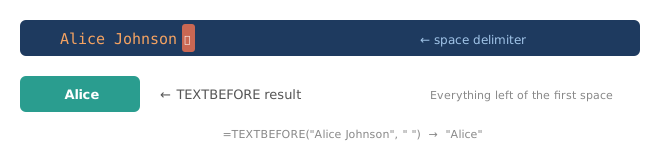
Using instance_num for the second or last occurrence
A filename like "report.Q1.2026.xlsx" contains multiple dots. instance_num controls which one acts as the boundary.
| Formula | Result |
|---|---|
=TEXTBEFORE("report.Q1.2026.xlsx",".") |
report |
=TEXTBEFORE("report.Q1.2026.xlsx",".",2) |
report.Q1 |
=TEXTBEFORE("report.Q1.2026.xlsx",".",3) |
report.Q1.2026 |
=TEXTBEFORE("report.Q1.2026.xlsx",".",-1) |
report.Q1.2026 |
A negative instance_num counts from the right. -1 is "before the last delimiter", which is useful for stripping file extensions from any filename regardless of how many dots it contains.
TEXTAFTER — extract everything to the right of a delimiter
=TEXTAFTER(text, delimiter, [instance_num], [match_mode], [match_end], [if_not_found])TEXTAFTER is the mirror image of TEXTBEFORE. Same arguments, opposite side.
=TEXTAFTER("Alice Johnson", " ")   →   "Johnson"
=TEXTAFTER("report.Q1.2026.xlsx",".",-1)   →   "xlsx"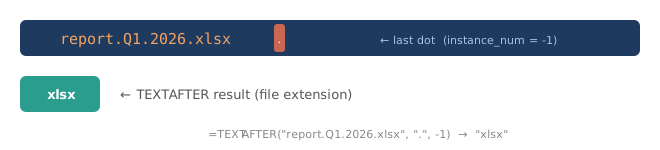
The if_not_found safety argument
If the delimiter is absent from the string, both TEXTBEFORE and TEXTAFTER return #N/A by default. The if_not_found argument provides a fallback:
=TEXTAFTER(A1, "@", 1, 0, 0, "not an email")This is cleaner than wrapping the entire formula in IFERROR, because the fallback is semantically specific to the missing-delimiter case.
TEXTSPLIT — split a string into a dynamic range
=TEXTSPLIT(text, col_delimiter, [row_delimiter], [ignore_empty], [match_mode], [pad_with])TEXTSPLIT is the most powerful of the three. It splits a string into multiple cells and spills the result automatically.
col_delimiter— splits left to right (into columns)row_delimiter— splits top to bottom (into rows)- Both can be arrays of delimiters
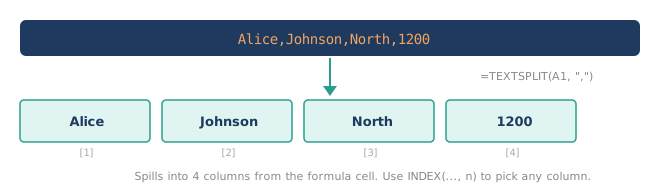
Example: Split "Alice,Johnson,North,1200" into four separate cells.
=TEXTSPLIT("Alice,Johnson,North,1200", ",")Result spills across four columns: Alice | Johnson | North | 1200
Splitting into rows instead of columns
Swap the delimiter to the third argument (row_delimiter) and leave col_delimiter empty:
=TEXTSPLIT("Alice;Johnson;North;1200", , ";")Result spills down four rows in a single column.
Splitting into a two-dimensional array
Supply both delimiters to split a structured string into a grid:
=TEXTSPLIT("Alice,1200|Bob,950|Carol,1100", ",", "|")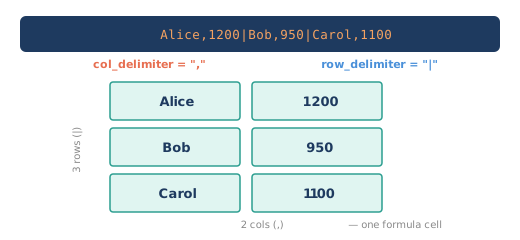
The result is a 3-row × 2-column array, produced from a single formula cell.
Combining the three functions — real-world examples
The true strength of these functions appears when they are composed together or combined with other Excel functions.
Example 1 — Extract a domain from an email address
Given "alice.johnson@safeoffice.de" in cell A1:
=TEXTAFTER(A1, "@") → "safeoffice.de"Extract only the domain name without the top-level domain:
=TEXTBEFORE(TEXTAFTER(A1, "@"), ".") → "safeoffice"TEXTAFTER extracts everything after @. TEXTBEFORE then trims everything before the first dot within that result. The two functions nest cleanly.
Example 2 — Parse a structured product code
Product codes follow the pattern "CAT-REF-SIZE", for example "FURN-CHR-XL" in A1.
| Goal | Formula | Result |
|---|---|---|
| Category | =TEXTBEFORE(A1,"-") |
FURN |
| Reference | =TEXTBEFORE(TEXTAFTER(A1,"-"),"-") |
CHR |
| Size | =TEXTAFTER(A1,"-",-1) |
XL |
The Size formula uses instance_num = -1 (last delimiter), which works regardless of how many segments the code contains.
Example 3 — Split a full address into components
Address in A1: "12 Baker Street, London, W1U 6TN"
=TEXTSPLIT(A1, ", ")This spills three cells: 12 Baker Street | London | W1U 6TN
To extract just the postcode (always the last segment), without relying on column position:
=TEXTAFTER(A1, ", ", -1) → "W1U 6TN"Example 4 — Reconstruct a name from "Last, First" format
Source in A1: "Johnson, Alice"
=TEXTAFTER(A1,", ") & " " & TEXTBEFORE(A1,", ") → "Alice Johnson"TEXTAFTER gives the first name, TEXTBEFORE gives the surname, and the & operator reassembles them in the natural order. No helper columns needed.
Example 5 — Count words in a sentence
TEXTSPLIT spills one cell per word. COLUMNS counts the spill:
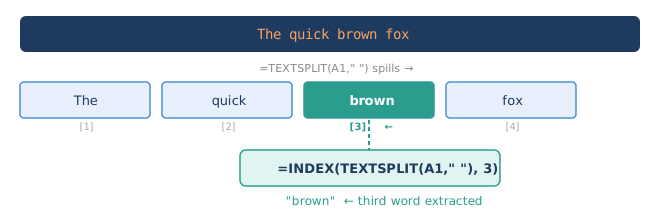
=COLUMNS(TEXTSPLIT(A1," "))For "The quick brown fox", the result is 4. This replaces the legacy LEN(A1)-LEN(SUBSTITUTE(A1," ",""))+1 workaround with a readable, direct formula.
Example 6 — Extract the Nth word from a sentence
=INDEX(TEXTSPLIT(A1," "), 3) → "brown"TEXTSPLIT splits the sentence into a horizontal array; INDEX picks the third element. Change 3 to any position to extract any word.
Handling edge cases
Missing delimiter — use if_not_found
=TEXTAFTER(A1, "@", 1, 0, 0, "no domain")If A1 contains plain text without @, the formula returns "no domain" instead of #N/A.
Multiple consecutive delimiters — ignore_empty
When splitting CSV data that contains empty fields ("Alice,,North,1200"), TEXTSPLIT normally returns an empty string for the empty field. Setting ignore_empty to TRUE collapses consecutive delimiters and skips the empty cell. Use FALSE (the default) when preserving column alignment matters.
Case-insensitive matching — match_mode
By default, delimiters are case-sensitive. Set match_mode to 1 for case-insensitive matching:
=TEXTSPLIT(A1, "X", , , 1)This treats both x and X as split points.
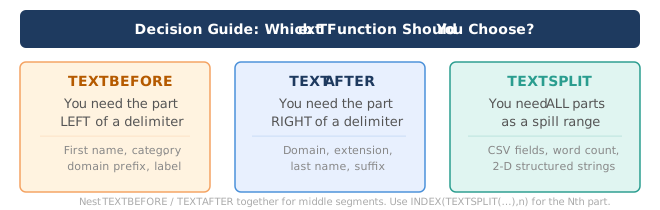
When to use which function
Practical tips and common mistakes
| Situation | Recommendation |
|---|---|
| Delimiter not present in string | Use if_not_found argument or wrap in IFERROR |
| Need a number, not text | Wrap result in VALUE() |
| Need a date | Wrap result in DATEVALUE() |
| Empty fields in CSV | Set ignore_empty to FALSE to preserve alignment |
| Case-insensitive delimiter | Set match_mode to 1 |
| Extract Nth segment | INDEX(TEXTSPLIT(A1,delim), n) |
| Last segment of any length | TEXTAFTER(A1, delim, -1) |
| Combine results | Use & or TEXTJOIN on the spill range |
Why these functions matter for data quality
Raw data rarely arrives in the exact shape a formula or report requires. Email addresses, product codes, full names, structured IDs and concatenated fields are common in imported data, CRM exports and legacy systems. Before TEXTSPLIT, TEXTBEFORE and TEXTAFTER, extracting structured information from these strings required deeply nested formulas using FIND, LEN, LEFT, MID and RIGHT — formulas that were fragile, hard to read and hard to maintain.
These three functions replace that complexity with clear, composable expressions. A formula that once required four nested functions and a helper column can now be written in a single readable line. More importantly, the formula updates automatically when the source data changes. There is no wizard to re-run, no Text to Columns to repeat and no macro to trigger.
For teams working with imported data on a recurring basis, this represents a genuine shift in how text-based data can be handled — directly in the cell, without leaving Excel, and without writing a single line of code.
This article is part of the helpme.safeoffice.de series, which provides practical guides on Excel functions, workbook modeling and data solutions. The series is aimed at businesses that want effective, maintainable tools that everyone can understand.