How to structure an Excel workbook. The four-layer architecture for maintainable spreadsheets.
FAQ — What does this article answer?
Q: Why do so many Excel workbooks become unmanageable after a few months?
A: Because data, calculations and presentation are mixed together on the same sheets, and sometimes in the same cells. When everything is mixed together like this, changing one thing can break another, and it becomes impossible to follow the logic without reverse-engineering every formula. Clear layer architecture prevents this from the outset.
Q: What is a 'Settings' sheet, and why does every serious workbook need one?
A: The Settings sheet acts as both the workbook's control panel and its documentation. It contains all the constants, such as tax rates, targets and thresholds, as well as the toggle values. It also explains in plain language what each one does, which formulas use them and what the workbook is for. When a new person opens the workbook and reads the Settings sheet, they can understand the entire structure without having to ask anyone.
Q: Which information belongs on the data sheet, and which must never go there?
A: Raw input data should be entered in tables, with one table per dataset. Column headers should be entered in row 1, and there should be no blank rows or merged cells. There should be no formulas, totals or calculations of any kind. The data sheet is like a 'database'. Databases do not calculate.
Q: What is the difference between the 'Calculation' and 'Output' sheets?
A: The 'Calculation' sheet contains all the formula logic, such as SUMs, IFs, LOOKUPs and dynamic arrays. It is the engine. The Output sheet contains dashboards, reports and print layouts that are based on the data in the Calculation sheet. Users see the 'Output' sheet. Developers work in the 'Calculation' sheet. The two sheets never mix.
Q: How can I name and colour-code sheets so that the workbook is self-explanatory?
A: Use short, descriptive names in a language that your users understand. Apply consistent colour coding, using one colour per layer — for example, grey for 'Settings', blue for 'Data', yellow for 'Calculation' and green for 'Output'. This allows anyone who opens the file to understand the structure without reading a single cell.
Most Excel workbooks start off simple but then become unmanageable. First, a formula here, then a lookup there, and finally a summary table pasted next to the source data. Six months later, nobody knows what feeds what, changing the VAT rate involves hunting through forty formulas and the person who created the workbook has left the company.
The solution is structure, not complexity. A workbook with four clearly defined layers is easier to build, audit, hand over and fix when something goes wrong. This article describes that structure and how to implement it.
The four-layer principle
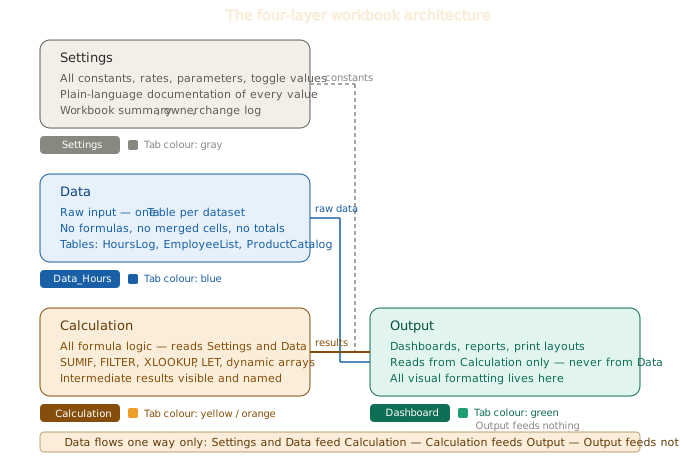
Every element of a workbook belongs to one of four layers. Each layer has a specific function and only communicates with adjacent layers in one direction.
Settings → Data → Calculation → Output
Settings feeds Calculation. Data feeds Calculation. Calculation feeds Output. Output does not feed anything. Data never reads from Calculation. The calculation never reads from the output. When information only flows in one direction, it is always possible to trace where a number came from.
Layer 1: Settings
The Settings sheet is the most important and most commonly missing sheet in the workbook. It serves two interrelated purposes: it centralises all the configuration values on which formulas depend, and it documents the workbook's functionality for anyone who opens it.
What belongs on the Settings sheet?
Constants and parameters — any value that appears in a formula and that could ever need to be changed. Never embed numbers directly in formula strings. A formula such as =B2*0.19 is problematic: where else does 0.19 appear? Nobody knows. In contrast, a formula such as '=B2*Settings[VAT]' is self-documenting and maintainable.
Examples of what lives on Settings:
- VAT rate, income tax rate, social security percentages
- Overtime threshold (e.g. 8 hours)
- Bonus trigger values
- Report period start and end dates
- Currency conversion rates
- Toggle switches (1/0 or TRUE/FALSE) that turn features on and off
A documentation table — a plain-language description of each constant on the sheet. Columns might include: Name, Value, Unit, Used in and Description. This table is not just for decoration — it is the workbook's manual.
Example row:
| Name | Value | Unit | Used in | Description |
|---|---|---|---|---|
| VAT | 0.19 | rate | Calculation!C:C | Standard German VAT rate. Update when rate changes. |
| OvertimeThreshold | 8 | hours | Calculation!E:E | Daily hours above which overtime pay applies. |
A workbook summary: four to six sentences at the top of the sheet explaining what the workbook calculates, who owns it, when it was last reviewed and the main inputs. This is the first thing a new user reads and immediately understands the context.
How to reference Settings values
Name every constant in Settings as a named range or store it in a table. For example, a table named Config with columns named Name and Value lets you reference values with XLOOKUP.
=XLOOKUP("VAT", Config[Name], Config[Value])Alternatively, store each constant in a named cell. For example, select the cell containing 0.19, type VAT in the Name Box (top left), and then every formula in the workbook can use =B2*VAT instead of =B2*Settings!$B$4.
Layer 2: Data
The data layer contains unprocessed input. No calculations are performed here. The data sheet is like a database that stores facts.
Rules for the data sheet
One table per dataset.
Convert every dataset to an Excel table using the shortcut Ctrl+T and give it a meaningful name, such as HoursLog, EmployeeList or ProductCatalog. Never put two datasets on the same sheet without a clear table boundary.
Column headers should be in row 1 and data should start in row 2
There should be no merged cells, decorative headers or summary rows inserted into the data. A table must be a clean, contiguous rectangle.
No formulas.
Any calculated column, even something as simple as 'Full Name' derived from 'First' and 'Last', belongs in the Calculation layer, not here. The only exception is table-calculated columns that derive a value directly from other columns in the same row with no external references. Even then, consider whether it belongs in the 'Calculation' layer.
Do not apply any formatting beyond the table style.
Colour-coding individual cells is forbidden as it is neither machine-readable nor sortable and is lost the moment someone copies and pastes. If a status requires a colour, add a Status column containing a text value and apply conditional formatting to that column in the Output layer.
Once data has been entered, protect the data sheet from accidental editing.
Go to Review > Protect Sheet and allow only cell selection.
Layer 3: Calculation
The Calculation sheet is the driving force. It reads data and settings, applies formula logic and produces results that the output sheet reads.
What belongs in 'Calculation'?
All formulas with external references should go here: This includes SUMIF, FILTER, XLOOKUP, dynamic arrays, pivot-style aggregations, LET formulas and running totals. Formulas that reference more than one column from the same row also belong here.
How to organise calculations:
Name the columns clearly. Use structured references: For example, use the formula =SUMIF(HoursLog[Employee], A2, HoursLog[Hours]) rather than the formula =SUMIF(Data!C:C, A2, Data!E:E). The structured reference makes its purpose clear; the cell address does not.
Group related calculations together under a section header in row 1 and use consistent row alignment where possible, i.e. one employee per row, one period per column and all calculations in between.
Keep intermediate results visible. A chain of five nested functions in one cell is impossible to debug. Break it down into three cells, with intermediate results that can be inspected. The Calculation sheet is intended for developers, so clarity is more important than compactness.
Use the 'LET' function for any formula that calculates the same sub-expression more than once.
=LET(
    hrs, SUMIF(HoursLog[Employee], A2, HoursLog[Hours]),
    threshold, XLOOKUP("OvertimeThreshold", Config[Name], Config[Value]),
    regular, MIN(hrs, threshold),
    overtime, MAX(hrs - threshold, 0),
    regular * VAT_Rate + overtime * VAT_Rate * 1.5
)
Each intermediate value has a name. The formula can be read and audited without independently of cell references.
Layer 4: Output
The output layer is what users see. It contains dashboards, summary tables, charts and print-ready reports. It only reads from the Calculation layer, never directly from the Data layer.
Why must the Output not read from the Data?
If a chart or summary table reads directly from a raw data table, all the logic in the calculation is bypassed. Any filter applied in the calculation layer is ignored. A date range restriction is also ignored. The output shows raw data, not processed results.
Keep the chain intact: Data → Calculation → Output.
What belongs in the 'Output' section?
- Charts linked to calculation results.
- Summary tables that reference calculation ranges.
- Conditional formatting that visualises calculation values.
- Print areas and page layouts.
- Nothing that requires a formula more complex than a simple cell reference or sum of a calculation range.
Apply all visual formatting here, including colours, borders, fonts and logos. The Calculation and Data sheets should be plain in appearance. Presentation lives in the Output.
Naming conventions and colour coding.
Sheet names
Use short, descriptive names. Avoid spaces and use underscores if necessary. Suggested conventions:
- 'Settings' or 'Config'
- 'Data_Hours', 'DataEmployees'
(prefix with Data for multiple data sheets) - 'Calc' or 'Calculation'
- 'Report_Q1', 'Dashboard'
(prefix Output sheets with their purpose)
Tab colour coding
Apply a consistent colour scheme to the sheet tabs by right-clicking on a tab and selecting 'Tab Color'.
| Colour | Layer |
|---|---|
| Blue | Data sheets |
| Yellow / Orange | Calculation |
| Green — Output | Report sheets |
Even before reading a single cell, anyone who opens the workbook will understand its structure from the tab bar.
Avoid these common structural mistakes:
The most common mistake is putting data and calculations on the same sheet.
This makes both harder to maintain.
Magic numbers in formulas,
such as *0.19, >8 and *1.5, embedded in formula strings. All of these should be entered in Settings with a name and a description.
The output reading is directly from the data,
and the charts show raw data instead of processed results, skipping all the logic in the calculation.
No Settings sheet:
every workbook that will be used for more than a week needs one. If a workbook has no settings sheet, the constants are hidden inside formulas and nobody knows where they are.
Sheets named 'Sheet1', 'Sheet2', 'Sheet3',
etc. were never intended for anyone else to use. Rename every sheet before sharing.
Hidden sheets containing logic
are easily forgotten. Any formula logic in a hidden sheet is effectively invisible. Keep Calculation visible.
The Settings sheet as a handover document
Once you have finished creating a workbook, the Settings sheet should contain all the information necessary for someone else to maintain it without your help. This means that:
- Every constant should be documented with its name, current value, unit, and an explanation.
- A list of the data tables, including their names, contents and who is responsible for updating them.
- A plain-language description of what the workbook calculates and what the outputs mean.
- A change log showing the date, what changed and who made the change.
This takes fifteen minutes to write and saves hours of explanation every time the workbook changes hands.
Summary
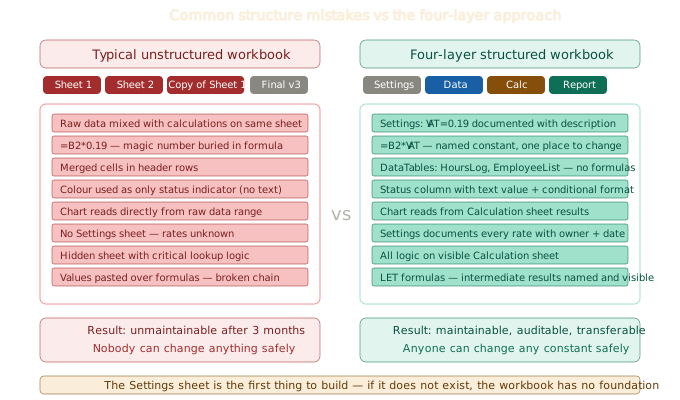
A well-structured workbook is no more complex than a poorly structured one — it just has the same formulas arranged so that each one has a clear home and purpose. The four layers enforce three habits that improve every workbook: constants live in the 'Settings' sheet and are never hidden in formulas; data is never mixed with calculations; and output is always separated from logic.
Build the Settings sheet first. Name the data tables before writing the first formula. Keep Calculation and Output on separate sheets. Making these three decisions at the start of a project prevents the structural debt that renders most workbooks unmaintainable within months.
See also: How to use Excel Tables. Why every dataset should be in Table format and how to structure the Data layer correctly.
See also: How to use LET for writing cleaner and faster formulas and how to organise complex logic in the calculation layer.