The Excel Name Manager: Named Ranges, Named Formulas and LAMBDA — Benefits and Pitfalls
A name in Excel is a human-readable label you attach to something, a cell, a range, a constant, a whole formula, even a custom function. Instead of =B2*C2*(1-D1), you write =Price*Quantity*(1-Discount), and the formula suddenly explains itself. The Name Manager is the little dialog where all those labels are created, edited and (in theory) kept tidy.
When used effectively, names can make workbooks more readable, maintainable and reusable. However, if used carelessly or only managed with Excel's own tools, they can also cause a file to become bloated, lead to silent breaking and prevent it from being transferred to a new workbook. This guide takes an honest approach, covering everything from what to name and why to the one golden rule and the drawbacks nobody mentions. It also explains which free third-party tools are far more effective than Excel's built-in dialog.
FAQ — What does this article answer?
Q: What is the Name Manager for?
A: It creates and manages defined names, labels that stand in for cells, ranges, constants, formulas or LAMBDA functions. Open it with Ctrl+F3 (Formulas tab → Name Manager).
Q: Can I name a single cell, or only a range?
A: Both and more. A name can point to one cell, a multi-cell range or array, a whole Table, a bare constant with no cell at all, an entire formula, or a LAMBDA function.
Q: What's the golden rule?
A: If you refer to something more than once, name it. A tax rate you reuse across ten formulas, a lookup range, a tricky expression, anything used frequently earns a name. One-off values usually don't.
Q: Why does my formula break when I copy it to a new workbook?
A: Because the name lives in the original workbook. Paste just the formula elsewhere and the name doesn't exist there, so you get #NAME?. This is the single biggest drawback of names.
Q: Is Excel's Name Manager any good?
A: For creating one name at a time, it's fine. For real housekeeping, finding unused names, spotting errors, cleaning hidden names, it's poor. Free third-party tools do this far better (covered at the end).
Why bother? A name turns coordinates into meaning
The core benefit is readability, and it is bigger than it looks.
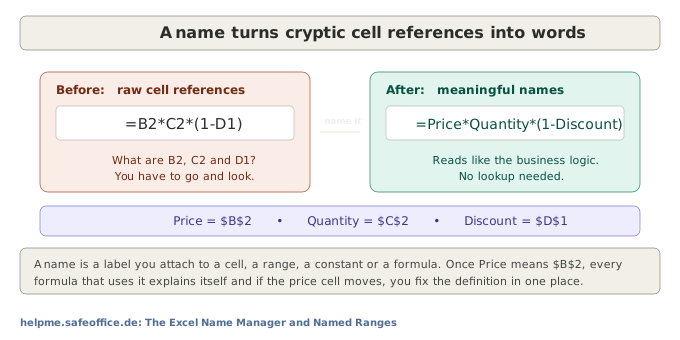
=B2*C2*(1-D1) forces you (and everyone after you) to go hunting for what B2, C2 and D1 mean. =Price*Quantity*(1-Discount) reads like the business rule it represents. But readability is only the headline benefit. Names also give you:
Single-point maintenance means that if the price cell moves, you only need to change the definition once and every formula will follow suit. Reuse: the same name can be used across sheets and formulas. Named constants allow you to store a VAT rate of 0.19 as VAT so that it cannot be accidentally overwritten in a cell. Navigation is easier, as the Name Box (to the left of the formula bar) jumps straight to any named range. There are also cleaner building blocks for data validation lists, chart series and dynamic ranges. In short, anything you repeatedly use becomes clearer and safer once it has a name.
What can carry a name?
This is where people underestimate names. It is not just ranges.
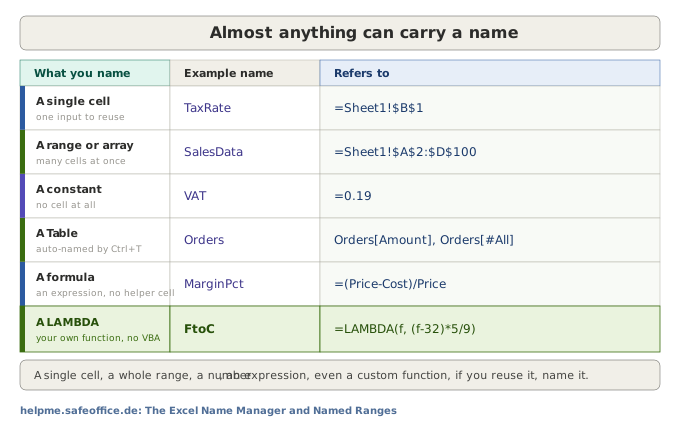
A single cell is one input that you reuse, such as a tax rate or a start date. A range or array, such as SalesData for $A$2:$D$100, is ideal as a lookup or validation source. A constant is a name that can refer to a value such as 0.19 with no cell behind it. Pressing Ctrl+T creates a table in Excel, which automatically names the table (Orders) and its columns (Orders[Amount]). This is essentially a modern, self-expanding form of a named range. A named formula is an expression like =(Price-Cost)/Price, stored as MarginPct, providing a reusable calculation without cluttering the sheet with helper cells. Finally, a LAMBDA is your own function, which we will come back to below because it is the reason why names matter more than ever.
The golden rule: if you reuse it, name it
Here is the whole philosophy in one line. Anything used frequently should be saved as a name. A rate that appears in a dozen formulas, a range three charts point at, an expression you keep retyping, each becomes clearer, safer and easier to change the moment it has a name. The flip side matters too: a value used exactly once gains nothing from a name and just adds clutter. Name the recurring, not the incidental.
Where names live, and the rules
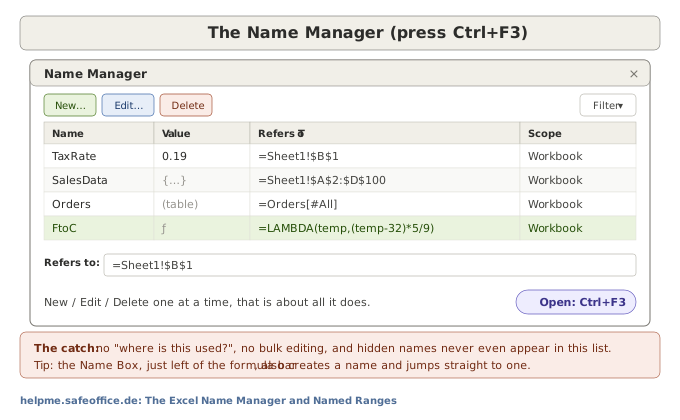
Open the Name Manager with Ctrl+F3. Each name has a scope, workbook (usable everywhere, the default) or a single worksheet (so the same name can mean different things on different sheets). A few naming rules are worth knowing up front: a name must start with a letter, underscore or backslash; it can't contain spaces; it can't look like a cell reference (A1, R1C1) or a bare boolean; names are case-insensitive (Price and price are the same); and the limit is 255 characters. A common convention is PascalCase (SalesData, TaxRate) or a short prefix scheme so names sort together.
You don't even need the dialog for quick work: type a name into the Name Box to the left of the formula bar to create it for the current selection, or pick an existing name from its dropdown to jump there.
LAMBDA: the reason names matter more than ever
For years, names were mostly about ranges and constants. Then came LAMBDA (Excel 365), and suddenly a name can be a function you wrote yourself, no VBA, no add-in.
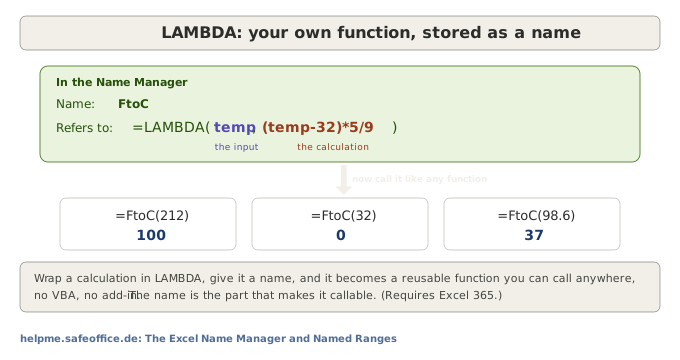
Define FtoC as =LAMBDA(temp, (temp-32)*5/9) in the Name Manager, and =FtoC(212) returns 100 anywhere in the workbook. The LAMBDA is the logic; the name is what makes it callable like a built-in function. This is genuinely powerful, reusable custom functions, shareable calculations, no macro security prompts and it means the Name Manager has quietly become one of the most important dialogs in modern Excel. (Pair it with the LAMBDA helpers MAP, REDUCE, SCAN, BYROW and BYCOL for the full toolkit.) One catch to flag now: because a LAMBDA is just a name, it lives inside its workbook like any other, reusing it elsewhere means carrying it across, which is exactly the portability problem we hit next. One third-party tool solves it neatly, and we come back to it below.
The drawbacks and we won't gloss over them
Names are a genuine win, but they come with real costs. Ignore these and they will bite.
Names are trapped in the workbook
This is the big one.
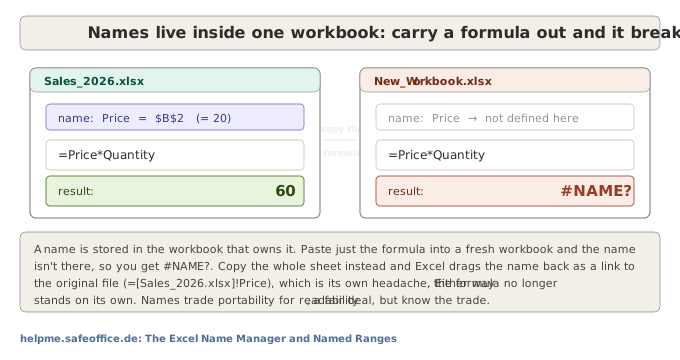
A name is stored inside the workbook that owns it. Copy just a formula that uses Price into a fresh workbook and the name isn't there, you get #NAME?, and the formula is, in effect, no longer available. Copy the whole sheet instead and Excel does something arguably worse: it drags the name along as an external link back to the original file (=[Sales_2026.xlsx]!Price), so now you have hidden links to another workbook to untangle. Either way, a named formula does not stand on its own the way a plain-reference formula does. Names trade portability for readability. Usually that's a good trade, just make it knowingly, and don't be surprised when a copied formula breaks.
Excel's own Name Manager is, frankly, a poor tool
For simple, clear handling of names at scale, the built-in dialog is a disappointment. You can create, edit and delete names one at a time, and that's about the extent of it. There is no "where is this name actually used?" view, no bulk editing of the Refers To column, no way to find and remove unused names, and no way to spot names carrying errors without clicking through each one. Worst of all, hidden names don't even appear in the list, yet they still live in the file and can still break things.
Hidden names, phantom names and #REF! rot
Copy sheets between workbooks a few times and Excel silently imports the source file's names, often as hidden, workbook-bloating "phantom" names, a frequent cause of the "a name already exists" prompt on paste and of mysterious external-link warnings. Delete the cells a name points to and the name doesn't vanish; it rots into =#REF! and sits there. The built-in manager gives you almost no help finding or clearing any of this.
Better tooling: third-party name managers
Because the built-in dialog is so limited, this is one of the rare areas where a third-party add-in genuinely pays off and several are free.
The best-known dedicated replacement is the free Name Manager by Jan Karel Pieterse (Excel MVP, jkp-ads.com). It does everything Excel's dialog won't: filter and sort names, find names with errors, find unused names, flag names that link to other workbooks, and edit or delete in bulk. There's a classic add-in for Excel on Windows and a newer browser-based edition that also runs in Excel Online and inside Microsoft Teams, available in five languages including German. If you use names at all, it's worth installing.
ASAP Utilities (asap-utilities.com) is a large, long-established utility suite with a whole set of name tools: list every name in the workbook including hidden ones, delete names with #REF! references, remove all or unused names, and replace names in formulas with plain references. It's free for personal, home and educational use, with a paid licence for business.
MonkeyTools from Ken Puls at ExcelGuru (monkeytools.ca) earns its place here for one feature in particular. It's primarily a Power Query and Data Model add-in, a set of "Monkeys" that build things and "Sleuths" that investigate them, but its Biblio Monkey is a personal library of reusable patterns: ordinary formulas, LAMBDA functions, Power Query queries and DAX measures, saved once and then available in every workbook. This is the direct cure for the "LAMBDAs are trapped in one workbook" problem above. You store a LAMBDA, or a formula containing placeholders, in the library, and when you need it elsewhere you Inject it into that workbook: a LAMBDA is injected straight into the Name Manager, ready to call. The placeholders are handled as tags, so a saved pattern can prompt you to fill in the specifics as it's inserted. Saving and injecting formulas and LAMBDAs is included in the free version; injecting Power Query queries and measures, plus the wider set of Monkeys and Sleuths, is Pro. Other multi-purpose suites (Kutools, Professor Excel and similar) bundle name utilities too, usually as paid tools.
Best-practice checklist
Name the things you reuse, not the one-offs. Choose a scope deliberately, workbook unless you have a reason for sheet-level. Adopt a naming convention and stick to it. Prefer Tables (Ctrl+T) and structured references over hand-built dynamic ranges; they self-expand and don't rot. If you do need a dynamic named range, build it with INDEX or a spilled array rather than volatile OFFSET. Periodically clean out unused and #REF! names, with a third-party tool, since Excel won't help. And remember the portability trade before you send a named-formula workbook to someone else.
Summary
| Point | What to remember |
|---|---|
| What a name is | a label for a cell, range, array, Table, constant, formula or LAMBDA |
| Open it | Ctrl+F3 (or the Name Box, left of the formula bar) |
| Golden rule | if you reuse it frequently, name it; don't name one-offs |
| Scope | workbook (default) or a single worksheet |
| LAMBDA | a name turns your calculation into a callable custom function (Excel 365) |
| Big drawback | names live in the workbook, copied formulas break with #NAME? or drag external links |
| Built-in tool | fine for one name at a time; poor for cleanup, no hidden-name or "where used" view |
| Free help | JKP Name Manager (dedicated); ASAP Utilities (name utilities, free for personal use) |
| Reuse LAMBDAs across workbooks | MonkeyTools' Biblio Monkey saves LAMBDAs/formulas and injects them into any workbook's Name Manager (free; Power Query & measures are Pro) |
| Keep clean | prefer Tables, avoid volatile OFFSET, clear unused/#REF! names regularly |
Names are one of the highest-return habits in Excel: they make formulas read like sentences and turn LAMBDA into a personal function library. Just respect the trade, they belong to their workbook, and Excel's own manager won't keep them tidy for you. Name what you reuse, lean on a free add-in for the housekeeping, and your workbooks get clearer without getting fragile.
What to read next
Names sit right next to a few topics you may already have met. The cell-references guide explains the absolute references ($B$2) that names so often replace. The Tables guide covers structured references, effectively self-maintaining named ranges. The errors guide helps with the #NAME? and #REF! problems names can cause, and the SUMPRODUCT guide is a great example of a formula that becomes dramatically more readable once its ranges are named.
See: Excel cell references: relative, absolute and mixed
See: Excel Tables: why every dataset should be one
See: How to handle errors with IFERROR and IFNA
See: How to Use SUMPRODUCT: Multiply, Sum, and Count with Conditions