FAQ — What Does This Article Answer?
Q: What is the FILTER function, and what problem does it solve?
A: FILTER is an Excel 365 function that extracts rows from a table based on one or more conditions, returning them as a dynamic spill range. Unlike AutoFilter or Slicers, FILTER exists as a formula inside a cell. The result updates instantly when the source data or criteria values change. There is no need to click anything or refresh, and no macro is involved.
Q: Can the FILTER function handle more than one condition at a time?
A: Yes. Conditions are combined using multiplication (*) for AND logic and addition (+) for OR logic. Multiplying two Boolean arrays returns TRUE only when both are TRUE. Adding them returns TRUE when at least one is TRUE. This enables you to create precise, multi-condition filters within a single formula.
Q: How can I link a dropdown list to a FILTER formula?
A: Place a dropdown list in a cell using Data Validation, then reference that cell directly in the FILTER formula as the criterion value. When a different item is selected from the dropdown list, the criterion changes and the FILTER result updates automatically across the entire spill range.
Q: What happens when FILTER function finds no matching rows?
A: By default, FILTER returns a #CALC! error when no rows match. The third optional argument of FILTER, called if_empty, lets you define a fallback value, such as the text "No results found", so that the spreadsheet always displays meaningful information rather than an error message.
Q: Does the FILTER function work with Excel Tables?
A: Yes, and it works particularly well. When the source range is an Excel Table (formatted with Ctrl+T), FILTER automatically adjusts as rows are added or removed. Using structured references such as SalesTable[Department] instead of cell addresses makes the formula easier to read and maintain.
The FILTER function automatically returns only the required rows, eliminating the need for macros or AutoFilter.
Every dataset asks the same question eventually: 'Show me only the rows that match this condition.' For years, the answer was AutoFilter, helper columns or VBA. FILTER offers a completely new solution.
FILTER is a dynamic array function that was introduced in Excel 365 and Excel 2021. It reads a source range. It evaluates a condition against every row. It returns only the rows where the condition is TRUE. It does this as a live, spill-range result. This updates the moment anything changes.
This article covers everything from the simplest one-criterion filter to an interactive dashboard driven by dropdown lists and capable of handling multiple conditions.
Understanding the FILTER syntax
=FILTER(array, include, [if_empty])| Argument | Required | Purpose |
|---|---|---|
array |
Yes | The range or table to filter (the full dataset) |
include |
Yes | A Boolean array — one TRUE/FALSE per row |
if_empty |
No | Value to return when no rows match |
The include argument is the key. It must evaluate to an array of TRUE and FALSE values, where the number of rows in this array is the same as the number of rows in array. FILTER returns every row where the corresponding value is TRUE.
Part 1: Filtering by a single criterion
Suppose you have a sales table in A1:D100 with the following columns: Date, Region, Salesperson and Revenue. You want to display only the rows where the value in the 'Region' column is 'North'.
=FILTER(A2:D100, B2:B100="North", "No results")How this works — step by step
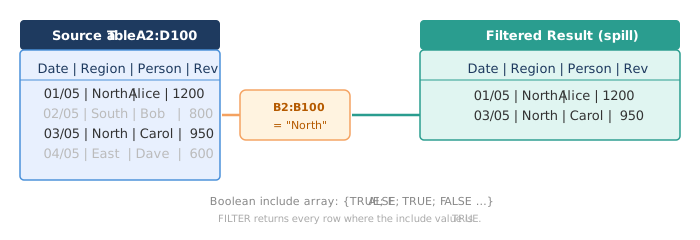
The expression B2:B100="North" produces an array of TRUE and FALSE values, with one value per row. FILTER reads this array and returns every row where the value is TRUE. The result automatically spills across as many rows as needed.
Important: never type 'North' directly into a regulrly used formula. Instead reference a cell so that the criterion can be changed without editing the formula.
Part 2: Multiple criteria with AND logic
In AND logic, every condition must be TRUE for the row to appear.
In FILTER, Boolean arrays are multiplied together. Since TRUE equals 1 and FALSE equals 0, the product is 1 only when all factors are 1.
Example: Rows where Region = "North" AND Revenue > 1000.
=FILTER(A2:D100, (B2:B100="North") * (D2:D100>1000), "No results")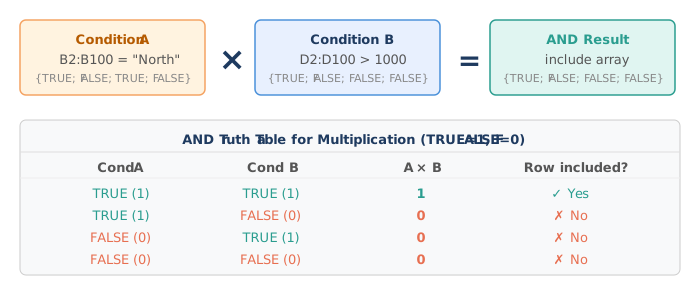
You can add as many conditions as you need. Each additional condition is multiplied by the previous one.
=FILTER(A2:D100,
    (B2:B100="North") * (D2:D100>1000) * (C2:C100="Alice"),
    "No results")
Part 3: Multiple criteria with OR logic
In OR logic, at least one condition must be TRUE.
You add Boolean arrays together. If the sum is greater than zero (i.e. if at least one condition is TRUE) the row is included.
Example: Rows where Region = "North" OR Region = "South".
=FILTER(A2:D100, (B2:B100="North") + (B2:B100="South"), "No results")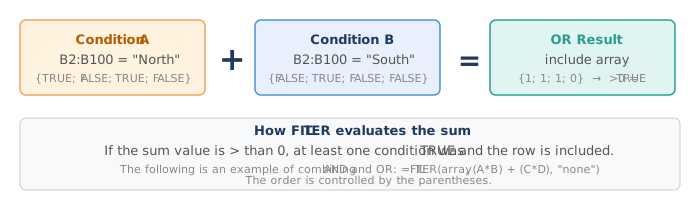
Combining AND and OR in one formula is straightforward. Parentheses control the order of evaluation:
=FILTER(A2:D100,
    ((B2:B100="North") * (D2:D100>1000)) + ((B2:B100="South") * (D2:D100>800)),
    "No results")
This returns rows that are either (North AND Revenue > 1000) OR (South AND Revenue > 800).
Part 4: Connecting Dropdown Lists to FILTER
FILTER's true potential is realised when the criteria are controlled by dropdown lists. This makes the result interactive: when a user selects a value from a dropdown list, the filtered table updates automatically.
Step 1: Create the dropdown list
Select a cell, for example F1. Go to Data → Data Validation → Allow: List. In the Source field, either type the permitted values, separated by semicolons, or reference a range containing the unique values:
Source: =SORT(UNIQUE(B2:B100))Using SORT(UNIQUE(...)) ensures that the dropdown always reflects the actual values present in the data column, including any newly added regions.
Step 2 — Refer to the dropdown cell in FILTER
=FILTER(A2:D100, B2:B100=F1, "No results for: " & F1)Cell F1 is now the live criterion. When the user selects 'South' from the dropdown menu, the value of cell F1 becomes "South" and the entire FILTER result updates instantly.
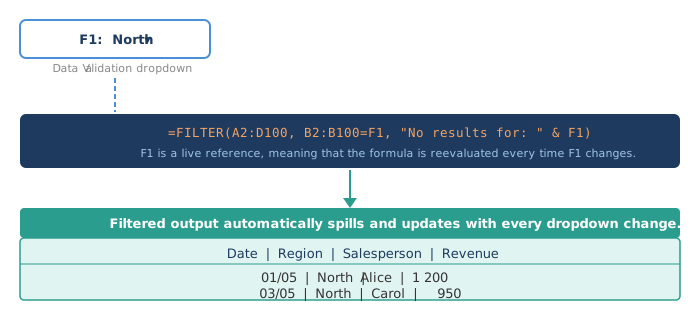
Step 3: involves two dropdown menus, each for a separate criterion.
Add a second dropdown to cell G1 for Salesperson (sourced from SORT(UNIQUE(C2:C100))), then combine them in one FILTER formula:
=FILTER(A2:D100,
    (B2:B100=F1) * (C2:C100=G1),
    "No results")
The output updates when either dropdown changes. There are no helper columns, no VBA and no refresh button.
Handling 'All' as an option in a dropdown
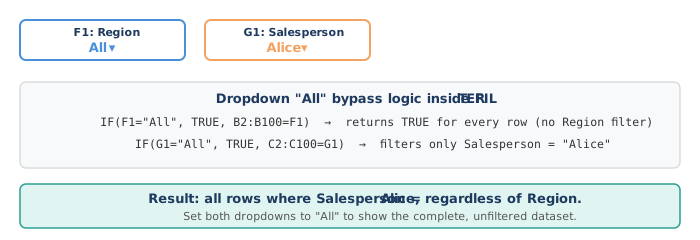
A common requirement is to allow the user select 'All' to view all rows. The standard approach is to test whether the dropdown menu contains the word 'All' and bypass the condition when it does:
=FILTER(A2:D100,
    (IF(F1="All", TRUE, B2:B100=F1)) *
    (IF(G1="All", TRUE, C2:C100=G1)),
    "No results")
When F1 = 'All', the first condition evaluates to the constant TRUE for every row, effectively switching off the Region filter. The same logic applies to the second dropdown independently.
Part 5: Returning only specific columns
By default, the FILTER function returns all columns from the source range. To limit the output to specific columns, you can either nest FILTER inside CHOOSECOLS (Excel 365), or by using an array of column indices:
=CHOOSECOLS(FILTER(A2:D100, B2:B100=F1, "No results"), 1, 3, 4)This returns only columns 1 (Date), 3 (Salesperson) and 4 (Revenue), omitting column 2 (Region), as this has already been selected from the dropdown menu.
Part 6: Sorting the filtered results
Wrap FILTER inside SORT to deliver an ordered output:
=SORT(FILTER(A2:D100, B2:B100=F1, "No results"), 4, -1)The second argument, 4, sorts by the fourth column (Revenue). The third argument, -1, sorts in descending order, so the highest revenue is at the top. The user gets a filtered AND sorted list from a single formula.
Practical tips and common mistakes
| Situation | Recommendation |
|---|---|
| No rows match | Always provide the if_empty argument to avoid #CALC! |
| Criteria from a dropdown | Reference the cell, never hardcode the text inside the formula |
| Adding "All" to a dropdown | Use IF(cell="All", TRUE, range=cell) to bypass the filter |
| Case sensitivity | FILTER comparisons are case-insensitive by default |
| Partial matches | Use ISNUMBER(SEARCH("partial", range)) as the include argument |
| Date range filtering | (range>=startDate) * (range<=endDate) for AND date window |
| Filter not updating | Verify the source range includes all data rows; use a Table reference |
Why is FILTER better than manual filtering for recurring tasks?
AutoFilter is ideal for one-off exploration. However, when the same filtered view is needed repeatedly, for example on a report, a dashboard or a summary sheet, FILTER is far more reliable. The filtered result is a formula. It cannot be accidentally cleared or left in a state where someone forgot to reset it. It also updates the moment new data arrives in the source table.
Combining FILTER with SORT, UNIQUE, CHOOSECOLS and Data Validation dropdowns creates a fully interactive, self-maintaining reporting layer without the need for a single line of VBA code or a pivot table that requires manual refreshing.
This article is part of the helpme.safeoffice.de series, which provides practical guides on Excel functions, workbook modeling and data solutions. The series is aimed at businesses that want effective, maintainable tools that everyone can understand.