Data bars, colour scales and sparklines offer an alternative way to visualise data in Excel, providing an option other than traditional charts.
FAQ — What does this article answer?
Q: What is the difference between a data bar and a bar chart?
A: A data bar is drawn inside the cell itself, and its length is proportional to the value relative to the range. In contrast, a bar chart is a separate object positioned over the sheet. Data bars update instantly when the data changes. They require no positioning or resizing and scale automatically to the column width. They are always aligned with their source data and never move out of position.
Q: When should I use a colour scale instead of data bars?
A: Use a colour scale to show the relative position of data across a matrix or two-dimensional range. For example, use a colour scale to create a heat map showing sales by region and month. Use data bars to show magnitude comparisons in a single column or row. Colour scales communicate gradient patterns, whereas data bars communicate size.
Q: What are sparklines, and where are they most effective?
A: Sparklines are miniature charts that fit inside a single cell. They illustrate the trend or shape of a series of data without taking up chart space. They are most effective when placed in the final column of a row of periodic data — such as monthly revenue across twelve columns — as they allow the reader to see the overall pattern at a glance, without having to scan all twelve numbers.
Q: Can all four tools be used together in the same report?
A: Yes, and that is exactly the right approach. Each tool serves a different purpose. Sparklines show trends over time. Data bars show current-period magnitude. Colour scales show relative performance across a matrix. Icon sets show status against a target. A well-designed dashboard uses each tool for the dimension it handles best, with no overlap or redundancy.
Q: Are these tools compatible with all versions of Excel?
A: Data bars, colour scales and icon sets have been available in Excel since version 2007. Sparklines were introduced in Excel 2010. All four are available in Excel 365, Excel 2019 and Excel 2021. These features are preserved when files are opened in older versions, but they may not be editable.
The previous article in this series covered conditional formatting and custom number formats — tools that add colour, icons and directional arrows to individual cells based on specific criteria. This article covers four complementary tools that operate at a higher level of abstraction: data bars, colour scales, icon sets and sparklines. Together, these six tools form a comprehensive in-cell visualisation system that can replace standard charts in most reporting contexts.
The four tools at a glance
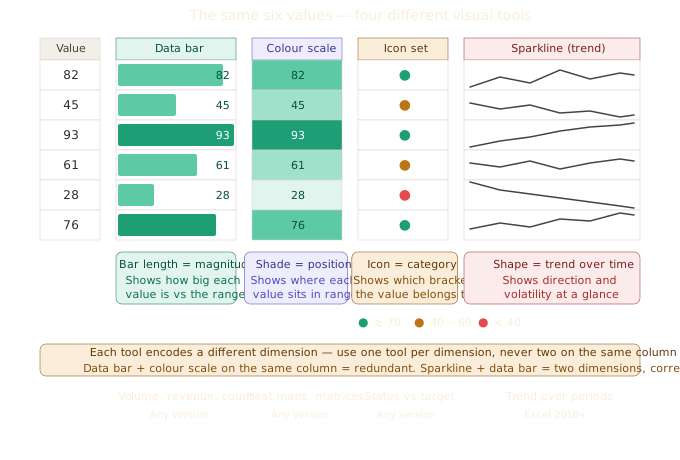
Each tool displays a different type of visual information and occupies a different visual register.
- Data bars show magnitude. A bar fills the cell proportionally to its value. Most effective for single-column comparisons.
- Colour scales — show relative position across a range. The entire range is coloured from one end of the spectrum to the other. Most effective for matrices and heat maps.
- Icon sets show category membership. Each value is assigned to a bracket and receives the corresponding icon. Ideal for status and threshold reporting.
- Sparklines show trends over time. Miniature line, bar or win/loss charts fit inside one cell. Most effective when used as a trend column alongside periodic data.
Data bars:
Data bars can be applied via the 'Home' tab, then 'Conditional Formatting', then 'Data Bars'. You can choose a gradient fill, which fades towards the right edge, or a solid fill, which is a uniform colour. The default gradient is suitable for most purposes, although a solid fill is clearer in printed documents.
How is bar length calculated?
By default, the shortest bar corresponds to the minimum value in the range, while the longest bar corresponds to the maximum. For example, a value of 100 in a column where the maximum is also 100 shows a full bar, while a value of 50 shows a half bar.
The problem with the default setting is that if your range contains one extreme outlier, all the other bars will compress to a tiny fraction of their cell width, and the variation between normal values will disappear. You can fix this by editing the rule and setting the minimum and maximum to specific numbers rather than 'Automatic'.
To do this, go to Home → Conditional Formatting → Manage Rules and double-click the data bar rule. Change 'Type' from 'Automatic' to 'Number' and enter meaningful minimum and maximum values. For a sales column where most values fall between 10,000 and 100,000, set the minimum to 0 and the maximum to 100,000. Now, a value of 75,000 shows a bar that is 75% full, regardless of whether an outlier hits 500,000.
Show bars without numbers:
Tick 'Show Bar Only' to hide the numbers and display only the bars. Use this option when there is a dedicated value column immediately beside the bar column and the bar column is purely visual.
Negative values:
Data bars display negative values as a bar growing in the opposite direction from a centre axis. Both the axis position and the colour of the negative bar can be configured. This is one of the cleanest ways to show positive and negative variance in a compact space.
Colour guidance for data bars:
Use a single colour, not a gradient, and a solid bar works better than a gradient. A teal or blue bar is suitable for neutral data such as volumes and counts. Use green for performance above a baseline and red for below, but only if the data genuinely has a positive or negative dimension. Never use red bars to show sales volume; red signals a problem that does not exist.
Avoid using data bars alongside heavy conditional formatting background colours on the same cells — the two compete visually. If background colours are applied by conditional formatting rules, apply data bars to an adjacent column.
Colour scales:
Colour scales are applied via the 'Home' tab, then 'Conditional Formatting', then 'Colour Scales'. These apply a colour gradient across a range, with each cell receiving a colour proportional to its position between the range's minimum and maximum values.
Two-colour vs. three-colour scales:
Two-colour scale: the minimum value receives one colour, the maximum value receives another, and all values in between receive shades that are interpolated between the two. This is the simplest option and the clearest for most purposes.
Three-colour scale: the minimum, midpoint and maximum each receive a colour. The midpoint can be set to the average, the median, or a specific number. Three-colour scales are useful when the midpoint is significant, for example, in a performance scale where 100% is the midpoint and values above it are green and values below it are red.
Choosing colours for colour scales
The built-in red-white-green and red-yellow-green presets are overused and pose accessibility issues — around 8% of men have some form of red-green colour blindness. Better choices:
For performance scales (where higher is better): white or light grey at the low end and deep teal at the high end. The contrast is high, the direction is clear (darker = more) and it works in greyscale.
For heat maps (concentration), use white at zero and deep blue or amber at the high end. Amber indicates warmth/activity, while blue indicates coolness/concentration.
For diverging scales (positive and negative around a centre), use deep red at the low end, white at the midpoint and deep teal at the high end. The white midpoint is unmistakable as the neutral zone.
Avoid using the full-saturation presets (bright red, bright green and bright yellow). They are visually aggressive and compete with everything else on the sheet. Use lighter fill colours — the same principle applies here as with conditional formatting highlights.
Heat maps
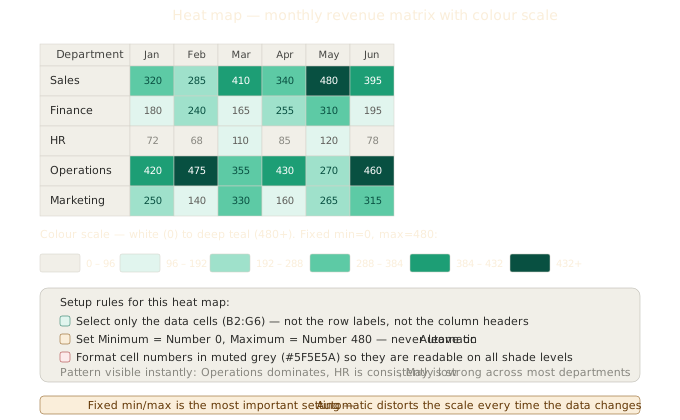
A heat map is a colour scale applied to a two-dimensional range. Rows represent one dimension, such as departments, products or regions, while columns represent another dimension, such as months, quarters or categories. The colour of each cell shows the value at that intersection. The result is a matrix in which concentrations, gaps and patterns that would be invisible in a plain table of numbers are immediately identifiable.
Setting up a heat map:
- Enter your data with row labels in column A and column headers in row 1; the data will occupy the rectangular range between these.
- Select only the data cells, not the row labels or the column headers.
- Go to Home > Conditional Formatting > Colour Scales and select a two- or three-colour scale.
- Immediately edit the rule (Manage Rules > Edit) and change both Minimum and Maximum from Automatic to Number. Enter the minimum and maximum values that make sense for your data.
Step 4 is critical. With automatic settings, the lightest colour is assigned to the lowest value in the matrix, and the darkest colour to the highest. This means that the scale adjusts every time the data changes. For example, if January's figures are unusually low, January will be assigned the lightest colour and everything else will look artificially high. Setting fixed minimum and maximum values gives the colour scale a stable, meaningful reference point.
The following colour combinations are recommended for use in heat maps.
For performance data, higher is better: white at the low end and deep teal (#085041) at the high end. High performers stand out as dark, while low performers recede as light. This works in greyscale.
For diverging data with a meaningful midpoint (e.g. variance from budget, where zero equals on budget): deep red at the low end, white at the midpoint (set to zero), and deep teal at the high end. Red indicates below budget, white indicates on budget and teal indicates above budget.
For concentration or density (counts or activity), use white at zero and deep amber (#633806) at the high end. Amber is a natural metaphor for heat/activity and concentration.
Labelling inside the heat map: keep the numbers visible within each cell. The colour should support the number, not replace it. Use a neutral, muted colour for the numbers (#5F5E5A), so they are readable against light and dark backgrounds. If the matrix is larger than 8×8, reduce the font size to 9–10px so the cells are narrow enough to show all periods in one view.
Row-by-row vs. global scale: applying a single colour scale to the entire matrix compares all values against a global minimum and maximum. Applying separate colour scales to each row (one per row) compares each department against its own range, which is useful when the absolute values differ significantly between rows and you want to highlight patterns within rows rather than cross-row comparisons. Use one colour scale for each conditional formatting rule and set a different rule for each row.
When not to use colour scales
They are inappropriate when the values in the range have no meaningful relationship to each other, such as mixing revenue in one row with headcount in another. A colour scale implies that all values are on the same scale. If they are not, the colour comparison is meaningless or misleading.
Icon sets
Icon sets were covered in the previous article in the context of conditional formatting. Within a complete visualisation toolkit, however, they play a specific role: they are the only tool that communicates categorical membership ('on track', 'at risk' or 'behind') rather than magnitude or relative position.
Choosing the right icon set:
Traffic lights (filled circles) are the most universally understood. Three-category status. Use them for anything with a clear good/warning/bad interpretation.
Directional arrows — use these when the data explicitly concerns direction or trend (up, flat or down). Not appropriate for status that does not have a directional meaning.
Flags — use for binary flagging (flagged/not flagged). The red flag draws attention, while the absence of a flag is visually neutral.
Stars — use for ratings or scoring. This works well for customer satisfaction tiers.
Shapes (e.g. triangles or diamonds) tend to be visually noisy. Use traffic lights instead, unless the shapes carry a specific meaning in your context.
Combine icon sets with the data visualisation toolkit.
Icon sets are most effective when used as a standalone status column positioned between the value columns and the sparkline column. The sequence reads naturally: value → trend (sparkline) → status (icon). Do not apply icon sets to the same column as data bars or colour scales, as this creates competition.
Sparklines:
Sparklines can be inserted via the 'Insert' menu, then 'Sparklines'. First, select the data range (usually a row of periodic values) and then select the location range (usually the cell immediately after the last period). Excel then draws a miniature chart in the location cell.
There are three types of sparkline:
Line: shows the shape and trend of the series. This is best suited to continuous data with meaningful intermediate values, such as revenue, temperature and stock price.
Column: shows individual period values as bars. It is best used for data where each period stands alone and the relative height matters more than the trend shape.
Win/Loss: shows only positive (win), negative (loss) or zero values. Best for binary outcomes, such as profit/loss per quarter or match results.
Sparkline formatting
Select the sparkline cell or range, then click on the Sparkline tab in the ribbon.
Tick Show markers and then 'High point' and 'Low point' to mark the maximum and minimum of the series with dots. This immediately draws the eye to the extremes. Tick 'Last Point' to highlight the most recent value, which is useful when the reader's primary interest is in the current position.
Axis settings: By default, each sparkline scales independently to its own minimum and maximum. However, this can be misleading when comparing sparklines across rows, as a row with steady low values and a row with highly volatile values will look visually similar. Set 'Same for all sparklines' under both 'Minimum' and 'Maximum' to force a common scale. Now the shapes are comparable.
Column width matters: a sparkline in a cell that is 60 px wide is too compressed to be readable. Ensure that the sparkline column is at least 80–100 px wide and that the row height is at least 30 px. The sparkline fills the cell and has no padding of its own.
Style: Use a thin line (the default weight is usually too heavy) and muted colours. Sparklines are supporting elements — they should not compete with the value columns. Dark grey (#444441) works well for line sparklines. Use the same green/red/amber palette for column sparklines that carry positive or negative meaning.
Sparklines have limitations.
Sparklines are not effective for series with a small number of data points (two or three points result in an insignificant shape) or for series with significant gaps. They cannot be annotated, labelled or given axis titles. If the data needs to be explained, or if the reader needs to be able to read exact values from the visualisation, use a real chart instead.
Using all four tools together:
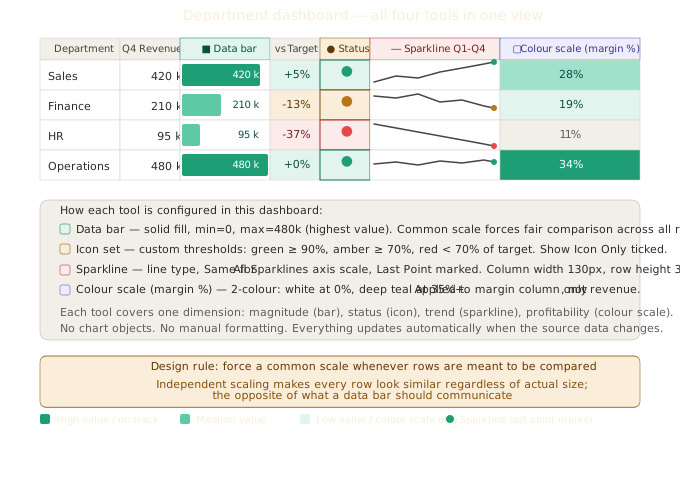
The most effective approach is to use each tool for one dimension only.:
| Tool | Dimension | Best position |
|---|---|---|
| Data bar | Current period magnitude | Same cell as value, or adjacent column |
| Colour scale | Relative position in matrix | Applied to the data matrix only |
| Icon set | Status vs target | Final column before sparklines |
| Sparkline | Trend over time | Final column of the row |
A complete row of periodic data — comprising twelve monthly values, a data bar for the current month, an icon set indicating status versus the annual target and a sparkline showing the twelve-month trend — occupies four columns and conveys four dimensions of information without the need for a single chart.
Performance and file size:
Sparklines are lightweight. However, colour scales and data bars on large ranges (10,000+ cells) can slow down the recalculation process on older machines. If performance is a concern, apply these tools only to the visible summary range, rather than the full raw data table, and allow the calculation layer to aggregate first.
Design rules for in-cell visualisation:
One tool should be used for each dimension. Data bars and colour scales on the same column communicate the same information twice. Choose one.
Use a common scale for comparisons: if sparklines or data bars in different rows are meant to be compared, force them to a common scale. Independent scaling makes every row look similar, regardless of the actual magnitude.
Muted colours and strong contrast: the same principle as for conditional formatting applies here, with light fills, dark text and a high contrast between the visual element and the cell background. Saturated bars and colour scales may look impressive in screenshots, but they are difficult to read in print and they compete with each other.
Leave white space around visual cells and give sparkline columns a slightly larger width. Give colour-scaled matrices a clear header row with no colour applied. The white space makes the visual elements look intentional rather than cramped.
Test in greyscale and print the sheet in black and white before signing off. Data bars and sparklines are effective in greyscale because they communicate through shape and size rather than colour. Colour scales only survive in greyscale if the contrast between the minimum and maximum colour is strong enough. Icon sets survive in greyscale if the icons themselves are distinct, such as a check, a cross or a flag, but not if they rely solely on colour, such as a red circle or a green circle.
Summary
Data bars, colour scales, icon sets and sparklines each solve a distinct visualisation problem that other tools cannot. When used selectively and consistently — with one tool per dimension, muted colours and common scales for comparison — they can transform a flat table of numbers into a readable, self-explanatory report that updates automatically with the data.
See also: Conditional formatting and custom cell formats in Excel for the complementary tools: highlight rules, formula-based formatting, and custom number formats with Unicode icons.
See also: How to use Excel Tables Structuring your data as tables ensures that data bars and colour scales always cover the correct range as data grows.