In Excel, cell references can be relative, absolute, mixed or use special operators $, # or @.
FAQ — What does this article answer?
Q: What's the difference between A1, $A1, A$1, and $A$1?
A: All four refer to cell A1, but they behave differently when you copy the formula. The number 'A1' is relative. This means that both the column and row move when it is copied. The cell '$A$1' always points to 'A1', no matter where you paste it. The $A1 lock keeps the column still, but the row can move. The symbol 'A$1' locks the row but lets the column move.
Q: When do I need to use $ in a formula?
A: Whenever you copy a formula, you should always use the same cell for the same piece of information. For example, a tax rate, a discount percentage or a fixed header row. Without the $ symbol, every part of the formula changes when copied. This is usually what you want for row-by-row calculations, but it's wrong when one reference should stay the same.
Q: What does the # symbol mean after a cell address, like A2#?
A: The # is the spill range operator, which was introduced with dynamic arrays in Excel 365. The A2# function means all the cells that the formula in A2 extends to — however many that is. If a 'UNIQUE' formula in cell A2 returns eight results, A2# refers to cells A2 to A9. Add a row to the source and A2# will automatically expand to include it.
Q: What does @ mean in a formula like =[@Hours]*[@Rate]?
A: In an Excel table, [@Hours] means the Hours value on the same row as this formula. The @ symbol is the implicit intersection operator. This tells Excel to use the value where this row meets the named column, rather than the entire column. This is why table formulas are self-documenting and always correct, no matter where they are in the row.
Q: How do I quickly switch between reference types without retyping?
A: Press the 'F4' key while your cursor is inside a cell reference in the formula bar. Each press cycles through the four types: First, go to cell A1. Next, press 'F4' $A$1. Then, change it to A$1. Finally, change it to $A1. This works on any reference and is the fastest way to lock a row, a column, or both.
Cell references are the foundation of every formula in Excel. Knowing how they work and when to use each one is the key to getting the right results when you copy and paste.
This article covers all four reference types, the F4 shortcut, and the three special operators that appear in modern Excel formulas: Use $ to lock, #´ for spill ranges, and@` for row-level references inside tables.
What a cell reference actually is
When you write =B2 in a formula, Excel doesn't store the text "B2". It stores a relative instruction: There are no columns to the left and no rows above this one. When you copy that formula one row down, Excel follows the same instruction and now points to B3. This is what is meant by relative referencing, and it is the default setting.
The $ sign changes that behaviour. It tells Excel to stop working out a relative position and always go to the specific column or row I am pointing at right now.
The four reference types
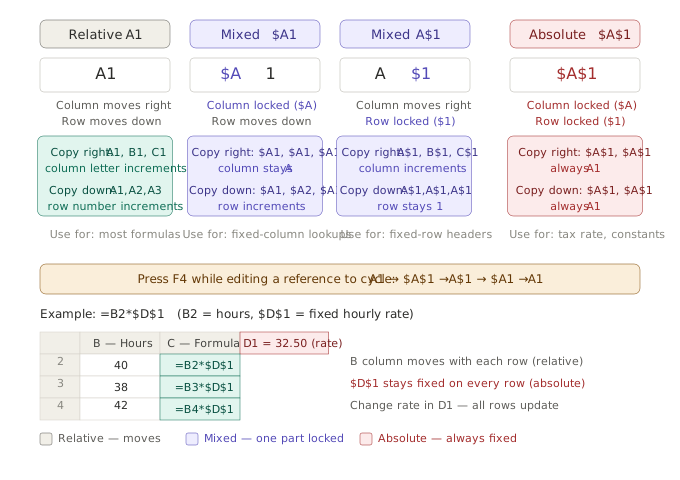
Relative — A1
The default setting. When you copy the formula, the column letter and the row number change.
=B2*C2Just copy this one row down: =B3*C3. Make a copy of it in another column on the right: =C2*D2. Both parts move together.
Use relative references for any calculation that should be done the same way each time it appears in the grid — like multiplying hours by a rate, adding two adjacent cells, or anything where the pattern is "same structure, different data."
Absolute — $A$1
The column and the row are both locked with a $ symbol. The reference always points to the same cell, no matter where the formula is copied.
=B2*$D$1The reference $D$1 always refers to cell D1, no matter how many rows down or columns across you copy the formula. Only B2 shifts.
Use absolute references for constants that apply to every row. For example, use a VAT rate in D1, an exchange rate, a discount percentage or a target value from a configuration cell. If you need to change the rate later, you can change it in one cell and all the formulas using $D$1 will update automatically.
Mixed — $A1 (column locked, row free)
The $ is placed only before the column letter. The column stays fixed; the row shifts when the formula is copied down.
=B2*$D2Copy this down: column D stays, but D2 becomes D3, D4, and so on. Copy it right: column D stays fixed while B shifts to C, D, and so on.
The classic use case is a two-dimensional multiplication table — rates in a fixed column, quantities that vary by row — or a lookup where the lookup column should never move but each row picks up a different search value.
Mixed — A$1 (row locked, column free)
The $ is placed only before the row number. The row stays fixed; the column shifts when the formula is copied right.
=B2*B$1Copy this right: row 1 stays locked, but B shifts to C, D, and so on. Copy it down: column B shifts, row 1 stays.
Use this when row 1 has a series of headers or rates that should be picked up by each column on its own. For example, monthly budget targets in row 1 with actuals filling in below them.
The F4 shortcut
You never need to type $ manually. Place your cursor inside any cell reference while editing a formula, then press F4 repeatedly to cycle:
A1 → $A$1 → A$1 → $A1 → A1
One press locks everything. Two presses locks only the row. Three presses locks only the column. Four presses removes all locks. This works on any reference anywhere in a formula.
The three special operators
After the dollar sign, there are three special characters in Excel that tell the computer how to interpret a reference. Each one has its own purpose.
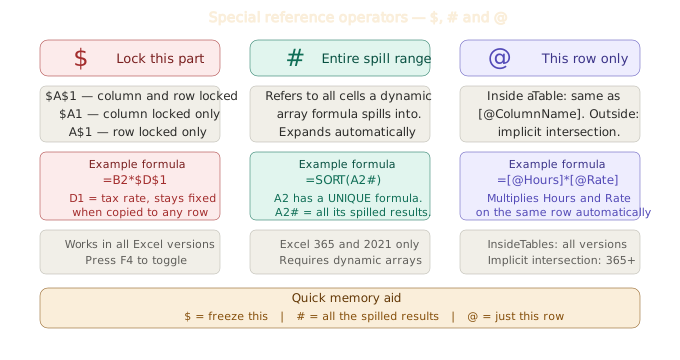
$ — lock this part
This has already been explained as part of the absolute and mixed references. In formula terms, $ means: do not change this part of the address when this formula is moved or copied. It works on columns, rows, or both.
# — the spill range operator
This feature was first introduced with dynamic arrays in Excel 365 and Excel 2021. If a formula like UNIQUE, FILTER, or SORT returns more than one result, these results will automatically spill into the cells next to each other. The # operator lets you use the whole spill range as one unit.
=UNIQUE(B2:B100)If the formula is in cell A2 and returns 12 unique values, these will fill cells A2 to A13. To reference all 12 values in another formula, use:
=SORT(A2#)The abbreviation A2# means 'all the cells that the spill formula in A2 currently occupies'. If the source data changes and UNIQUE now returns 15 values, A2# automatically covers A2:A16. You don't need to update the reference manually.
This is the right way to use dynamic array formulas. Don't use a fixed range like A2:A13 when you're entering data into a second dynamic array formula. This will cause problems if the size of the input changes.
# requires Excel 365 or Excel 2021. It does not exist in earlier versions.
@ — implicit intersection / this row
The @ operator has two related but distinct uses.
Inside an Excel Table — structured references
Inside a Table, @ means "on the same row as this formula." When you write a formula in a Table column, Excel automatically uses structured references:
=[@Hours]*[@Rate]This adds together the Hours and Rate values from the same row. It doesn't matter which row the formula is on – [@Hours] always means 'the value of the Hours in this row'. If you copy the formula to any row, it will behave correctly without needing to be adjusted.
If you don't use the @ symbol, the [Hours] field will refer to the whole Hours column, which includes all the rows. The @ symbol narrows it down to the point where the column and the current row meet.
Outside a Table — implicit intersection
In Excel 365, @ can also appear in regular formulas outside Tables. If a formula might return multiple values (because it references a range that could spill), @ forces Excel to return only the single value that intersects with the current row:
=@B:BThis only returns the value from column B on the same row as the formula, not the whole column. You will see this in formulas converted from older Excel versions, where Excel automatically adds a @ symbol to preserve how the formula worked in the old version.
Practical examples combining reference types
Payroll table with a fixed rate
The hourly rate is stored in D1. The numbers in the second column (B) show the hours. The pay for each employee should be calculated in column C.
=B2*$D$1Copy this formula down to column C. The value of B2 will then move to B3, B4, and so on. The value in cell $D$1 stays the same. Change the rate in D1 and all pay calculations will update immediately.
VAT calculation across multiple product columns
The products are in columns B, C and D. The VAT rate is in row 1. To calculate the price, multiply the product price in the relevant column by the VAT rate in row 1.
=B3*B$1Make sure you copy everything over into the right columns. B moves to C, D, and so on. The $1 symbol tells the formula to look at row 1, no matter where it ends up in the column.
Chaining dynamic array formulas with
A UNIQUE formula in A2 will produce a list of employee names. A second formula should sort that list:
=SORT(A2#)A third formula should filter out all the people in the HR department:
=FILTER(A2#, B2#="HR")The formulas adjust automatically if the UNIQUE result gets larger or smaller.
Table formula with @
There is a table called 'Hours Log' that has three columns: 'Employee', 'Hours' and 'Rate'.:
=[@Hours]*[@Rate]This formula will automatically appear in every row of the calculated column. It always works correctly, it documents itself and it never breaks when rows are added or reordered.
Common mistakes with references
The most common error when copying a formula with a constant is forgetting to include the $ sign.
The formula =B2*D1 works in the first row. If you copy it down, it becomes =B3*D2, then =B4*D3 — pointing to a different cell each time. The correct formula is =B2*$D$1.
If you use a hard-coded range instead of a spill reference
The formula =SORT(A2:A20) will break silently if the UNIQUE formula above it returns more or fewer than 19 results. Instead, use the formula =SORT(A2#).
Using the full column reference [Hours] instead of [@Hours] in a Table
The formula =[Hours]*[Rate] multiplies every cell in a column together and gives you an array result. This is almost never what you want in a table row. The formula =[@Hours]*[@Rate] will multiply the values in the current row.
Summary
Reference type quick guide:
| Syntax | Column | Row | Use when |
|---|---|---|---|
A1 |
Moves | Moves | Row-by-row calculations |
$A$1 |
Fixed | Fixed | Constants — rates, targets, config values |
$A1 |
Fixed | Moves | Fixed-column lookups, two-way tables |
A$1 |
Moves | Fixed | Fixed-row headers, two-way tables |
A2# |
— | — | Reference a dynamic array's full spill range |
[@Col] |
— | — | This row's value in a Table column |
Press the F4 key to cycle through the four $ options. Use the # symbol whenever you use dynamic array formulas. Use [@Column] inside every Table formula.
See also: How to use Excel Tables: why every dataset should be in Table format for a complete guide to structured references and how Tables make [@Column] formulas the default.
See also: Dynamic arrays in Excel — how FILTER, SORT, UNIQUE, and SEQUENCE work together for practical uses of the # spill range operator.