Data validation in Excel: drop-downs, rules, dependent lists, and self-updating arrays
FAQ — What does this article answer?
Q: How can I create a dropdown list that updates automatically whenever new items are added?
A: Store your list items in an Excel table. When you reference a table column as the validation source, the drop-down list grows automatically every time a new row is added to the table. There is no need to update named ranges or redefine validation.
Q: How do I create a dependent dropdown, i.e. a second list that changes based on the selection in the first?
A: The modern approach uses the FILTER function and the spill range operator (#). The FILTER formula extracts the relevant items for the selected category and spills them into a helper column. The second dropdown then references that spill range with #. When the first selection changes, the filtered results update and the second dropdown immediately reflects the new options.
Q: What is the difference between 'Stop', 'Warning', and 'Information' error alerts?
A: 'Stop' prevents entry entirely — the user cannot proceed until they enter a valid value. A 'Warning' alert allows the entry but asks the user to confirm it. Information alerts show a message but accept whatever is typed. For data that must be correct, always use 'Stop'.
Q: Can I use a formula as a validation rule, for example to prevent duplicate entries?
A: Yes. Under the 'Custom' option in 'Data Validation', any formula that returns 'TRUE' or 'FALSE' can be used as a rule. For example, the formula =COUNTIF($A$2:$A$100,A2)=1 rejects a value if it already appears in column A, while the formula =ISNUMBER(A2) rejects text entries in a number column. The formula is evaluated at the moment of entry.
Q: Does data validation prevent bad data from being pasted in?
A: No, not by default. Pasting bypasses validation. To protect against pasting, combine validation with sheet protection by locking the validated cells to allow only keyboard entry, or use a COUNTIF-based approach that uses conditional formatting to flag existing bad data so that it becomes visible even after pasting.
Data validation is one of the most underused features in Excel. Most users are familiar with the dropdown list. However, few are aware of its full capabilities, such as custom formula rules that reject logically invalid entries, dependent dropdowns that filter their own options based on another cell, and the modern dynamic approach that ensures every list is self-updating without the need for manual maintenance.
This article progresses from the basics to the advanced level, using a consistent HR data example throughout.
Data validation: what it does and does not do.
Data validation controls what users can type into a cell. It runs when data is entered and can either block invalid input entirely, warn the user or simply display a message. However, it does not fix existing data — if a cell contains an invalid value before validation is applied, that value remains until it is changed.
This distinction is important. Validation is a prevention tool, not a cleaning tool. For existing messy data, use the cleaning techniques described in the article How to clean messy data in Excel. Apply validation afterwards to prevent the same problems from recurring.
To apply validation, select the target cells and go to 'Data' > 'Data Validation'. Choose your rule type and configure it.
The six rule types:
Whole number: accepts only integers within a defined range. Useful for quantities, counts and years.
Decimal: accepts numbers including decimals within a range. Useful for hours, rates and percentages.
List: accepts only values from a defined list. The is the most commonly used type and forms the basis of dropdown menus.
Date: accepts only dates within a defined range. This Prevents text entries such as 'March 5' in date columns.
Time: accepts only time values within a range.
Custom: accepts any formula that returns TRUE or FALSE. The is the most powerful type and is covered in detail below.
Dropdown lists: three approaches
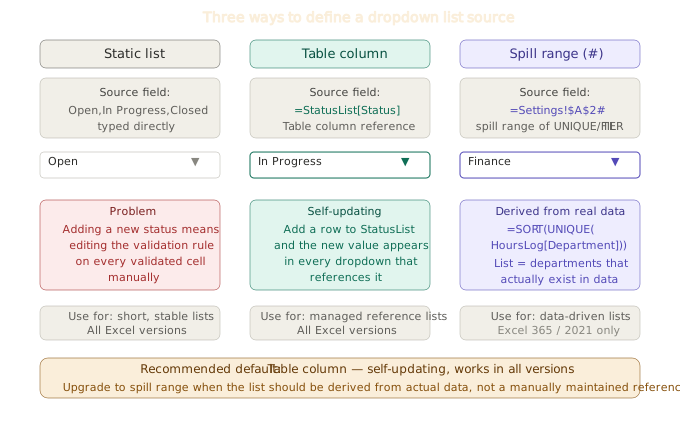
Approach 1: Static, comma-separated list
Type the permitted values directly into the 'Source' field, separating them with commas.
Open,In Progress,On Hold,ClosedThis is simple and fast for short, stable lists. The problem is that if you need to add or change a value, you have to find and edit the validation rule itself. In a shared workbook, few users know where to look. Only use this method for lists that will never change.
Approach 2: Use a table column as the source for self-updating.
Store your list items in an Excel table. If the table is named StatusList and the values are in a column called Status, reference it in the Source field as follows:
=StatusList[Status]Now, add a new status to the table and the dropdown menu in every validated cell will update automatically. No formula change, no range extension, no maintenance is required. This is the correct default for any dropdown that might grow.
If the table is on a different sheet, the reference still works: =Settings[Status] — provided that the Settings sheet and table exist.
Approach 3: Spill Range from a Dynamic Array Formula (Modern)
To maximise flexibility, the list is generated by a dynamic array formula and the dropdown references its spill range using #. Place this formula in a helper column — the 'Settings' sheet is the right location.
=SORT(UNIQUE(HoursLog[Department]))This produces a sorted, deduplicated list of all existing departments in the data. As new departments are added to 'HoursLog', they appear in the dropdown menu automatically. Reference the spill range in the validation Source field:
=Settings!$A$2#The # tells Excel to use all the cells into which the formula in A2 spills, no matter how many there are..
This approach requires either Excel 365 or Excel 2021.
Dependent dropdowns — the modern approach
A dependent dropdown changes the options available based on the selection in another cell. The tried-and-tested method uses 'INDIRECT' with named ranges — one named range per category. This method is functional, but it breaks when a category name changes or a new category is added.
The modern approach uses FILTER:
Setup:
A table named RoleList has two columns: Department and Role. It contains every valid department–role combination.
Step 1: Place the FILTER formula in Settings.
=FILTER(RoleList[Role], RoleList[Department]=C2, "")C2 is the cell containing the department selection. This formula is located in Settings!E2, for example. It displays a list of roles belonging to the selected department.
Step 2: Apply validation to the role column.
In the 'Source' field of the role column's validation:
=Settings!$E$2#When a department is selected in cell C2, the FILTER result is updated, the spill range changes and the role dropdown immediately displays only the relevant roles.
Important: the FILTER formula must be on a sheet that recalculates when C2 changes. If the helper formula is on a different sheet to the dropdown, ensure that automatic calculation is enabled (Formulas > Calculation Options > Automatic).
Custom formula validation
The custom rule type accepts any Excel formula. The formula is evaluated for the cell being validated: if the result is TRUE, the entry is accepted; if the result is FALSE, the entry is rejected.
Prevent duplicate entries
=COUNTIF($A$2:$A$100, A2) = 1It rejects any value that already exists in A2:A100. The '=1' condition means the value may appear once only — i.e. in the entry being made. Any count higher than one means that a duplicate already exists.
Require a number
=ISNUMBER(A2)It rejects text entries in a column that should contain only numbers. This is simpler and more explicit than the Decimal rule for situations where the range is unlimited.
Validate a date within the current year.
=AND(YEAR(A2)=YEAR(TODAY()), A2<>"")Accepts only dates in the current year and rejects blank entries.
Prevent entries that are not on the reference list (case-insensitive).
=COUNTIF(Settings[ValidCodes], A2) > 0It rejects any entry that does not appear in the 'ValidCodes' column of the 'Settings' table. Unlike List validation, it is case-insensitive and the reference list can be on a separate sheet.
Input messages and error alerts
Data validation supports two optional communication tools.
The Input Message appears as a tooltip when the user selects the cell. Use this to explain what is expected, such as the permitted values, format and reason for any restrictions. Providing a brief input message can significantly reduce validation errors, as users are informed of the rules before typing.
The Error Alert appears when an invalid entry is attempted. There are three styles:
- Stop — blocks the entry. The user must cancel or change their value. Use for any field where an invalid value would break a formula or corrupt a report.
- Warning — shows the message but offers Continue. Use when an unusual value is possible but should be flagged.
- Information — shows the message and accepts the entry regardless. Rarely useful; it provides no actual protection.
Always write a meaningful error messages. The default 'The value you entered is not valid' tells the user nothing. Write what is expected: 'Please selct a department from the approved list. New departments must be added by the administrator.'
Protecting validation from paste
Pasting bypasses validation. Even if the value is invalid, a user who copies a value from another cell and pastes it into a validated cell will succeed. Three mitigations:
Sheet protection with locked cells — protect the sheet and only allow unlocked cells to be edited. Set validated cells as locked. Users can only type into them, not paste. This is the most robust approach, but it requires careful sheet design.
Paste Special → Values awareness — train users to use Paste Special → Values (Ctrl+Shift+V) when working with validated sheets. This pastes only values, which does trigger validation.
Use conditional formatting to highlight any cell whose value is not in the allowed list. This does not prevent bad data, but makes it immediately visible after pasting.
A complete validation setup: the practical workflow
- Create your reference lists as table columns on the Settings sheet. Name each table meaningfully.
- If any list is derived from data, such as unique departments or active projects, use a dynamic array formula on the Settings sheet to generate it automatically.
- Apply list validation to dropdown cells, referencing table columns or spill ranges.
- For dependent dropdowns, place the FILTER formula on the Settings sheet and reference its spill range.
- Set Stop error alerts with meaningful messages on all critical fields.
- Set Input Messages on fields that require a specific format.
- Protect the sheet if there is a concern about paste-bypass.
Summary
| Approach | Source | Self-updating | Version |
|---|---|---|---|
| Static list | Comma-separated values | No | All |
| Table column | =TableName[Column] |
Yes — grows with Table | All |
| Spill range | =Sheet!$A$2# |
Yes — driven by formula | 365 / 2021 |
| Dependent (FILTER) | =FILTER(...) + # |
Yes — reacts to selection | 365 / 2021 |
| Custom formula | Any TRUE/FALSE formula | — | All |
Validation prevents bad data from being entered into your workbook in the first place. When used alongside tables as the data source and dynamic array formulas for dependent lists, it creates a self-maintaining system as your data grows, eliminating the need for manual list management.