Icons, colour rules and data visualisation without charts are the tools at your disposal for conditional formatting and custom cell formats in Excel.
FAQ — What does this article answer?
Q: What is the difference between conditional formatting and custom number formats?
A: Conditional formatting changes the appearance of a cell based on its value or a formula. It can alter the background colour, font colour and borders, as well as applying icon sets. In contrast, custom number formats change how a value is displayed inside the cell. For example, the same number could be displayed as ▲ 1,240, +12.4 % or ↗ 1.2k, depending on the format code. Both can be used independently or in combination to achieve powerful visual results.
Q: How can I display coloured arrows (e.g. ▲ and ▼) inside a cell without using a formula?
A: This can be achieved using a custom number format with colour codes and Unicode characters. The format [Color10]▲ #,##0;[Color30]▼ #,##0;[Color45]— #,##0 displays a green arrow for positive values, a red arrow for negative values and a dash for zero, all from a single number — no helper column is needed.
Q: Which Unicode characters work reliably in Excel custom formats?
A: Directional arrows (▲, ▼, ▶, ◀, ↑, ↓, →, and ←), diagonal arrows (↗, ↘, ↖, and ↙), geometric shapes (●, ○, ■, and □), and many Wingdings and Webdings characters work in custom formats. Emoji and complex Unicode tend to be unreliable across platforms. This article lists the most dependable characters for professional use.
Q: What are the rules for using colour in Excel to communicate data?
A: Red indicates a negative value, danger or a value that is below target. Green indicates positive results, progress towards targets, or achievement of targets. Amber indicates a warning, approaching a threshold or requiring attention. Never use colour as the only indicator — always pair it with a number, text or icon to ensure the information is legible when printed in greyscale or viewed by someone with a colour vision deficiency.
Q: How can I create a KPI dashboard that displays status visually without using charts?
A: Use a combination of conditional formatting for background highlights and custom number formats for inline icons. For example, a cell showing ▲ 94 % with a green background and bold font communicates three things simultaneously: the value, the direction and the status, with zero chart overhead and no maintenance required other than keeping the source data current.
A well-designed Excel report conveys its key messages even before the reader has processed a single number. Colour draws attention to the most important information. Icons provide an instant indication of direction and status. The reader's eye is immediately drawn to the red cells, downward arrows and warning flags, and only then does it engage with the underlying data.
None of this requires a chart. Conditional formatting and custom number formats provide a complete visual language within the cell itself. This article covers both tools in full, from the basic rules to advanced combinations that produce professional KPI dashboards.
Part 1: Conditional Formatting
Conditional formatting applies visual rules to cells based on their values or a formula that you define. These rules are continuously evaluated — change the data and the formatting updates immediately.
Applying and managing rules:
Select the cells that you want to format, then go to 'Home' > 'Conditional Formatting'. To manage existing rules on a worksheet, select Home > Conditional Formatting > Manage Rules and then choose This Worksheet from the drop-down menu. Rules are evaluated from the top of the list downwards. The first rule that matches a cell is applied, unless you tick 'Stop If True' — which prevents lower rules from being applied, even if they also match.
1. Highlight cell rules:
This is the most commonly used type. It applies formatting when a cell meets a condition.
- Greater than/less than/between — numeric thresholds
- Equal to — exact match
- Text that contains — partial text match
- A date occurring — relative date conditions (yesterday, last week, next month).
- Duplicate values: highlights cells that appear more than once in the range.
Example: All hours above 45 should be flagged as red. To do this, select C2:C100, choose 'Greater Than', enter 45, choose 'Red Fill with Dark Red Text'.
The built-in format presets (red, yellow and green fills) are quick, but they are often too saturated for professional reports. Instead, use a custom format — select 'Home' then 'Custom Format' from the 'Format' dropdown menu — and set a lighter background colour, such as #FAEEDA (amber 50), with a darker text colour, such as #633806 (amber 800), to achieve a professional and readable result.
2. Top/Bottom Rules:
Highlights the top N and bottom N values, the top and bottom N percent, and above or below average values within a range.
Practical use: Top 10 customers by revenue. Below-average response times. The bottom five performing products. These rules are recalculated dynamically — add a new row and the top 10 will update automatically.
3. Icon sets
Icon sets display a small icon in the cell, such as traffic lights, arrows, stars or flags, based on where the value falls within a defined range. Each icon set has three, four or five categories.
Customising the thresholds: The default thresholds are percentile-based, which is rarely what you want. Double-click the rule to edit it. Change the type from 'Percentile' to 'Number', and set your own thresholds. For a KPI with a 90% target, for example, the thresholds would be: green icon ≥ 90, amber icon ≥ 70, red icon < 70.
To show only icons and not numbers, tick 'Show Icon Only' in the rule editor. The cell will display only the icon. Combine this with a helper column that holds the actual number, formatted and positioned beside the icon column.
Mixing icon sets with custom formats: A common pattern is to use conditional formatting for the icon (via icon set rules) and a custom number format for the numeric display in the same cell. These two elements are stacked, with the icon from the conditional rule sitting to the left of the value displayed by the number format.
4. Formula-based rules — the most powerful type
Select 'New Rule' and then 'Use a formula to determine which cells to format'. The formula must return either TRUE or FALSE. When it returns TRUE, the formatting is applied.
Key rule: the formula is written for the top-left cell of the selected range. For example, if you select C2:C100, the formula refers to C2. Excel automatically adjusts it for each subsequent row. Use absolute references for anything that should not move.
Examples:
Highlight an entire row when column E says "Overdue":
=$E2="Overdue"Select the entire data range (A2:F100) and apply the following formula: The $E locks the column and the 2 is relative, shifting row by row.
Highlight a cell when its value is more than 10% below the average for that column.
=C2<AVERAGE($C$2:$C$100)*0.9Highlight duplicate entries across two columns:
=COUNTIFS($A$2:$A$100,$A2,$B$2:$B$100,$B2)>1Flag cells that contain a value not on an approved list:
=COUNTIF(Settings[ValidDepts],A2)=05. Colour rules for conditional formatting
Remember that colour is a communication tool, not a decoration. Use it intentionally and with restraint.
The three-colour system:
- Red (
#FCEBEBbackground,#791F1Ftext): negative, below target, error, overdue - Amber (
#FAEEDAbackground,#633806text): warning, approaching threshold, needs attention. - Green (
#E1F5EEbackground,#085041text): positive, on track, complete.
Rules:
- Use a maximum of three highlight colours per sheet. Using more than three causes the visual hierarchy to collapse.
- Always pair colour with a second indicator, such as a number, piece of text or icon. Colour alone is ineffective for greyscale printing and accessibility purposes.
- Use light fill colours (50% opacity), not saturated ones. A cell filled with solid red (#E24B4A) is aggressive and difficult to read. Light red (#FCEBEB) with dark red text (#791F1F) communicates the same message in a more professional way.
- Reserve red strictly for genuinely negative values. If everything slightly below average turns red, readers will stop viewing it as urgent.
- Neutral data needs no colour. A cell in the middle of its range should be white. Colour is meaningful only if it is not everywhere.
Part 2: Custom Number Formats
These control how Excel displays a value without altering the underlying value. For example, the number 1240 could be displayed as 1,240, 1.2k, ▲1,240 or +1,240 EUR, all from the same cell, purely through format codes.
Access these via Ctrl+1 → Number → Custom.
The format code structure
A custom format can comprise up to four sections, which are separated by semicolons.
[positive format] ; [negative format] ; [zero format] ; [text format]If you only provide one section, it applies to all values. If you provide two sections, the first is for positive and zero values, and the second is for negative values. Three sections: positive, negative and zero. Four sections add a text format.
Colour codes
Excel supports 56 named colours in format codes, using the syntax [ColorN], where N is a number from 1 to 56. The most useful ones for professional work are:
| Code | Colour | Typical use |
|---|---|---|
[Color10] |
Green | Positive values, upward trend |
[Color30] |
Red | Negative values, downward trend |
[Color45] |
Amber / Orange | Zero, neutral, warning |
[Color16] |
Dark gray | Secondary text, de-emphasis |
[Color1] |
Black | Standard text |
[Color2] |
White | Hidden values (white on white) |
You can also use named colours: [Green], [Red], [Blue], [Yellow], [Magenta], [Cyan], [Black], [White]. These map to standard colours but are less precise than [ColorN].
Unicode characters in format codes
Any Unicode character that can be typed or pasted into a format code will be displayed in the cell. The most reliable characters for professional use are:
Directional trend indicators:
▲U+25B2 — solid up triangle (strong positive)▼U+25BC — solid down triangle (strong negative)↑U+2191 — upward arrow↓U+2193 — downward arrow↗U+2197 — diagonal up-right (improving)↘U+2198 — diagonal down-right (declining)→U+2192 — right arrow (stable, on track)—U+2014 — em dash (neutral, no change)
Status and flag indicators:
●U+25CF — filled circle (active, present)○U+25CB — empty circle (inactive, absent)■U+25A0 — filled square◆U+25C6 — filled diamond (priority, special)★U+2605 — filled star (top performer)☆U+2606 — empty star✓U+2713 — check mark (complete)✗U+2717 — cross mark (failed, not done)⚑U+2691 — flag (flagged for attention)
Smiley / sentiment indicators (use sparingly):
☺U+263A — smiley face (good)☹U+2639 — frowning face (bad)◕U+25D5 — nearly full circle
Emojis (such as 😀, 🔴 and 🟢 ) may work in some versions of Excel on Windows, but they are unreliable across platforms, print poorly and look unprofessional in most business contexts. Use geometric Unicode for serious reporting.
Building a colour + icon format code
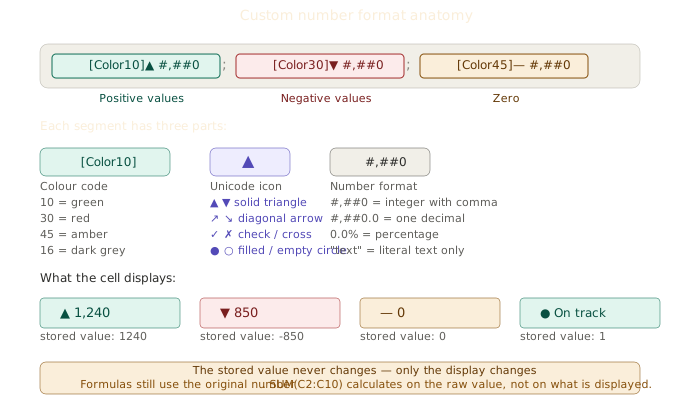
Example 1 — simple directional with colour:
[Color10]▲ #,##0;[Color30]▼ #,##0;[Color45]— #,##0- Positive: green
▲ 1,240 - Negative: red
▼ 850 - Zero: amber
— 0
Example 2 — diagonal arrows for trend:
[Color10]↗ #,##0;[Color30]↘ #,##0;[Color45]→ #,##0- Positive: green
↗ 1,240 - Negative: red
↘ 850 - Zero: amber
→ 0
Example 3 — percentage with icon and sign:
[Color10]▲ +0.0%;[Color30]▼ -0.0%;[Color45]— 0.0%- +0.034 displays as green
▲ +3.4% - -0.021 displays as red
▼ -2.1% - 0 displays as amber
— 0.0%
Example 4 — status flags with text:
[Color10]"✓ On track";[Color30]"✗ Behind";[Color45]"⚑ At risk"Apply this to a helper column containing the numbers 1, -1 and 0, which represent 'on track', 'behind' and 'at risk' respectively. Only the icon and text display; the number is hidden. This is one of the most effective ways to report on status.
Example 5 — thousands with unit:
[Color10]▲ #,##0" k";[Color30]▼ #,##0" k";[Color45]— 0" k"The value 1240000 stored as 1240 (pre-divided) displays as green ▲ 1,240 k.
Example 6 — star rating:
[Color10]"★★★★★";[Color45]"★★★★☆";[Color30]"★★★☆☆"Apply to cells containing the values 2 (positive), 1 (neutral) or 0 (negative). The stars replace the numbers entirely.
Hiding values
[Color2];; displays nothing — all four sections show white text on a white background. Use this to hide the values of the helper column that drive conditional formatting or icon display, without displaying the raw number.
Part 3: Data Visualisation Without Charts
A table with well-applied conditional formatting and custom number formats can communicate information as clearly as most basic charts, with the added advantages that it is easier to maintain, print and share, and updates instantly with the source data.
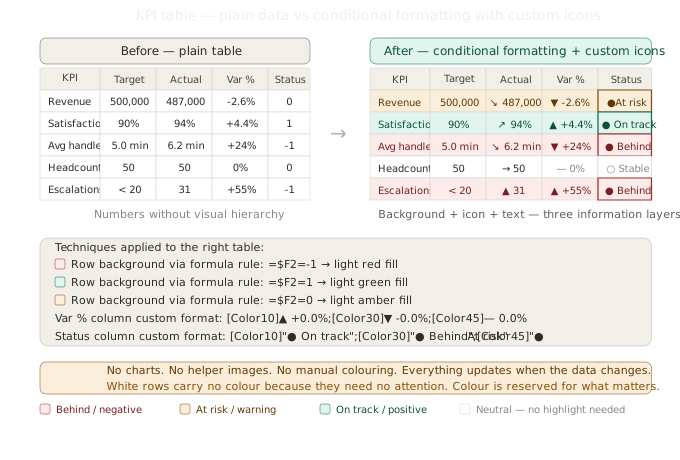
A standard KPI table with four columns — 'KPI name', 'Target', 'Actual' and 'Status' — can be transformed into a full visual dashboard.
Status column formula:
=IF(D2/C2>=0.9, 1, IF(D2/C2>=0.7, 0, -1))Returns 1 (on track), 0 (at risk), -1 (behind).
Status column custom format:
[Color10]"● On track";[Color30]"● Behind";[Color45]"● At risk"Actual column custom format:
[Color10]▲ #,##0;[Color30]▼ #,##0;[Color45]→ #,##0Conditional formatting has been applied to the 'Actual' column. The formula-based rule '=D2/C2<0.7' applies a light red background. The rule =D2/C2>=0.9 applies a light green background.
The result is a table where the background colour indicates severity, the custom formatting shows the value and its direction, and the Status column provides an explicit text label. Three layers of information, zero charts.
Rules for visualisation without charts:
One encoding per dimension. Colour communicates one thing. Icons communicate one thing. Number formatting communicates one thing. Do not use colour and icons to communicate different dimensions — it creates confusion.
Always show the number; visual indicators support the number, they do not replace it. A green cell with an '●' tells the reader that things are good. A green cell with '● 94%' tells them exactly how good.
Limit active colours to three per view: red, amber and green. Adding blue for a fourth category means the reader has to learn a new convention that is not universal. Stick to the three-colour traffic light system.
Conduct a greyscale test: print the sheet in black and white. If the message is lost, the design relies too heavily on colour. Add text labels or icons as a second channel.
Negative space matters: rows with no issues should be white. If everything is coloured, nothing is highlighted. White is the default; colour is the exception.
Part 3b: In-cell bar charts with REPT()
The data bar built into conditional formatting is powerful, but has one limitation: it is a formatting layer, not a value. It cannot be copied as plain text, used in a formula or sent in an email without losing the visual. The REPT() approach solves this issue by creating the bar directly inside the cell as a text string.
REPT(text, number) repeats a character a defined number of times. Pair this with a block character and a calculation that maps the value to a bar length and the result is a fully portable in-cell bar chart that exists as plain text.
The basic formula
=REPT("█", ROUND(B2 / MAX($B$2:$B$10) * 20, 0))This creates a bar containing up to 20 block characters. The longest bar (20 characters) corresponds to the maximum value in the column. A value that is half the maximum produces a bar of 10 characters. ROUND ensures a whole number, whereas REPT requires an integer.
The '20' specifies the maximum bar width in characters. Adjust this to fit the width of the available column. A 120 px column with 10 pt Courier New holds approximately 18–20 characters comfortably.
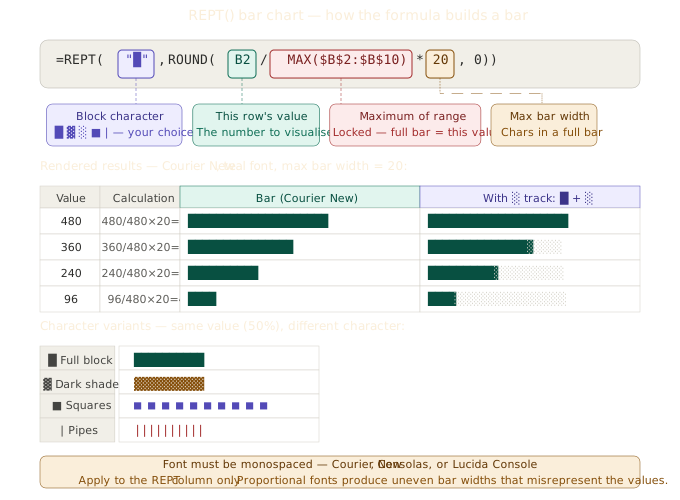
It is important to choose the right character and font.
Both the character choice and the font are critical. Block characters require a monospaced or near-monospaced font to render at an equal width; otherwise, the bars will be jagged and uneven.
Recommended characters:
█U+2588 — full block. The densest, most solid bar. Best for standard bar charts.▓U+2593 — dark shade. Slightly textured, good for secondary bars.░U+2591 — light shade. Use as a background track behind a█bar.■U+25A0 — black square. More gap between squares — creates a segmented look.|— vertical pipe. Very narrow, creates a thin striped bar.
Recommended fonts for consistent rendering:
- Courier New — classic monospaced, available everywhere, reliable character widths
- Consolas — cleaner than Courier New, available on all Windows systems
- Lucida Console — slightly wider, good for larger cells
Apply the font only to the REPT column — the rest of your sheet does not need to change.
Adding colour:
Apply the colour to the REPT column using either conditional formatting or a custom number format containing the code [ColorN].
=[Color10]REPT("█", ROUND(B2/MAX($B$2:$B$10)*20,0))Hold on — this doesn't work directly in a custom number format because the format applies to numbers, not formulas. Instead, enter the REPT formula into the cell and apply the font colour using conditional formatting, or simply format the entire column with a single font colour (Format Cells > Font > Colour).
To make a column show green bars for positive variance and red bars for negative variance:
=IF(B2>=0,
    REPT("█", ROUND(ABS(B2)/MAX(ABS($B$2:$B$10))*20, 0)),
    "-" & REPT("█", ROUND(ABS(B2)/MAX(ABS($B$2:$B$10))*20, 0)))
Apply conditional formatting: use a green font for cells that do not start with "-", and use a red font for cells that do start with "-".
Positive and negative bars from a centre axis
For data with positive and negative values, a centre-axis bar shows direction and magnitude at the same time. This technique uses two adjacent columns — one for the negative bar, which is right-aligned, and one for the positive bar, which is left-aligned.
Negative bar column (right-aligned cell):
=IF(B2<0, REPT("█", ROUND(ABS(B2)/MAX(ABS($B$2:$B$10))*10,0)), "")Positive bar column (left-aligned cell):
=IF(B2>=0, REPT("█", ROUND(B2/MAX(ABS($B$2:$B$10))*10,0)), "")Format the negative column using a red font and right alignment. Then format the positive column with a teal font and left alignment. These two columns will create a mirror-image bar chart centred between them with no chart object involved.
Background track with ░
A common refinement is to add a track showing the maximum possible bar length, so that the reader can see how full each bar is.
=REPT("█", ROUND(B2/MAX($B$2:$B$10)*20,0)) & REPT("░", 20-ROUND(B2/MAX($B$2:$B$10)*20,0))The █ characters represent the value, while the ░ characters represent the remainder, ensuring a total of 20 characters. The result is a bar that always fills the width of the cell, with the filled portion showing the value and the unfilled portion showing the remaining capacity.
Use REPT bars when built-in data bars are not preferable.
Use REPT bars when:
- the report is shared as a PDF or printed — conditional formatting data bars do not always survive the export process cleanly.
- The sheet is pasted into an email or Teams message as plain text.
- You need the bar to appear in a cell that also contains a value (i.e. a single cell showing both the number and the bar as text).
- You want the bar colour to be determined by a formula condition rather than a simple threshold.
Use the built-in data bars when:
- The report is kept in Excel and the data is updated frequently.
- You want negative values to be handled automatically with a centre axis.
- You want the bar to overlay the cell background without taking up text space.
Part 4: Combining both tools
The most professional results are achieved by using conditional formatting and custom number formats together on the same cells.
Pattern: conditional background + custom icon format.
Apply conditional formatting to set the cell background based on a threshold. Then apply a custom number format to the same cell to display the value with a colour-coded icon. These two elements are applied independently — the background colour comes from the conditional formatting and the icon comes from the custom number format.
Pattern: hidden helper column drives visible output.
Store a numeric status value (1, 0 or -1) in a helper column that is formatted with '[Color2];;'; this will make the value invisible. Apply conditional formatting to the visible columns using the formula =$H2=1 (where H is the helper column) to set the background colour. The status value determines both the background colour and, if used in the same column, the icon display.
Pattern: icon set and custom format on adjacent columns.
Apply an icon set rule to a narrow column (30px wide with 'Show Icon Only' selected) positioned immediately to the left of a value column. The icon column will only show the traffic light or arrow. The value column shows the number with its own custom format. The two columns are read together as a single unit.
Summary
| Tool | What it controls | When to use |
|---|---|---|
| Conditional formatting — highlight | Cell background and text colour | Flag values above/below threshold |
| Conditional formatting — icon set | Icon displayed in cell | Three/four/five category status |
| Conditional formatting — formula | Any format, any condition | Row highlights, cross-column logic |
| Custom format — colour code | Text colour of value | Positive/negative/zero distinction |
| Custom format — Unicode icon | Character displayed with value | Direction, status, sentiment |
| Custom format — text sections | Replace number with text | Status labels, unit labels |
When used together, these tools produce reports and dashboards in which the visual communication is built into the data itself. There is no need to position charts, break them when the data range changes or explain them to readers who want the underlying numbers.
See also: Data bars, colour scales, and sparklines — data visualisation in Excel without traditional charts for the complementary tools that complete the visualisation toolkit.