A guide to cleaning up messy data in Excel, including how to remove duplicates, trim spaces and fix formats.
FAQ — What does this article answer?
Q: Why do my VLOOKUP and SUMIF formulas return errors even though the value is clearly there?
A: This is usually because of invisible characters. The cell that says "Anna Müller" (with a leading space) does not match the "Anna Müller" we have in our records. If you use the TRIM function, it will remove those spaces and the formula will start working straight away.
Q: What is the quickest way to get rid of copies in a list?
A: Use the UNIQUE formula as a dynamic array formula. It returns a list of things that are not duplicates in one step, updates automatically when your source data changes, and does not change the original data. If you need to remove duplicate rows in a table, try the Remove Duplicates tool (find it under Data → Data Tools).
Q: My numbers are stored as text, and SUM doesn't recognise them. How do I fix this?
A: Use the VALUE function to convert text to numbers, or multiply the column by 1 using an array formula. Both of these methods make Excel treat the content as a number. This article shows you both methods.
Q: How do I fix the inconsistent use of capital letters, with some names written in capital letters and some in lowercase?
A: Use the PROPER function to convert any text to Title Case (with the first letter of each word capitalised). Use the UPPER function to make all the letters upper case, or the LOWER function to make all the letters lower case. Combined with TRIM, a single formula can fix both spacing and casing in one step.
Q: Can I clean an entire column at once instead of fixing cells one by one?
A: Yes, you can. All the cleaning functions in this article work as array formulas in Excel 365. Just enter them in one cell and they will fill in the whole column for you. The examples below show how.
Excel workflows often break because of dirty data. The formula should work, but it's not working. A pivot table shows the same name twice because one entry has a trailing space. The SUM returns zero because the numbers came from an export and are stored as text. These are not formula problems, but data problems, and there are simple solutions to each one.
This article looks at how to fix a messy HR export. It does this by going through each cleaning technique in order, from the simplest to the most powerful.
The data that we are currently working with is called 'raw data'.
Imagine the following employee hours export, pasted in from an external system into columns A through E:
| A | B | C | D | E |
|---|---|---|---|---|
| employee | department | hours | rate | status |
| anna müller | hr | 40 | 32.5 | active |
| KLAUS WEBER | Sales | 38 | 28 | Active |
| Sara Becker | HR | 42 | 35 | ACTIVE |
| anna müller | hr | 40 | 32.5 | active |
| lena vogel | finance | 35 | see note | active |
| TOM FISCHER | sales | 36 | 28 | active |
| Sara Becker | HR | 0 | 35 | active |
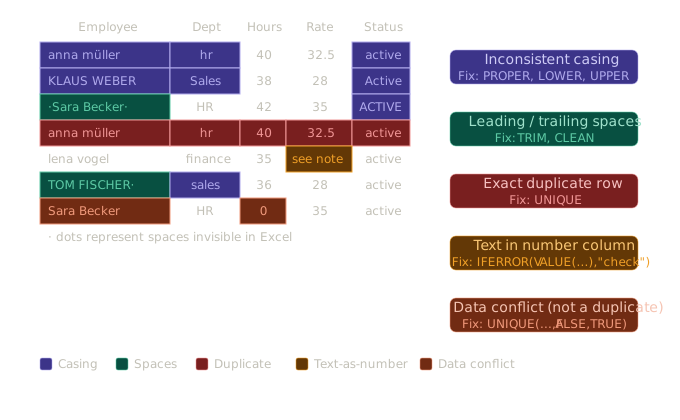
The problems visible in this data:
- Some letters are written with capital letters and some are not. For example, 'hr', 'HR', 'Sales', 'sales', 'ACTIVE', 'active'.
- Leading and trailing spaces by 'Sara Becker' and 'TOM FISCHER'.
- A row that has been copied: Anna Müller looks the same in both appearances.
- A text value in a number column. Please check the 'Note' section for more information.
- This could be a duplicate, and there might be a data conflict: Sara Becker is listed twice, with different hours values.
This is a typical real-world export. Now we fix it in a step-by-step way.
First step: remove all extra spaces at the start or end of a sentence by using the TRIM function.
The TRIM function removes all the leading and trailing spaces from a document. It also changes any internal sequences of multiple spaces to a single space. It is the first thing you should do when you import text into your database.
If you don't use the 'TRIM' function, you'll get an error when you try to look up ' Sara Becker '. Excel won't tell you that there's an error, it just gives the wrong result.
Single cell:
=TRIM(A2)Entire column as a spill array (Excel 365):
=TRIM(A2:A8)Enter this in a free column and it will fill down automatically for every row in that column. You don't need to drag or copy it.
The TRIM function does not get rid of non-breaking spaces (Unicode character 160). These spaces are often used in data copied from websites or certain ERP systems. For those, combine TRIM with SUBSTITUTE:
=TRIM(SUBSTITUTE(A2, CHAR(160), " "))As a spill array across the whole column:
=TRIM(SUBSTITUTE(A2:A8, CHAR(160), " "))The second step is to use the CLEAN function to remove any non-printing characters.
Data that has been exported from databases or older systems often contains invisible control characters (e.g. line breaks, null characters, tab characters) that TRIM does not remove. The CLEAN function removes all non-printing characters, which are the ASCII codes 0–31.
=CLEAN(A2)The two functions are almost always used together. The right order is to CLEAN the file first, then TRIM it, because cleaning can leave extra spaces where control characters were:
=TRIM(CLEAN(A2))As a spill array:
=TRIM(CLEAN(A2:A8))Make sure you do this for every text column as a starting point, before you move on to anything else.
The third step is to use the PROPER, UPPER and LOWER capitalisation rules.
In our data, names go from 'anna müller' to 'KLAUS WEBER'. The names of the departments are written as 'hr', 'HR', 'Sales' and 'sales'. This makes it so that the grouping in pivot tables and filtering in dynamic array formulas doesn't work.
The PROPER function changes any text to title case, which means that the first letter of each word is capitalised and the rest are lowercase:
=PROPER(A2)anna müller becomes Anna Müller. KLAUS WEBER becomes Klaus Weber. HR becomes Hr — which is a limitation: PROPER does not know that HR is an abbreviation. For abbreviations, a follow-up SUBSTITUTE is needed. For most name and department columns, PROPER alone is sufficient.
Combining TRIM, CLEAN, and PROPER into a single spill formula that cleans the entire name column in one step:
=PROPER(TRIM(CLEAN(A2:A8)))This is the standard formula to use when importing text columns with names or labels.
For status columns like active, ACTIVE,and Active — where you want a single consistent value — LOWER is more appropriate than PROPER:
=LOWER(TRIM(E2:E8))The fourth step is to convert text numbers to real numbers using the VALUE function.
The Rate column contains numbers 32.5, 28, 35, see note, 28, but also a text string. Also, numbers that are imported from outside systems are often stored as text, even when they look like numbers. You can spot it by looking for left-alignment in the cell or a green triangle in the top-left corner.
The VALUE function changes a written number of a number to a real number:
=VALUE(D2)If your column has a mixture of numbers and text, such as 'see note', use the IFERROR function to deal with the cells that aren't numbers:
=IFERROR(VALUE(D2), 0)As a spill array across the column, replacing non-numeric values with zero:
=IFERROR(VALUE(D2:D8), 0)If you prefer to flag problem cells rather than replace them with zero:
=IFERROR(VALUE(D2:D8), "check")An alternative to VALUE for purely numeric columns is multiplying by 1, which forces type conversion:
=D2:D8 * 1This is a bit quicker for large ranges, but IFERROR(VALUE(...)) is easier to read and deals with errors directly.
The fifth step is to find and delete copies using the UNIQUE function.
Our data contains two identical rows for Anna Müller. There are two instances of Sara Becker, with different Hours values. This is a data conflict, not a true duplicate.
If you use the UNIQUE function, it will return a list where duplicate rows have been removed. Applied to the whole table after it has been cleaned:
=UNIQUE(A2:E8)This returns every row that appears only once, plus one copy of each row that appears more than once. In our case, the second Anna Müller row has gone.
To return only rows that appear exactly once — showing that Sara Becker is involved in a conflict rather than keeping one copy secretly:
=UNIQUE(A2:E8, FALSE, TRUE)The third argument, set to 'TRUE', tells it to return rows that appear exactly once. Anna Müller disappears from both — she is a duplicate. Sara Becker also disappears – she is a problem. Both need to be checked by a person. This is the safer approach for HR data.
To find out which names appear more than once before removing anything:
=FILTER(A2:A8, COUNTIF(A2:A8, A2:A8) > 1)This returns a list of every name that has at least one duplicate. This is a targeted way to find just the problem rows before deciding what to do with them.
The sixth step is to put everything together in a table that is already in the right format.
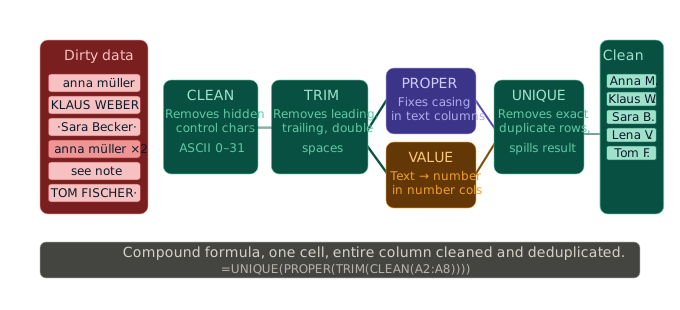
Instead of changing the original data, the best approach in Excel 365 is to create a cleaned version in a separate area using one formula for each column. For the Employee column:
=UNIQUE(PROPER(TRIM(CLEAN(A2:A8))))This cleans whitespace, removes control characters, standardises capitalisation, and deduplicates — all in one formula. The result spills automatically and updates whenever the source data changes.
To clean a table properly, use the right formula for each column:
- Text columns (names, departments):
=PROPER(TRIM(CLEAN(source_range))) - Status columns:
=LOWER(TRIM(source_range)) - Number columns:
=IFERROR(VALUE(source_range), "check") - Full table deduplication:
=UNIQUE(cleaned_range)
The functions at a glance
| Function | What it fixes | Works as array |
|---|---|---|
TRIM |
Leading, trailing, double spaces | Yes |
CLEAN |
Non-printing control characters | Yes |
PROPER |
Inconsistent capitalisation (Title Case) | Yes |
LOWER / UPPER |
Inconsistent capitalisation (uniform) | Yes |
VALUE |
Numbers stored as text | Yes |
SUBSTITUTE |
Specific unwanted characters | Yes |
UNIQUE |
Duplicate rows or values | Yes — returns spill range |
FILTER + COUNTIF |
Identify which rows are duplicates | Yes |
Summary
Messy data does not fix itself, and it's a waste of time to try to fix bad data with formulas. The cleaning functions covered here — TRIM, CLEAN, PROPER, VALUE and UNIQUE — are fast, can be used together, and all work as dynamic array formulas in Excel 365. If you apply them to a different output range, keep the original data intact, and your downstream formulas, pivot tables, and reports will work reliably from that point forward.
If you are using Excel tables as your data source, the cleaned output range can go straight into a table. This table can then be used for things like FILTER and SORT, and any other analysis you need to do. See How to use Excel Tables: why every dataset should be in Table format for how to structure that next step.