How to use Excel Tables: why every dataset should be in Table format
FAQ — What does this article answer?
Q: What is an Excel Table and how is it different from a normal range?
A: A table is a structured data object that Excel actively manages. Unlike a plain range, it automatically expands when you add rows, names its columns and provides a built-in filter drop-down for each header, eliminating the need for manual setup.
Q: How do I create a Table?
A: Click anywhere within your data and press Ctrl+T. Excel will then detect the boundaries of your dataset and convert it in one step. Alternatively, you can go to Insert > Table.
Q: Will my existing formulas break when I convert a range to a Table?
A: No, Excel automatically converts cell-based formulas into structured references. This makes the formula more readable, but your results stay the same.
Q: What are structured references and why do they matter?
A: Rather than using the formula =C2D2, a table formula would use the formula =[@Hours][@Rate]. This references the column by name, so the formula remains correct regardless of how rows are added, deleted or sorted, and any colleague can understand it without having to trace coordinates.
Q: How do Excel Tables work together with FILTER, SORT, and UNIQUE?
A: Tables are the ideal source for dynamic array functions. This is because a table column reference such as HoursLog[Employee] always covers every row, including those added after the formula was written. This means that your FILTER or UNIQUE result will never silently miss new data.
Every Excel user has, at some point, encountered a formula that worked yesterday but now returns an incorrect number because someone has added a row below the range that the formula was pointing to. Or a pivot table that has missed three months of data because its source range is set to end at row 500. These are not mistakes. They are the predictable result of storing data in a plain range rather than an Excel table.
Converting a dataset to a table takes just one keystroke. The benefits are significant: automatic expansion, readable formulas, instant filtering and a foundation that enhances the robustness and reliability of every other Excel feature, including pivot tables, charts and dynamic array functions.
What a Table actually is
An Excel table is more than just formatting. When you press Ctrl+T, Excel recognises your dataset as a named, structured object. It dynamically tracks the boundaries of that object. When you type in the row directly below the last data row, the table automatically grows to include it — no formula update required.
Each column in the table is given a name derived from its header. These names form part of a reference system known as structured references, which can be used anywhere in your workbook.
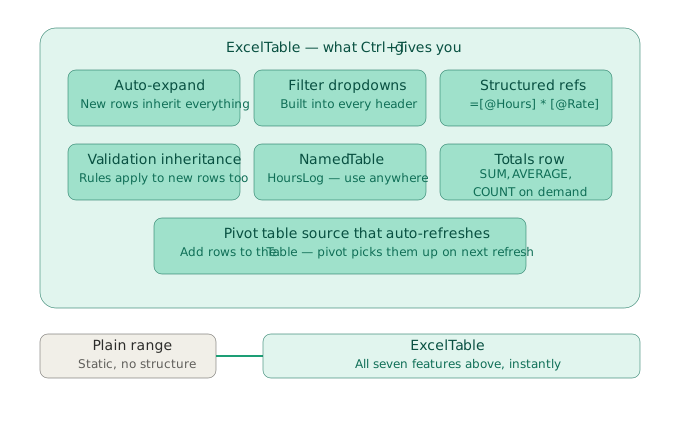
The seven things you get the moment you press Ctrl+T
Auto-expand: type a new row directly below the table and the table boundary will move down immediately. All formulas, conditional formats and data validation rules applied to previous rows now apply to the new one too.
Filter dropdowns: every column header gets a small dropdown arrow. Click it to filter, sort or search that column instantly with no setup required. These dropdowns remain even if you sort the data.
Data validation inheritance: any validation rule applied to a table column, such as a dropdown list, number range or date restriction, is automatically applied to every new row added to that column. In a plain range, however, you must manually extend the validation rules each time. If you forget, invalid data will be entered silently with no warning.
Structured references: formulas inside a table use column names instead of cell addresses, so =[@Hours]*[@Rate] always multiplies the hours and rate values on the same row, regardless of where that row sits.
A named table: Excel automatically names tables as 'Table1', 'Table2', and so on, but these default names can be misleading. The moment you have three tables in a workbook, it becomes impossible to tell them apart. Rename every table immediately after creating it. Use a descriptive name: 'HoursLog', 'SalesData' or 'ProductList', for example. This name can then be used in formulas anywhere in the workbook, making every reference self-explanatory.
Always rename your table. A table called 'Table1' is as meaningless as a file called 'Document1'. The name forms the basis of every structured reference you create, so choose it carefully, just as you would choose a column header.
A totals row: Switch on the totals row (Table Design > Totals Row) and a dropdown offering SUM, AVERAGE, COUNT, MAX, MIN and more will appear for each column. These calculations are performed automatically and the totals are excluded from the data range so they don't distort your formulas.
A self-updating pivot table source: when a pivot table is linked to a basic range, you have to manually extend the range each time you add data. However, when it points at a table, it picks up every new row on the next refresh.
Structured references: formulas that explain themselves
The most underestimated feature of tables is structured references. Compare the following two formulas, which calculate overtime pay in the same way:
Without a Table:
=IF(C2>8, (C2-8)*1.5*D2 + 8*D2, C2*D2)With a Table named HoursLog:
=IF([@Hours]>8, ([@Hours]-8)*1.5*[@Rate] + 8*[@Rate], [@Hours]*[@Rate])The second formula reads like a sentence. A new colleague does not need to know that column C is 'Hours' and column D is 'Rate' — the formula tells them. If the columns are ever reordered, the structured reference follows them, whereas the cell-based reference breaks silently.
There is a practical maintenance advantage, too. If you rename a column, for example, Excel automatically updates every structured reference to that column across the entire workbook.
Why every dataset should be a Table — not just large ones
It is a common misconception that tables are only useful for large or complex datasets. This is not the case. The smaller and simpler the dataset, the lower the conversion cost and the greater the benefit.
A ten-row reference table containing a list of department codes and names, for example, is particularly useful in table format. Name it DeptCodes, for example, and you can write =VLOOKUP(A2, DeptCodes, 2, 0) instead of =VLOOKUP(A2, $G$2:$H$15, 2, 0). When you add a new department, the lookup range expands automatically. The hard-coded version would miss it silently.
Tables as the foundation for dynamic array formulas
This is where the benefits compound. Excel's dynamic array functions — FILTER, SORT, UNIQUE and SEQUENCE — return ranges of results that automatically spill into neighbouring cells. These functions are powerful on their own, but they only become genuinely robust when their source is a table.
Consider this formula, which filters an HR log to show only rows from the sales department:
=FILTER(HoursLog, HoursLog[Dept]="Sales")If 'HoursLog' is a plain range defined as 'A2:D200', this formula will miss any rows added after row 200. However, if HoursLog is a table, the reference HoursLog[Dept] always covers every row in the table, including those added in the future.
The same logic applies to UNIQUE and SORT.
=SORT(UNIQUE(HoursLog[Employee]))This returns a sorted, deduplicated list of employees. Add a new employee to the table and the list will update the next time a calculation is performed — no formula change is required.
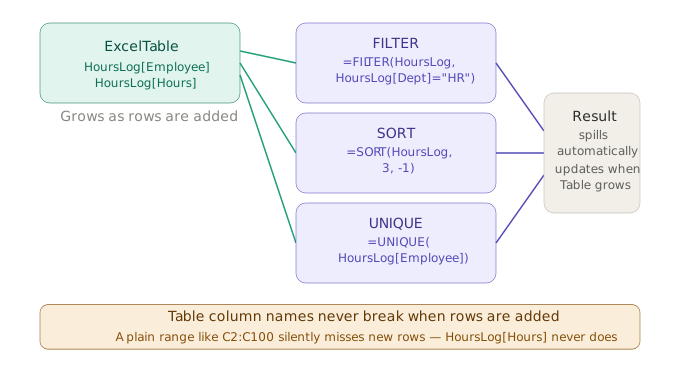
If you are not yet familiar with these dynamic array functions, the article Dynamic arrays in Excel: FILTER, SORT, UNIQUE, and SEQUENCE explained covers each one in depth. Tables and dynamic arrays are designed to work together: tables provide the structured, auto-expanding source, and dynamic array functions provide the flexible, spill-capable output.
How to convert an existing range to a Table
- Click any cell inside your data.
- Press
Ctrl+T(or go to Insert → Table). - Confirm that the My table has headers checkbox is ticked.
- Click OK.
Excel converts the range in place. No data is moved or changed. Rename the table immediately by clicking anywhere inside it and going to the Table Design tab. Type a meaningful name in the Table Name field on the left. Choose a name that describes the content, not the location: Examples include 'SalesData', 'HoursLog' and 'ProductList'.
Common questions when adopting Tables
Can I use a table across multiple sheets? The table itself lives on one sheet, but you can reference it by name from any sheet in the workbook: =SUM(HoursLog[Hours]) works from any sheet without needing to prefix the sheet name.
Do tables work with VLOOKUP and XLOOKUP? Yes, fully. One of the clearest formula patterns in Excel is =XLOOKUP(A2, DeptCodes[Code], DeptCodes[Name]), as the names make the lookup self-documenting.
What if someone opens the file in an older version of Excel? Tables are supported back to Excel 2007, so compatibility is not a concern. Structured references are also supported in all modern versions. However, the dynamic array functions that work best with tables require Excel 365 or Excel 2021. The table itself works everywhere.
Can I convert a table back to a range? Yes. Right-click anywhere inside the table and select 'Table' > 'Convert to Range'. The data and formatting will remain, but the structured object will be removed.
Summary
A plain range is passive. In contrast, an Excel table is active. It tracks its own boundaries, names its columns, formats itself and communicates its structure to every formula and tool that references it. Conversion takes just one keystroke. The benefits are a dataset that grows gracefully, self-explanatory formulas, and a foundation that makes pivot tables, charts, and dynamic array functions more reliable with no additional effort.
If your workbook contains any dataset with headers, regardless of size, it should be a table. Start with Ctrl+T and give it a meaningful name. Everything else follows from there.
Read also: Excel, cell references can be relative, absolute, mixed or use special operators $, # or @.