How a single LET formula builds a complete employee monthly HR report
FAQ - What Does This Article Answer?
Q: Is it possible to use one Excel formula to replace manual filtering, copying and pasting, and refreshing pivot tables for a monthly HR report?
A: Yes. This article demonstrates a formula combining FILTER, LET, CHOOSECOLS, HSTACK, VSTACK and SORT into a single expression. When the manager changes the dropdown selection, the report is rebuilt instantly, with no need for manual steps or a refresh button.
Q: How does the LET function prevent FILTER from being calculated twice in the same formula?
A: The LET function assigns the filtered and column-trimmed result to the variable name dipendente. This name is then reused in both the totals row calculation and the final output. Without LET, the entire FILTER expression would need to be written out twice, which would make the process slower and more difficult to maintain.
Q: What does CHOOSECOLS do when the source table contains more columns than are needed by the report?**
A: CHOOSECOLS selects only the specified column positions from the filtered result. In this example, 15 out of 19 columns are retained; the remaining columns are intermediate calculation columns that exist in the source table but are not required for the report output.
Q: How can I ensure that a report updates instantly when a manager selects a different employee or month from a drop-down menu?*
A: Link three cells to dropdown menus — one for the year, one for the month and one for the employee. The formula references these three cells directly. Any change to a drop-down menu will trigger an immediate recalculation of the entire report.
Q: What will happen if the filter finds no matching rows — will the formula show an error?**
A: No, the formula handles two failure scenarios. FILTER itself returns a fallback message if no rows match. IFERROR provides an additional safety net by displaying "Non ci sono dati disponibili" (no data available) if anything else goes wrong.
This article is the a real-world follow-up to How to use LET; write cleaner and faster formulas. If you haven't read the article yet, you should start there; it explains the LET building blocks of the LET formula.
A construction company employs workers on site. They all log their daily hours, tasks and locations in one large, shared table containing thousands of mixed-up rows. At the end of the month, a site manager opens a dashboard and selects a name from a drop-down menu. Instantly, only that person's entries for that month appear, sorted by date with a totals row at the bottom.
No manual filtering is required. There is no need for copy-pasting. There is no need to refresh a pivot table. There is just one formula that is always up to date.
The formula
=IFERROR(SORT(LET(
     dipendente, IF(
                     CHOOSECOLS(
                         FILTER(_tbl_giornaliere,
                            (YEAR(_tbl_giornaliere[Data])=$D$4) *
                            (_tbl_giornaliere[No Mese]=$F$5) *
                            (_tbl_giornaliere[Cognome, Nome]=$E$5),
                             "n/a"),
                                {1,2,4,5,7,8,11,12,13,14,15,16,17,18,19})="", "",
                     CHOOSECOLS(
                         FILTER(_tbl_giornaliere,
                            (YEAR(_tbl_giornaliere[Data])=$D$4) *
                            (_tbl_giornaliere[No Mese]=$F$5) *
                            (_tbl_giornaliere[Cognome, Nome]=$E$5),
                             "Questo mese kein operai hat Arbeiten auf der Baustelle ausgeführt."),
                                {1,2,4,5,7,8,11,12,13,14,15,16,17,18,19})),
             total, HSTACK("Total","","","","",
                        SUM(CHOOSECOLS(dipendente,6)),"","",
                        SUM(CHOOSECOLS(dipendente,9)),
                        SUM(CHOOSECOLS(dipendente,10)),"",""),
     result, VSTACK(dipendente),
     result)),"Es sind keine Daten verfügbar")
Long. But it's easy to read it inside out. Every piece is recognisable.
What the formula does — in four steps
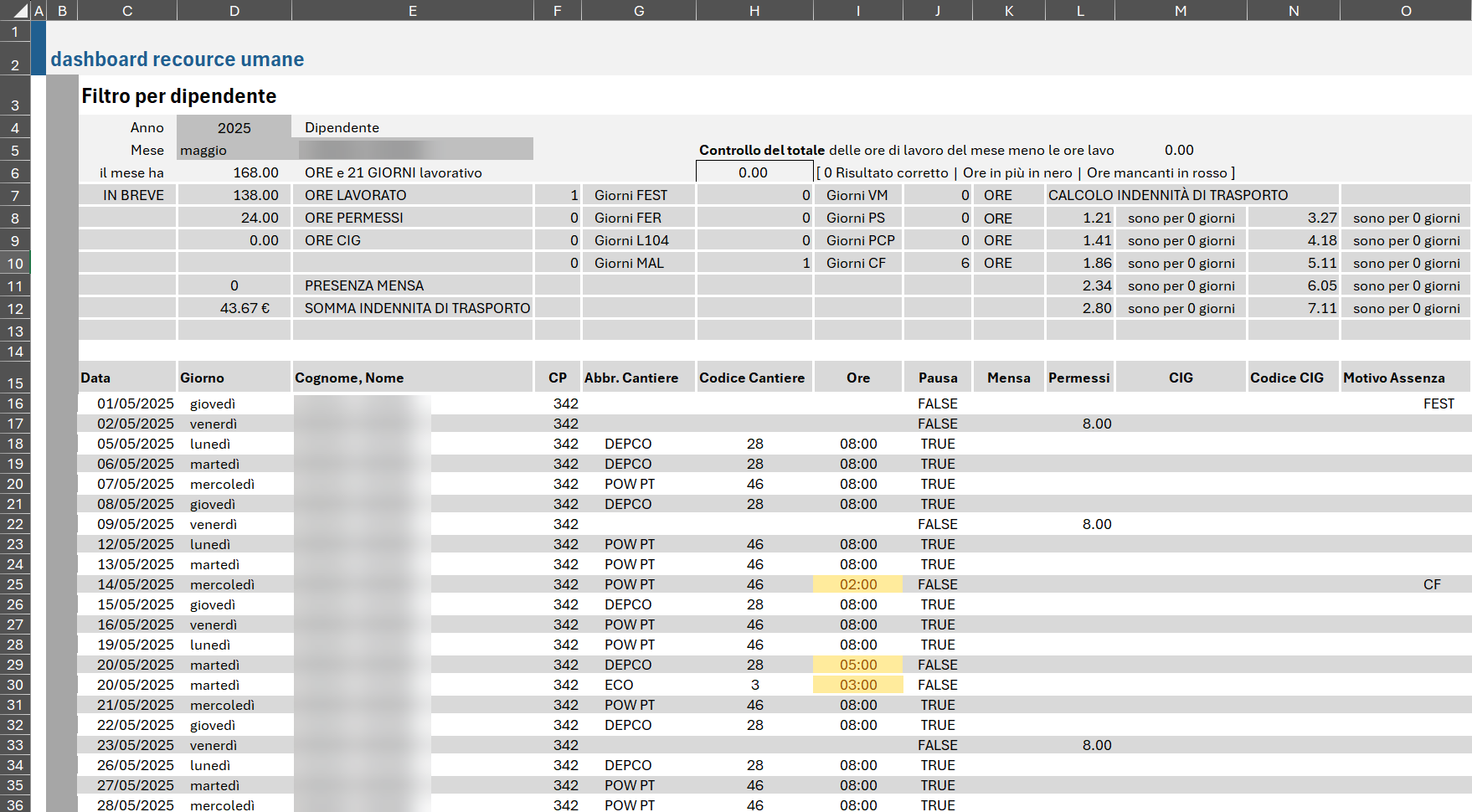
Step 1: FILTER: keep only one person, one month
The formula uses AND logic (*) to apply three conditions to _tbl_giornaliere:
- Year of the
Datacolumn matches cell$D$4 - Month number (
No Mese) matches cell$F$5 - Employee name (
Cognome, Nome) matches cell$E$5
For a row to be included, all three conditions must be true. If none of them match, a fallback message is returned.
Step 2: CHOOSECOLS: keep only the columns you need
CHOOSECOLS picks 15 specific column positions from the filtered result:
{1, 2, 4, 5, 7, 8, 11, 12, 13, 14, 15, 16, 17, 18, 19}This removes any intermediate calculation columns that exist in the source table but are not required for the report. The column numbers refer to positions within the filtered results, rather than the original table's column letters.
Step 3: LET: name the intermediate results
This is where the LET function comes into its own. Two names are defined:
- 'dipendente': the filtered, column-trimmed data for this employee and month
- 'total': a summary row built using 'HSTACK', containing the 'Total' label and 'SUM' values for hours (column 6) and two further numeric columns (columns 9 and 10).
By defining 'dipendente' once, it can be used in both the 'total' and 'result' calculations without the need to recalculate the FILTER twice.
Step 4: SORT and IFERROR: order and protect
The 'SORT' function orders the output chronologically by the date column. 'IFERROR' wraps the entire formula. If anything fails for any reason, the cell displays 'Es sind keine Daten verfügbar' (no data available) instead of an error message.
A real example
Manager selects: Year 2026 · Month 3 · Employee: Jason LaRoc.
Sample Table
| Date | Site | Task | Hours |
|---|---|---|---|
| 2026-03-02 | Site A | Concrete | 8.0 |
| 2026-03-03 | Site A | Formwork | 7.5 |
| 2026-03-05 | Site B | Finishing | 8.0 |
| Total | 23.5 |
Select a different employee from the dropdown menu and the table will rebuild instantly. Change the month and the same thing happens. The entire report is driven by a formula from three cells.
Key functions at a glance
| Function | Role in this formula |
|---|---|
LET |
Names dipendente and total — avoids repeating FILTER twice |
FILTER |
Keeps only rows matching year, month, and employee |
CHOOSECOLS |
Removes unwanted columns from the filtered result |
HSTACK |
Assembles the totals row horizontally |
VSTACK |
Stacks the data rows vertically (add total here to show the totals row) |
SORT |
Orders the output by date |
IFERROR |
Shows a friendly message if anything fails |
What drives the report — the three filter cells
| Cell | Contains | Controls |
|---|---|---|
$D$4 |
Year (e.g. 2026) | Which year to show |
$F$5(hidden here) |
Month number (e.g. 3) | Which month to show |
$E$5 |
Employee name | Which person to show |
These three cells are the only things a manager needs to touch. The formula does the rest.
What to read next
To grasp the fundamental principles of how LET functions before adapting this formula for your own use, it is essential to begin with the introductory article.
See also: How to use LET — write cleaner and faster formulas