How to use LET — write cleaner and faster formulas
FAQ — What Does This Article Answer?
Q: What does the LET function actually do?
A: It allows you to give names to calculations within a formula, much like variables in programming, so that you can reuse them without having to repeat the same logic multiple times.
Q: Does LET make formulas faster, or is that just marketing?
A: It genuinely improves performance. Excel calculates each named value once and stores it in memory, meaning that repeated calculations, such as nested SUMs, only run once instead of twice or more.
Q: How do I write a LET formula — what's the syntax?
A: The pattern is =LET(name, calculation, what_to_do_with_it). You can chain multiple name/calculation pairs together before reaching the final result. This article provides a full example with a real financial bonus formula.
Q: How many variables can I define inside one LET function?
A: A single formula can contain up to 126 named values, but names cannot contain spaces.
Q: Will LET work if I send the file to a colleague on an older Excel version?
A: No, LET requires either Microsoft 365 or Excel 2021, or the Excel web app. Recipients using Excel 2019 or an earlier version will see a '#NAME?' error instead of a result.
Every Excel user has created a seemingly perfect formula — but nobody, including the creator, can understand it weeks later. There are nested functions, repeated references and intermediate values calculated three times in the same formula. While it may work, it is fragile, difficult to debug and impossible to hand over to a colleague.
LET solves this. It allows you to assign names to values within your formula, meaning that instead of repeating 'SUMIF(Hours[Employee], A2, Hours[Hours])' three times, you only need to write it once, assign it the name 'total_hours', and use that name everywhere. The formula becomes more readable. Errors become visible. What's more, Excel only calculates the value once, making large formulas noticeably faster.
What LET actually does
LET assigns names to values or calculations within a formula. These names only exist within the formula itself; they are not named ranges and do not appear in the Name Box. They also disappear once the formula has finished.
Syntax:
=LET(name1, value1, name2, value2, ..., result)The final argument is always the result, i.e. what the formula actually returns. Everything before that is a name-value pair.
The simplest possible example:
=LET(x, 10, x * 2)This returns 20. 'x' is assigned the value 10 and the result is x * 2. This is trivial here, but the pattern is the same no matter how complex the formula gets.
Why LET matters: the problem it solves.
Here is a real HR formula that does not use LET. It calculates overtime pay for an employee, paying 1.5 times the hourly rate for anything over eight hours per day.
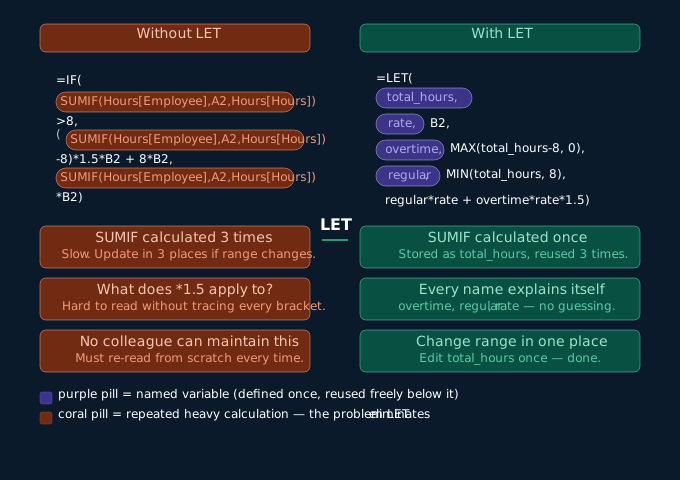
Without LET:
=IF(SUMIF(Hours[Employee],A2,Hours[Hours])>8,
    (SUMIF(Hours[Employee],A2,Hours[Hours])-8) * 1.5 * B2
    + 8 * B2,
    SUMIF(Hours[Employee],A2,Hours[Hours]) * B2)
'SUMIF(Hours[Employee], A2, Hours[Hours])' appears three times. Excel calculates it three times. If the range or condition ever changes, it has to be updated in three places. Reading it is also difficult as you have to mentally track what each nested piece returns before you can understand the whole.
With LET:
=LET(
    total_hours,  SUMIF(Hours[Employee], A2, Hours[Hours]),
    rate,         B2,
    overtime,     MAX(total_hours - 8, 0),
    regular,      MIN(total_hours, 8),
    regular * rate + overtime * rate * 1.5
)
The result is the same. But now you can interpret it as a simple calculation:
- 'total_hours': the sum of all hours for this employee
- 'rate': the hourly rate from column B
- 'overtime': hours above 8 (minimum zero, no negative overtime).
- 'regular': hours up to a maximum of 8.
- The final line shows regular pay plus overtime pay at 1.5x.
Any colleague can follow this process. You can debug it by checking one name at a time. Excel only calculates SUMIF once.
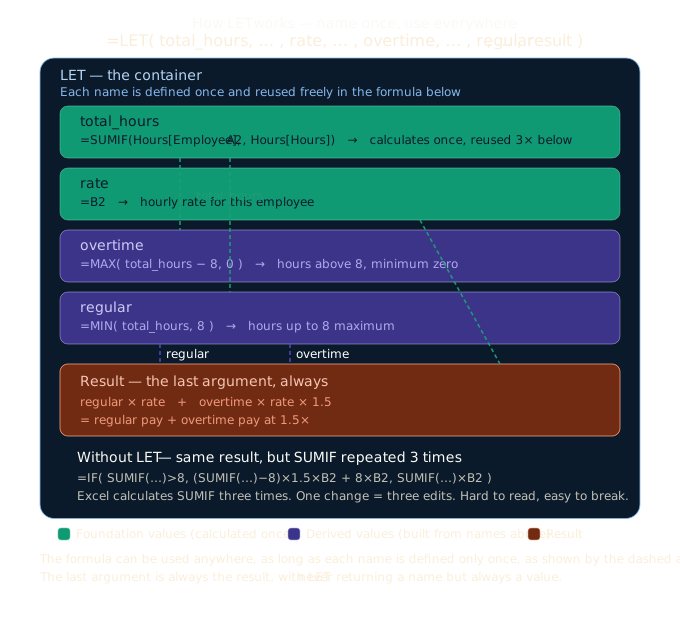
Side by side — the same formula, before and after
Here is a slightly more complex example. The HR table tracks the daily hours, absences and project codes of each employee. The objective is to calculate the total billable hours for an employee over the course of one month, excluding days of absence.
The data:
| Employee | Date | Hours | Type |
|---|---|---|---|
| Anna Müller | 2026-03-03 | 8.0 | Billable |
| Anna Müller | 2026-03-04 | 0 | Absence |
| Anna Müller | 2026-03-05 | 7.5 | Billable |
| Klaus Weber | 2026-03-03 | 8.0 | Billable |
Without LET — one long nested formula:
=SUMPRODUCT(
    (Hours[Employee]=A2) *
    (MONTH(Hours[Date])=C2) *
    (Hours[Type]="Billable") *
    Hours[Hours]
)
This works. However, 'Hours[Employee] = A2' and the other conditions are calculated in line, so if you need to reuse any of them, you have to do the whole thing again.
With LET — named, readable, reusable:
=LET(
    emp,      Hours[Employee]=A2,
    mth,      MONTH(Hours[Date])=C2,
    billable, Hours[Type]="Billable",
    SUMPRODUCT(emp * mth * billable * Hours[Hours])
)
Each condition has a name. The final 'SUMPRODUCT' line reads almost like a sentence: 'Multiply all three conditions together with the hours and sum the result.' If you need to add a fourth condition, such as a project code, you simply add an extra name-value pair to the final line.
Building a more complete LET formula step by step
Now, let's create a complete LET formula to calculate a monthly HR summary for an employee, including total hours, billable hours, absence days and average daily hours.
Step 1 — start with the data conditions
=LET(
    emp,      Hours[Employee]=A2,
    mth,      MONTH(Hours[Date])=C2,
    rows,     emp * mth,
'rows' is now an array of TRUE/FALSE values, where TRUE indicates a row that matches both the employee and the month. We reuse 'rows' in every calculation below, which is calculated only once.
Step 2 — add the calculations
=LET(
    emp,          Hours[Employee]=A2,
    mth,          MONTH(Hours[Date])=C2,
    rows,         emp * mth,
    total_hours,  SUMPRODUCT(rows * Hours[Hours]),
    absences,     SUMPRODUCT(rows * (Hours[Type]="Absence")),
    work_days,    SUMPRODUCT(rows * (Hours[Type]="Billable")),
Each name builds on the previous ones: 'total_hours', 'absences' and 'work_days' all reuse 'rows', which has already been defined above.
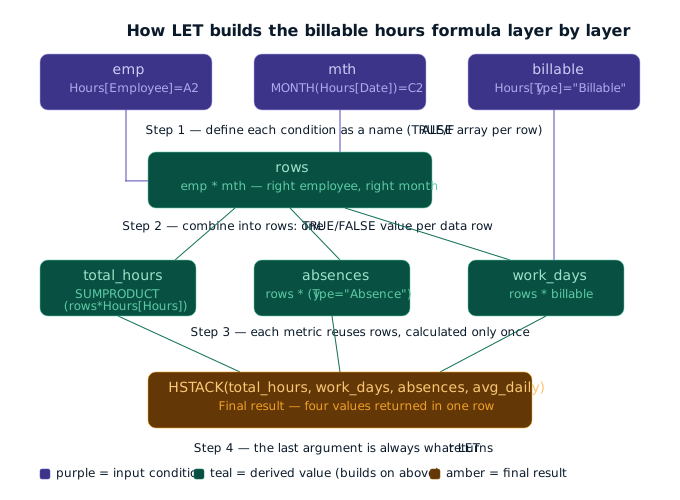
Step 3 — add the result
=LET(
    emp,          Hours[Employee]=A2,
    mth,          MONTH(Hours[Date])=C2,
    rows,         emp * mth,
    total_hours,  SUMPRODUCT(rows * Hours[Hours]),
    absences,     SUMPRODUCT(rows * (Hours[Type]="Absence")),
    work_days,    SUMPRODUCT(rows * (Hours[Type]="Billable")),
    avg_daily,    IF(work_days=0, 0, total_hours / work_days),
    HSTACK(total_hours, billable_days, absences, avg_daily)
)
The result uses the 'HSTACK' function to return all four values in one row. Modifying the employee or month in A2 or C2 instantly updates all four values.
💡 Tip: When building LET formulas, it is essential to do so one name at a time, testing after each addition. Start with just the first name-value pair and the result. Confirm that it works, then add the next pair.
Common mistakes with LET
Mistake 1: forgetting the result argument
Every LET formula must end with a result. If the final element of your formula is a name-value pair rather than a calculation, Excel will return an error.
=LET(x, 10, y, 20, x + y)   ✅ correct — x + y is the result
=LET(x, 10, y, 20)           ❌ error — no result argument
Mistake 2: using a name before it has been defined
Names in LET are evaluated in order. It is not possible to use a name before it has been defined.
=LET(
    total,   hours * rate,    ❌ rate is not defined yet
    rate,    B2,
    hours,   C2,
    total
)
Always define names in the order they depend on each other — foundational values first, derived values after.
Mistake 3 — naming a value the same as an Excel function
Avoid names like sum, if, date, or filter. Excel may get confused. Use descriptive names like total_hours, emp_filter, or base_rate instead.
When to use LET — and when not to
LET is worth adding when:
- A value or range reference appears more than once in the formula
- The formula has more than two or three nested functions
- You need someone else to be able to read or maintain the formula
- Performance matters — large SUMIF or FILTER calculations should not be repeated
LET is not necessary when:
- The formula is short and already readable
- The value is only used once and naming it adds no clarity
- You are writing a quick one-off calculation just for yourself
What to read next
Next week we apply everything from this article to a real construction company dashboard — a single LET formula that filters a shared employee hours log, picks specific columns, builds a totals row, and sorts the result. You will recognise every piece of it.
See: How a single LET formula builds a complete employee report