Excel 365 vs Older Excel — Why the Upgrade Actually Pays for Itself
FAQ — What Does This Article Answer?
Q: Do I need Excel 365 or will an older version do?
**A: It depends on which features you need. This article maps out exactly what you gain with 365 and what older versions still handle perfectly well.
Q: What are the biggest differences between Excel 365 and Excel 2016/2019?
A: The headline changes are dynamic arrays, real-time collaboration, cloud integration, and a constantly updated function library — all covered below.
Q: Will my old Excel files break in Excel 365?
A: Generally no, but there are a few compatibility gotchas — especially around dynamic array formulas — that this article explains.
A lot of companies are still using Excel 2016, 2019, or 2021. They paid for it once, it still opens spreadsheets, and the IT department doesn't want to update it. Understandable. Department or team managers don't want to burden their budget with annual costs. Moreover, like me, they are not fans of subscriptions.
Let's take an objective look at the matter, setting aside our own reservations and preferences. Every year that these companies remain on an older version of Excel, their employees spend hours doing things that the latest version would do automatically. Hours that cost money. Not to mention the mistakes that cost even more.
What Older Excel Cannot Do
When you purchase Excel 2019 or 2021, you receive a fixed set of features and no new functions are ever added. This means you won't have access to:
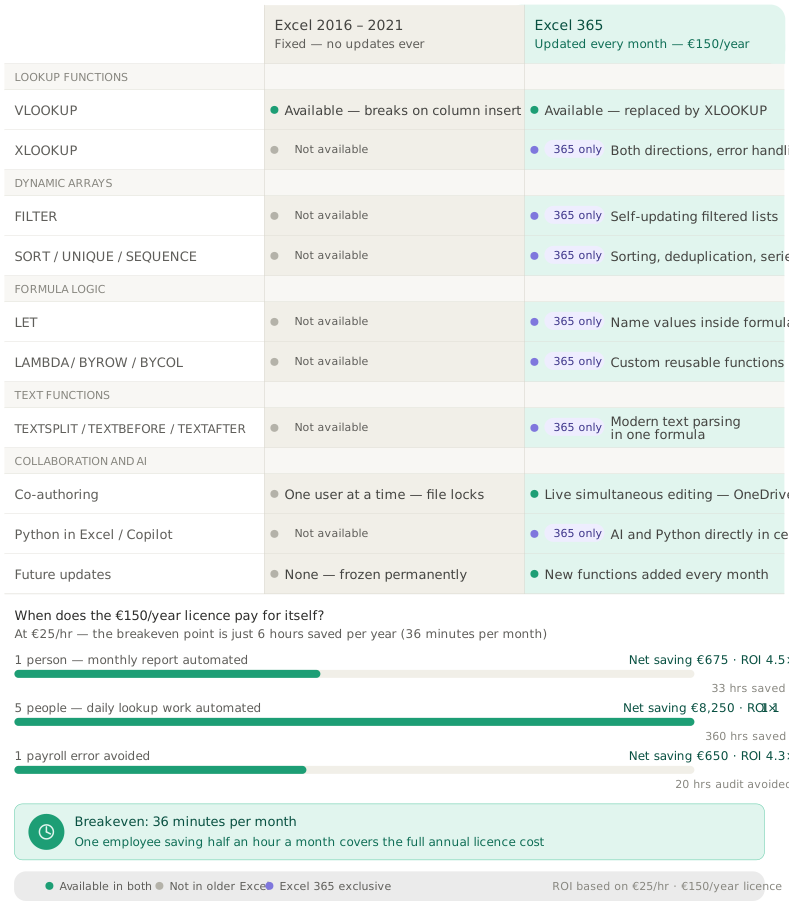
- XLOOKUP — safer replacement for VLOOKUP, works in both directions, handles errors natively
- Dynamic Arrays — one formula spills results automatically across multiple cells
- FILTER, SORT, UNIQUE, SEQUENCE — self-updating reports without pivot tables or VBA
- LET — name intermediate values inside formulas for readability and speed
- LAMBDA — create your own reusable custom functions
- TEXTSPLIT / TEXTBEFORE / TEXTAFTER — modern text parsing in one formula
- Python in Excel — run Python code directly in cells
The absence of these features results in increased manual labour, more workarounds and greater opportunities for errors.
The Real Cost of Staying on an Older Version
Scenario 1 — The Monthly Report That Takes Three Hours
Every month, an administrator has to copy data into a summary report manually. With Excel 365, the FILTER + SORT function builds the report automatically. This reduces the process time from three hours to 15 minutes.
Time saved: ~33 hours/year at €25/hr = €825 saved Licence cost: €150/year → Net saving: €675 per person
Scenario 2 — A Team of Five Doing Manual Lookups Daily
Five employees each spend around two hours per week on lookups, copying and pasting, refreshing pivot tables and fixing broken VLOOKUPs. Excel 365 automates most of these tasks, saving each employee 1.5 hours per week.
Time saved: 1.5 × 5 × 48 weeks = 360 hours/year Value: 360 × €25 = €9,000 · Licences: €750 → Net saving: €8,250 (11× ROI)
Scenario 3 — A Single Calculation Error
A nested IF formula in Excel 2019 has one misplaced bracket. Nobody notices for two months. A senior controller spends 20 hours on the audit.
Cost of the audit: 20 × €40 = €800 in one event
With Excel 365, the same logic written as SWITCH or IFS with LET is readable by any colleague — errors surface immediately.
Fewer Errors are not a Side Effect; they are the Main Benefit.
| Risk | Older Excel | Excel 365 |
|---|---|---|
| Column insertion breaks VLOOKUP | Very common | XLOOKUP is position-independent |
| Nested IFs with 5+ levels | Hard to read, easy to break | SWITCH / IFS — much cleaner |
| Text parsing with helper columns | Clutters the sheet | TEXTSPLIT in one formula |
| Hardcoded ranges that break | Break when rows added | Dynamic arrays adjust automatically |
| One person understands the workbook | Dangerous dependency | LET makes formulas self-documenting |
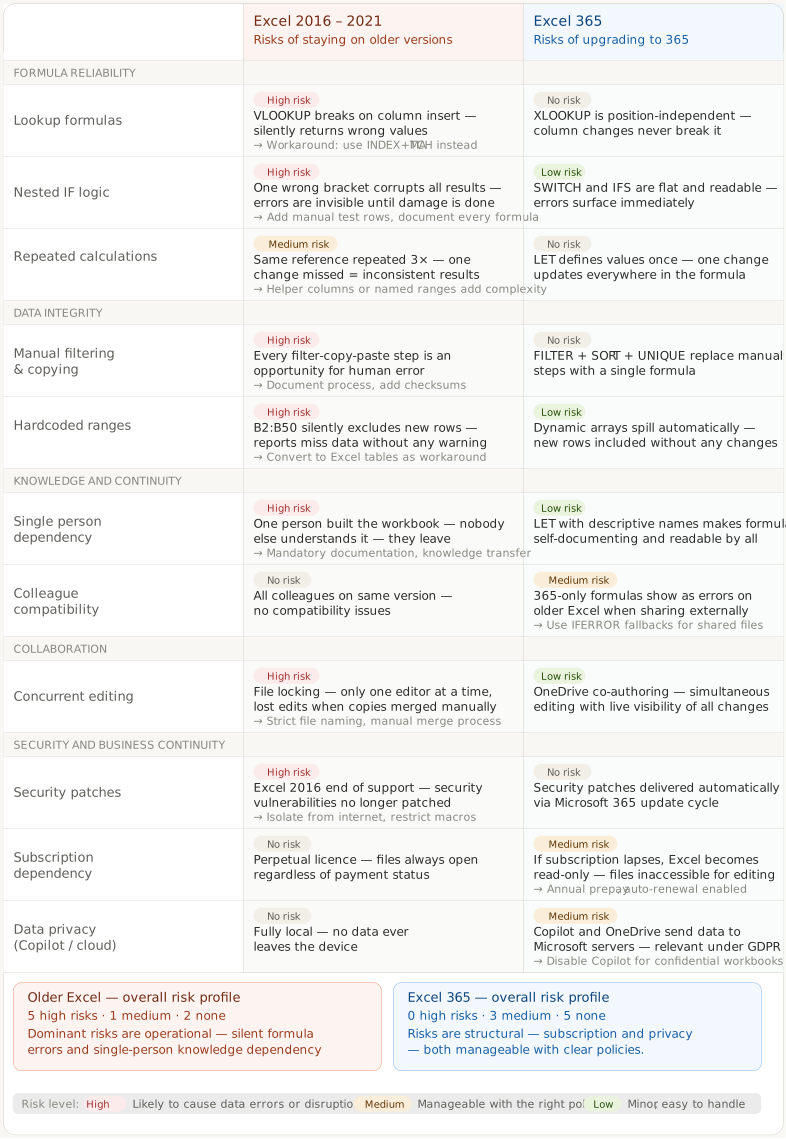
In the following articles, I will demonstrate how to minimise errors and enhance the readability of functions and formulas.
Collaboration: No More "Who has the File Open?"
Excel 365 with OneDrive or SharePoint supports live, simultaneous editing of the same file at the same time, with changes visible in real time. There are no locked files. There is no risk of lost edits. There is no need to merge copies. For teams with shared budgets or project plans, this alone can save hours of coordination time each week.
Please note, however, that not all features are currently available in the online version. My practical experience shows that this is of secondary importance, provided you take this into account from the outset of the programming process.
Is €150 Per Year Per User Worth It?
| Scenario | Hours saved | At €25/hr | Annual Cost | Net gain |
|---|---|---|---|---|
| 1 person, monthly report | 33 hrs | €825 | €150 | €675 |
| 5 people, daily work | 360 hrs | €9,000 | €750 | €8,250 |
| 1 payroll error avoided | 20 hrs audit | €800 | €150 | €650 |
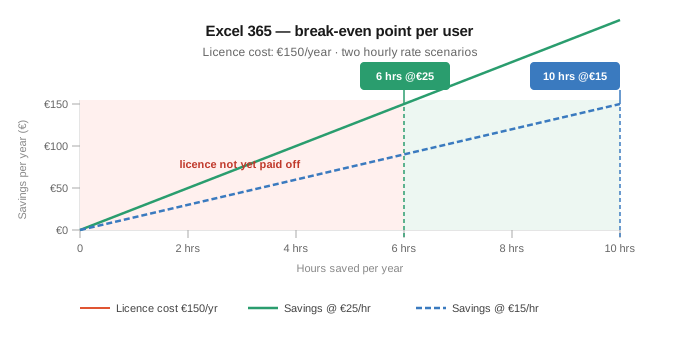
Even if you don’t agree with the figures given above, bear in mind that Excel 365 pays for itself if an employee saves just six hours a year. That's less than 45 minutes per month!
The Bottom Line
Older versions of Excel are static tools, frozen in time. In contrast, Excel 365 is a living platform that becomes more powerful every month. Priced at €150 per user per year, it is one of the most cost-effective productivity investments a small or medium-sized business can make.
It should be noted that converting workbooks and worksheets to use the new formulas and functions incurs costs. However, these costs will pay for themselves in a short amount of time, and the new functions will be more sustainable, easier to read, and more efficient.
If your team is still using Excel 2019, the question is no longer whether to upgrade. The real question is how much it has already cost you to not upgrade.