How to Enter and Edit Data Correctly in Excel
FAQ — What Does This Article Answer?
Q: Why does Excel sometimes treat my numbers as text?
A: Because of how and where you type them — this article explains the three cell types, how Excel decides what something is, and how to fix misclassified data.
Q: What keyboard shortcuts speed up data entry the most?
A: Enter, Tab, Ctrl+Enter, F2, and a handful of fill shortcuts can cut entry time dramatically. They're all covered with a quick-reference table.
Q: How do I make sure everyone enters data the same way?
A: Data Validation locks cells to specific formats, ranges, or lists before bad data even gets in. This article walks through setting it up step by step.
Q: What is the difference between a range and an Excel Table, and does it matter?
A: It matters a lot — Tables auto-expand, use readable formula references, and add instant filtering. This article shows when and why to convert.
Q: What are the most common data entry mistakes and how do I avoid them?
A: Merged cells, blank rows, colour-only indicators, and numbers stored as text are the most damaging. This article explains each and gives the fix.
1. Understanding Cell Types
Excel treats data differently depending on what is typed in. There are three fundamental types:
- Numbers — Stored as values. Used in calculations. Right-aligned by default.
- Text — Stored as strings. Left-aligned by default. Cannot be used in math formulas directly.
- Dates & Times — Stored as serial numbers behind the scenes. Must be formatted correctly to display as expected.
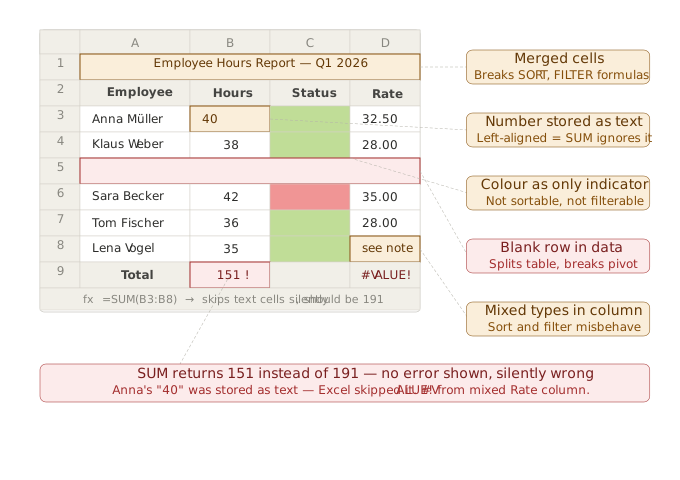
💡Tip: If a number is left-aligned, Excel treats it as text. This will cause your SUM and AVERAGE formulas to fail silently.
2. Entering Data Efficiently
Navigating with the Keyboard
Instead of clicking each cell, use the keyboard to speed up entry:
| Key | Action |
|---|---|
Enter |
Confirm and move down |
Tab |
Confirm and move right |
Shift + Enter |
Confirm and move up |
Ctrl + Enter |
Confirm and stay in cell |
Esc |
Cancel current entry |
Filling a Range Quickly
- AutoFill: Type a value, grab the small green square at the bottom-right corner of the cell, and drag.
- Fill Series: Type
1and2in two cells, select both, then drag — Excel continues the pattern. - Ctrl + D: Copies the cell above into selected cells below.
- Ctrl + R: Copies the cell to the left into selected cells to the right.
3. Consistent Data Formatting
Inconsistency is the number one cause of errors in spreadsheets. Follow these rules:
Dates
Always use a consistent date format. Excel's built-in date formats (e.g. DD/MM/YYYY or MM-DD-YYYY) are the best option. Do not type dates as plain text, such as "5 March", as they will not sort or filter correctly.
Numbers
- Do not mix units in the same column (for example, some rows in dollars and others in thousands).
- Avoid storing numbers with trailing spaces or currency symbols in the cell; apply number formatting via Ctrl+1 instead.
Text
- Be consistent with capitalisation: use the same case convention throughout a column.
- Use Excel's TRIM() function to remove accidental leading or trailing spaces that cause lookup failures.
4. Editing Data Correctly
Entering Edit Mode
- Double-click a cell to edit its contents directly.
- Press F2 to enter edit mode using the keyboard.
- Edit longer content in the Formula Bar at the top.
Find & Replace
Use Ctrl+H to find and replace data across the spreadsheet. This is invaluable for making bulk corrections, such as replacing all instances of 'N/A' with a blank.
Undo & Redo
Ctrl + Z— UndoCtrl + Y— Redo
Excel stores a history of up to 100 actions. Feel free to use it, but remember to save often (Ctrl+S).
5. Data Validation — Your Safety Net
Data validation prevents incorrect entries from being made. Follow these steps to set it up::
- Select the cells that you want to protect.
- Go to Data > Data Validation.
- Choose a rule, such as whole number, decimal, list, date or text length.
- Add an input message to guide users and an error alert to block incorrect entries.
Example use cases:
- Restrict the 'Status' column to a dropdown menu with the following options: 'Open', 'In Progress', 'Closed'.
- Limit a 'Score' column to numbers between 0 and 100.
- Prevent dates outside the current year.
6. Working with Tables (Not Just Ranges)
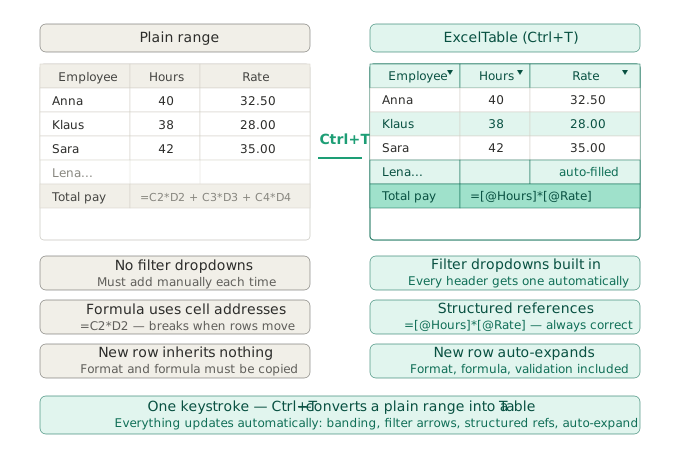
To get the most out of your data, make sure you convert it to an official Excel table (press Ctrl + T).:
- Auto-expand: New rows automatically inherit formulas and formatting.
- Structured references: Formulas reference column names (e.g.,
=[@Sales]*0.1) instead of cell addresses, making them easier to read. - Built-in filtering: Every column header gets a filter dropdown instantly.
- Named ranges: Tables are named automatically (e.g.,
Table1), making them easier to reference across sheets. - Rename table: Give the table you have created a meaningful name straight away, rather than using names such as Table1, Table2, etc.
7. Common Mistakes to Avoid
| Mistake | Why It's a Problem | Fix |
|---|---|---|
| Merged cells | Breaks sorting, filtering, and formulas | Use Centre Across Selection instead |
| Blank rows/columns in data | Interrupts table detection and pivot tables | Keep data contiguous |
| Storing calculations as values | Loses auditability | Keep formulas live; paste as values only when archiving |
| Multiple data types in one column | Sorting and filtering behave unexpectedly | Standardise column content |
| Using colour as the only indicator | Inaccessible and non-sortable | Add a text column for the same info |
8. Protecting Your Work
Once data is entered correctly, protect it from accidental edits:
- Lock cells: Select cells to protect →
Ctrl + 1→ Protection → check "Locked". - Protect the sheet: Review → Protect Sheet → set a password.
- Allow specific ranges: You can unlock certain cells (like input fields) while locking formula cells.
Summary
Good data entry in Excel is about more than just typing in the right values — it's also about creating a reliable and consistent structure that can be scaled up. This involves mastering keyboard shortcuts, using data validation, converting ranges to tables and locking down formulas. These habits transform a functional spreadsheet into a professional one.